> ## Documentation Index
> Fetch the complete documentation index at: https://fillout.com/help/llms.txt
> Use this file to discover all available pages before exploring further.
# Let respondents add new options (Other choice)
> Use the Other option to enable respondents to create new options in your connected database.
export const SupportBanner = () => {
const titleId = React.useId();
return ;
};
## How it works
Choice fields let form editors include an option called "Other", which respondents select when their answer or preference isn't listed in the available options. When selected, respondents can manually type a value.
If you’re using a choice field connected to an external database, you may notice that values entered through the "Other" option start appearing as options in your database field. For example, the form asks about a respondent’s preferred contact method, and while most users select from predefined options like email or phone, someone enters "WhatsApp" via the Other option, which may then be added to the list of available choices in your form depending on the behavior of the database connected.
## How to enable Other option
After [mapping](https://www.fillout.com/help/additional-integration-mappings), click a **form field** followed by its `settings icon` . On the right-hand panel, toggle `Other`.
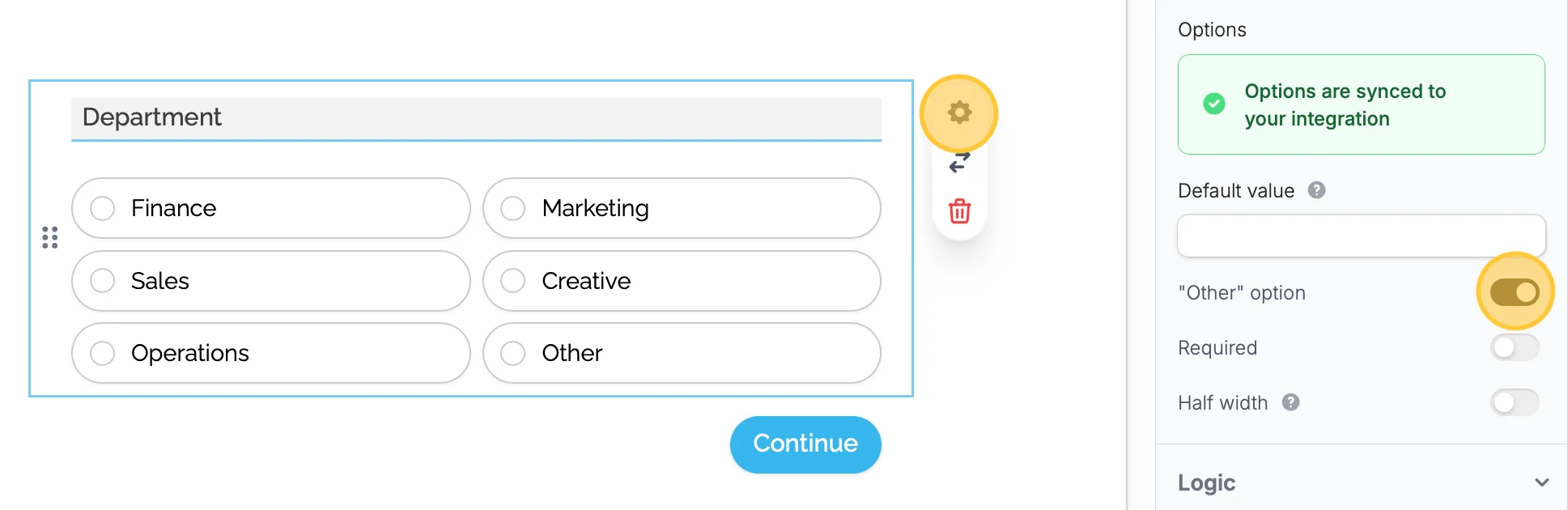 Be sure to `Publish` your form to reflect the changes.
#### Other responses in Airtable
In Airtable integrations, values entered via "Other" are **saved as database options and also used as form options**. When the form syncs, these values may appear as selectable options for future respondents.
#### Other responses in Zite Database
In Zite database integrations, the behavior is different. When a respondent enters a custom value via "Other", it is **saved to the database field options, but not added as a form option**. As a result, the form options remain unchanged for respondents.
## Managing Other responses
In some cases, you want to ensure respondents can only see predefined choices (across all integrations). This is especially useful when you want to:
* Avoid user-generated values influencing your form options
* Ensure consistency across reporting and analytics
* Prevent unexpected option growth (especially with Airtable)
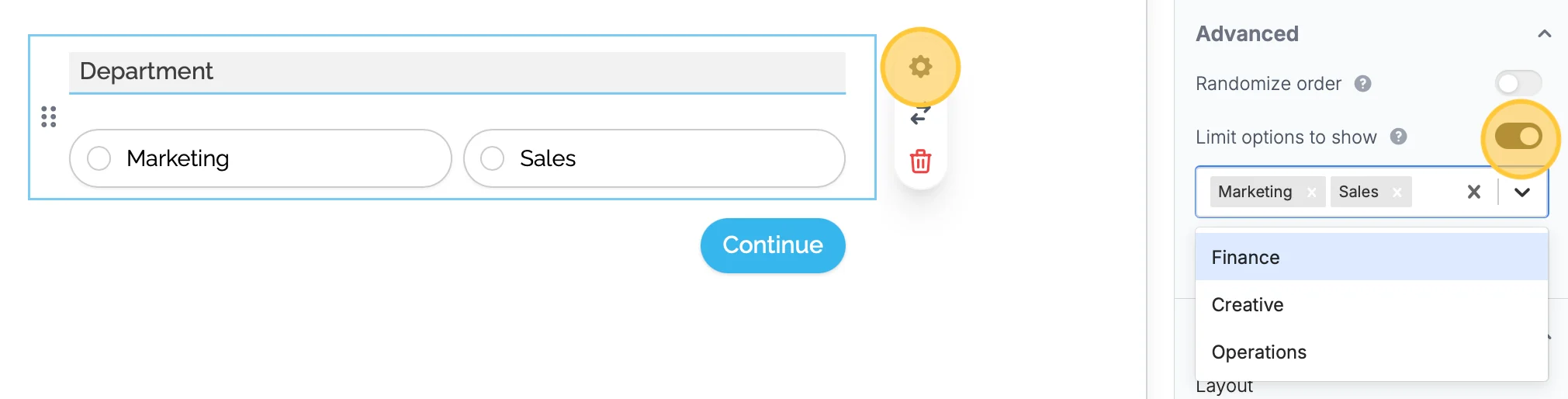
Click a form field followed by its `settings icon` and navigate to **Advanced** in the right side and toggle `Limit options to show`, then select only the predefined options you want visible.
Be sure to `Publish` your form to reflect the changes.
#### Other responses in Airtable
In Airtable integrations, values entered via "Other" are **saved as database options and also used as form options**. When the form syncs, these values may appear as selectable options for future respondents.
#### Other responses in Zite Database
In Zite database integrations, the behavior is different. When a respondent enters a custom value via "Other", it is **saved to the database field options, but not added as a form option**. As a result, the form options remain unchanged for respondents.
## Managing Other responses
In some cases, you want to ensure respondents can only see predefined choices (across all integrations). This is especially useful when you want to:
* Avoid user-generated values influencing your form options
* Ensure consistency across reporting and analytics
* Prevent unexpected option growth (especially with Airtable)
Click a form field followed by its `settings icon` and navigate to **Advanced** in the right side and toggle `Limit options to show`, then select only the predefined options you want visible.