> ## Documentation Index
> Fetch the complete documentation index at: https://fillout.com/help/llms.txt
> Use this file to discover all available pages before exploring further.
# Make an outcome quiz with Fillout
> Create personality quizzes, type quizzes, and other outcome-based quizzes with different endings depending on the answers chosen.
## How it works
Typically, quizzes have one or more correct answers per question. Choosing the correct answer gives the participant 1 point, and the ending page shows their total score.
But what if you'd like to create a quiz where the ending isn't based on how many correct answers they got, but instead on what type of person, category, or result they fall under?
This is done by assigning different weights or point values to answers. Each answer contributes to a score, category, or outcome, and the final result depends on the participant's overall answers.
There are two quiz result types:
1. **Answer-Based Mapping:** If answers are mostly A, go to Result A. If answers are mostly B, go to Result B, and so on.
2. **Score Range Results:** If their total score falls within a certain range, they get a matching result type. Example: scores from 1–10 = Type A, 11–20 = Type B.
### Common use cases
* **Personality Quizzes:** Reveal a personality type based on patterns in answers, score ranges, or dominant choices.
* **Preference Matching:** Recommend categories, styles, or experiences based on answer combinations.
* **Weighted Trivia Quizzes:** Different answers contribute different point values instead of simply being correct or incorrect.
## How to create a which type are you quiz
There are two ways to do this. You can either show results based on whether their answers are mostly A, B, or C OR display different results depending on their total score.
### Display results based on most frequent answer
By default, you'll have one ending page after [creating your quiz](https://www.fillout.com/help/make-a-free-quiz#how-to-create-a-quiz-in-fillout). Edit the elements here to show the result ending for mostly As, for example. [Add different ending pages](https://www.fillout.com/help/ending-page) for mostly Bs, Cs, and so on.
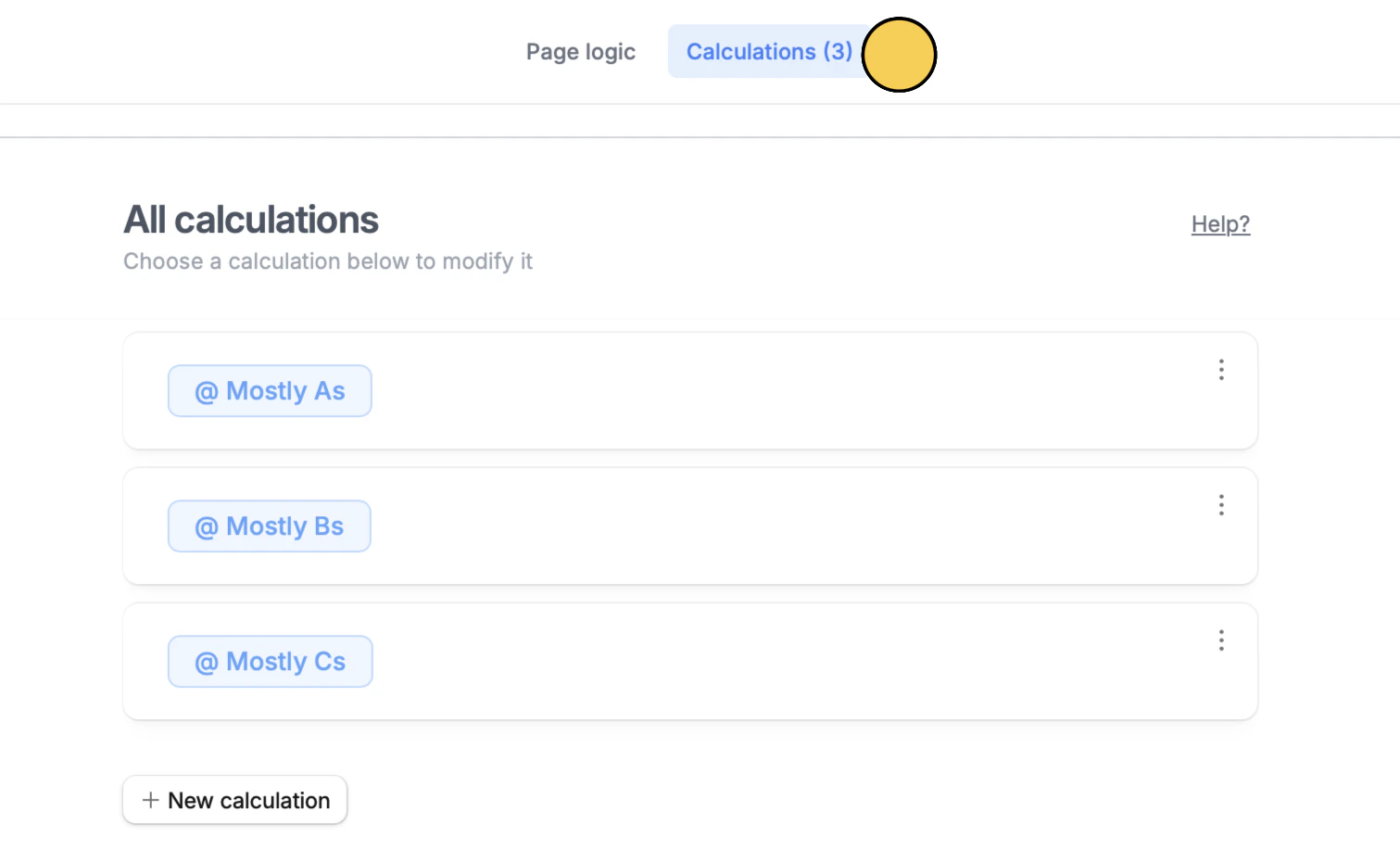
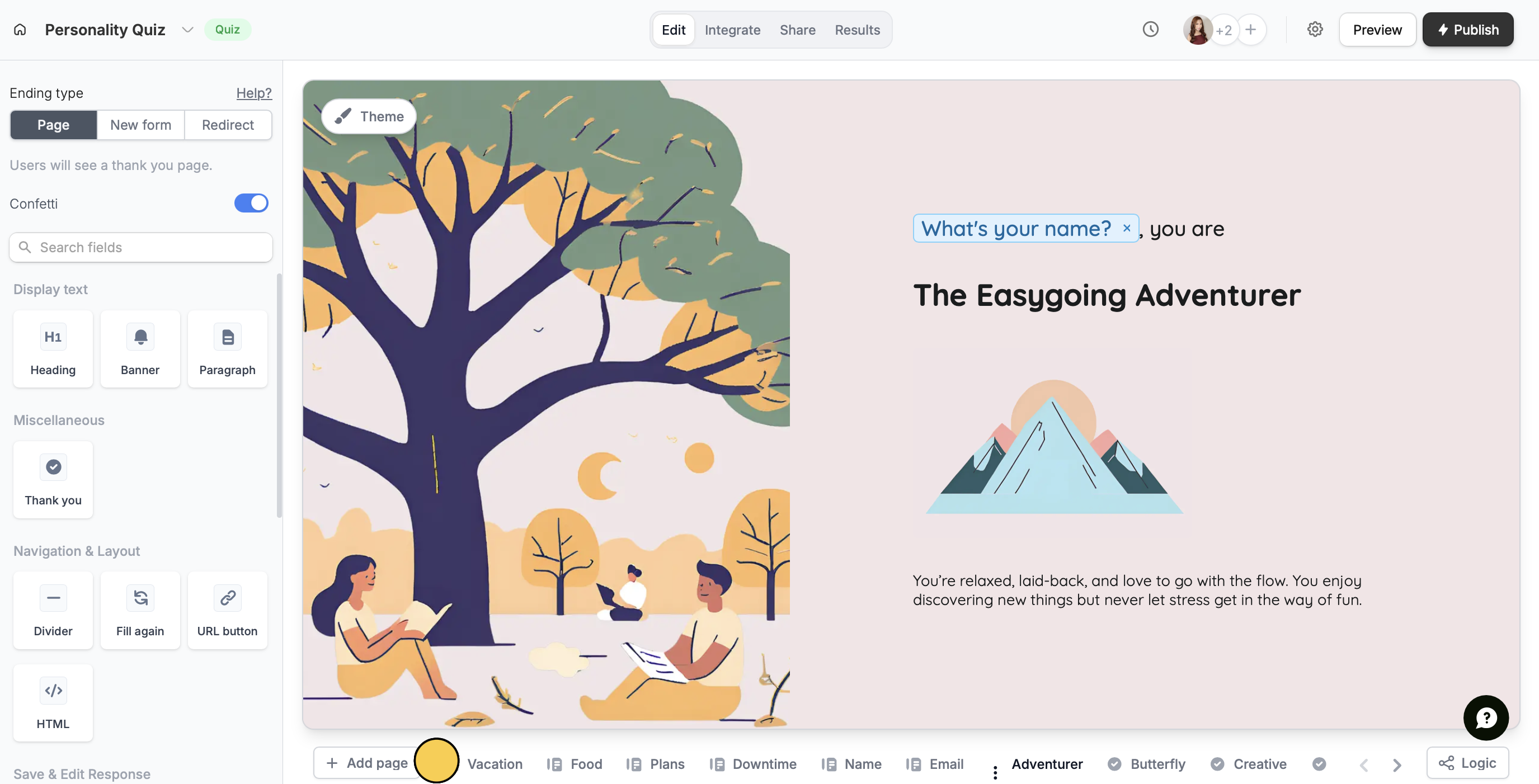 Click `Logic` at the bottom right, then click `Calculations` on top. We'll make one calculation per result. Let's start with "Mostly As".
 In the **Initial value**, put **0**. First, we’ll treat all answers as neutral and assign 1 point to each selected option. Click `+ New rule` to `Set conditional logic`.
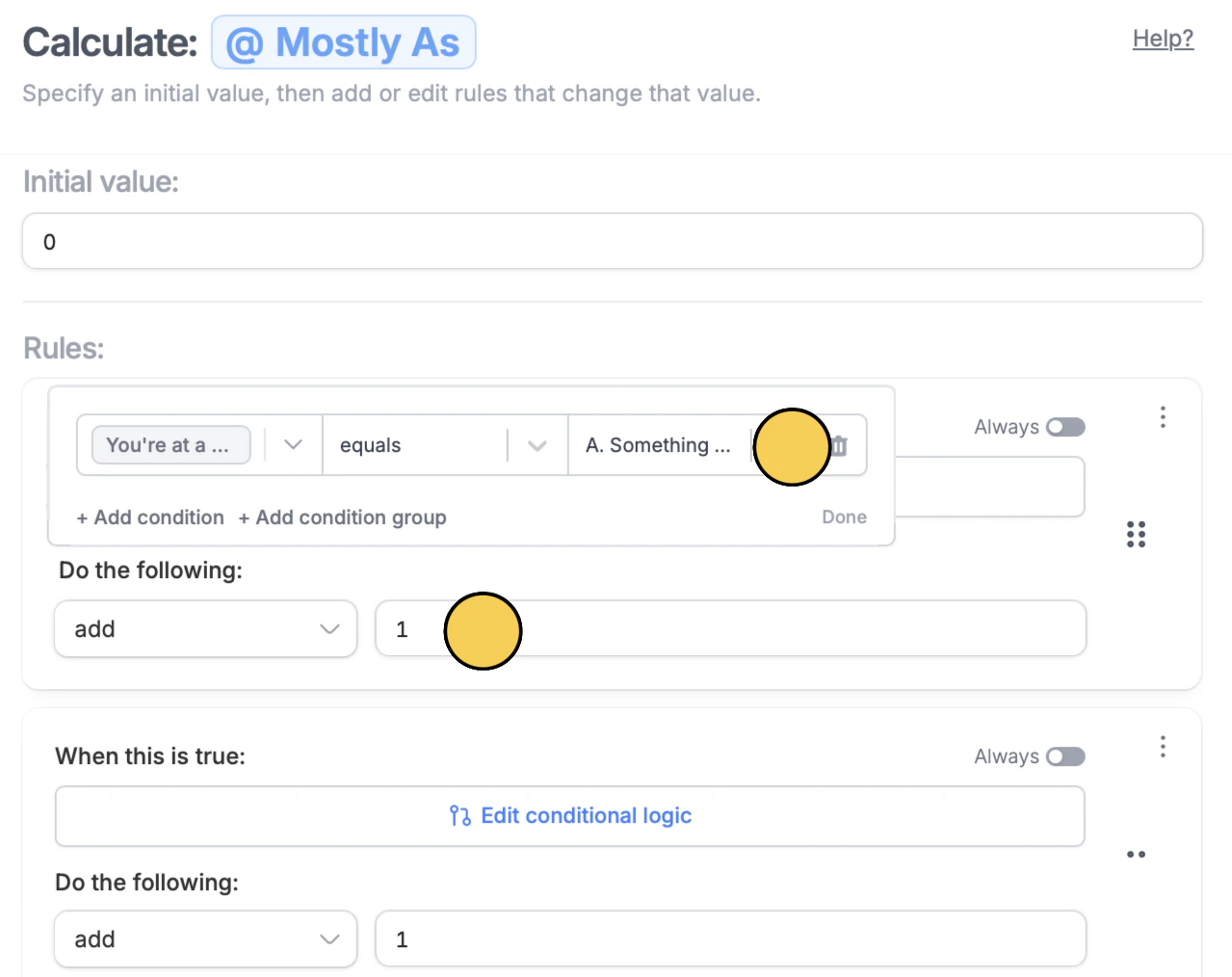 In the left dropdown, select a question. Then, choose option A, then enter **1** next to `add`. Repeat this by adding a new rule for each question.
Next, create a separate calculation for "Mostly Bs". Follow the same steps as above, but this time select option B in the right dropdown instead.
Click `Page logic` on top. `+ Add branch` to `Set condition`. For the Mostly As result page, drag the `connector` to its page.
In the left dropdown, select a question. Then, choose option A, then enter **1** next to `add`. Repeat this by adding a new rule for each question.
Next, create a separate calculation for "Mostly Bs". Follow the same steps as above, but this time select option B in the right dropdown instead.
Click `Page logic` on top. `+ Add branch` to `Set condition`. For the Mostly As result page, drag the `connector` to its page.
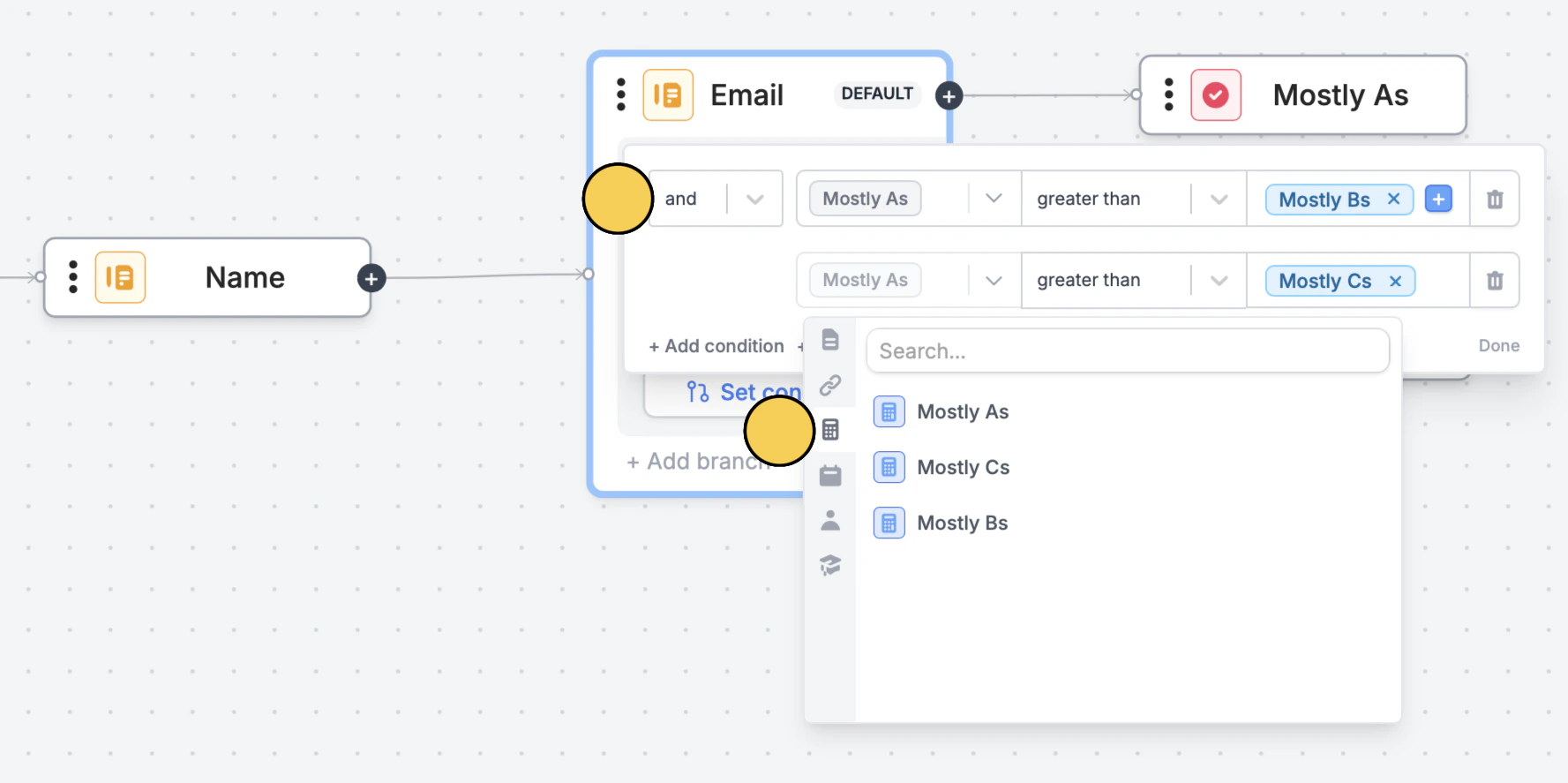 For the Mostly As result page, drag the connector to its page. In the left dropdown, choose the "Mostly As" calculation we made recently, and set it to be greater than "Mostly Bs" and "Mostly Cs".
Do the same for the Mostly Bs result page, except set the "Mostly B’s" calculation in the left dropdown and compare it against the other two calculations.
### Assign results based on total score
Click a question followed by the `graduation cap icon` . In the popup, **tick** **✓** **all the answers** and assign points for each.
For the Mostly As result page, drag the connector to its page. In the left dropdown, choose the "Mostly As" calculation we made recently, and set it to be greater than "Mostly Bs" and "Mostly Cs".
Do the same for the Mostly Bs result page, except set the "Mostly B’s" calculation in the left dropdown and compare it against the other two calculations.
### Assign results based on total score
Click a question followed by the `graduation cap icon` . In the popup, **tick** **✓** **all the answers** and assign points for each.
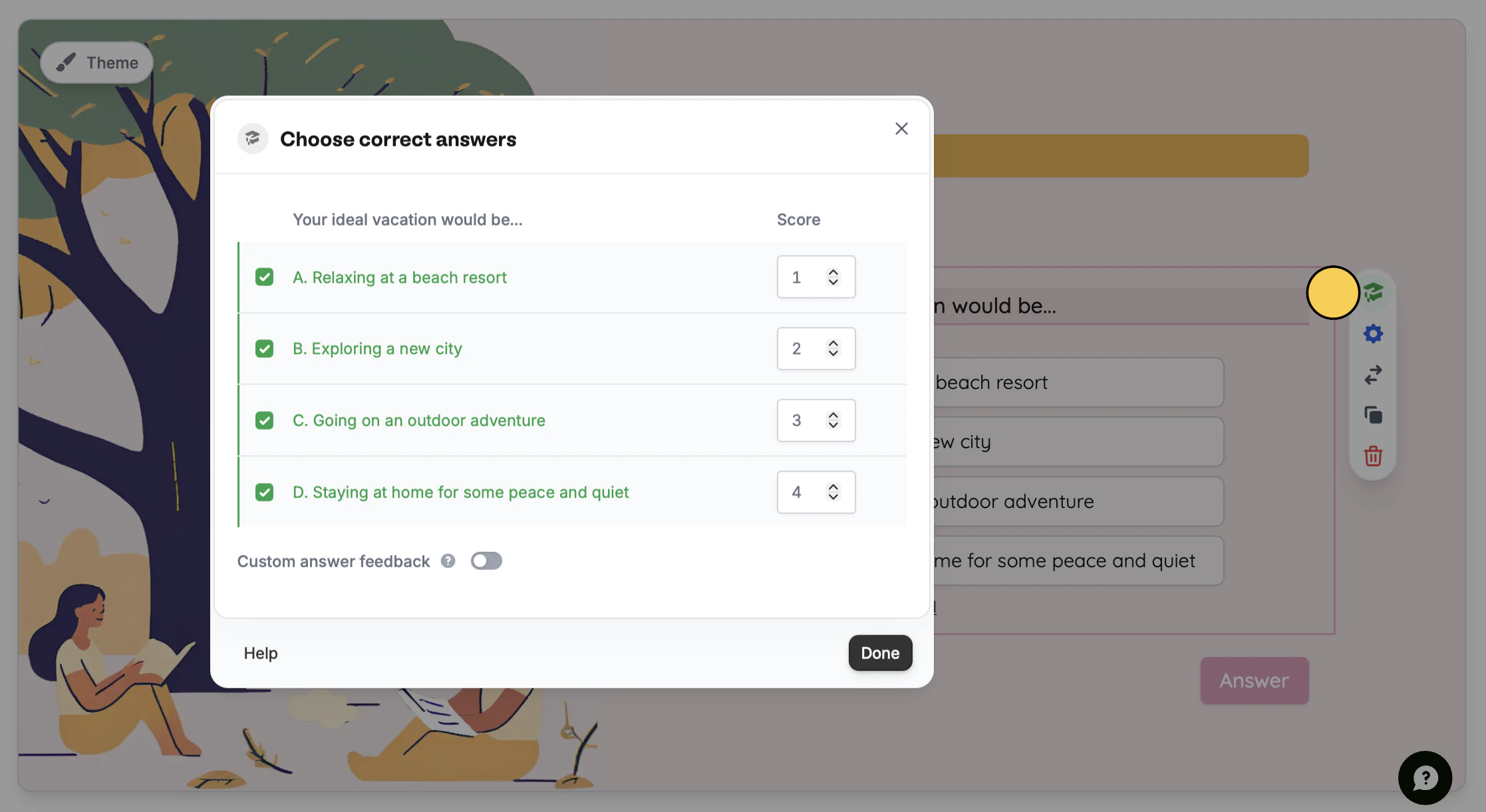 Do the same for the other questions.
Edit the elements on your ending page to display one result type. [Add more ending pages](https://www.fillout.com/help/ending-page) as needed to show the other types. In our example, we have "Adventurer", "Social Butterfly", and "Creative".
Open `Logic` from the bottom right. `+ Add branch` to `+ Set condition`.
Do the same for the other questions.
Edit the elements on your ending page to display one result type. [Add more ending pages](https://www.fillout.com/help/ending-page) as needed to show the other types. In our example, we have "Adventurer", "Social Butterfly", and "Creative".
Open `Logic` from the bottom right. `+ Add branch` to `+ Set condition`.
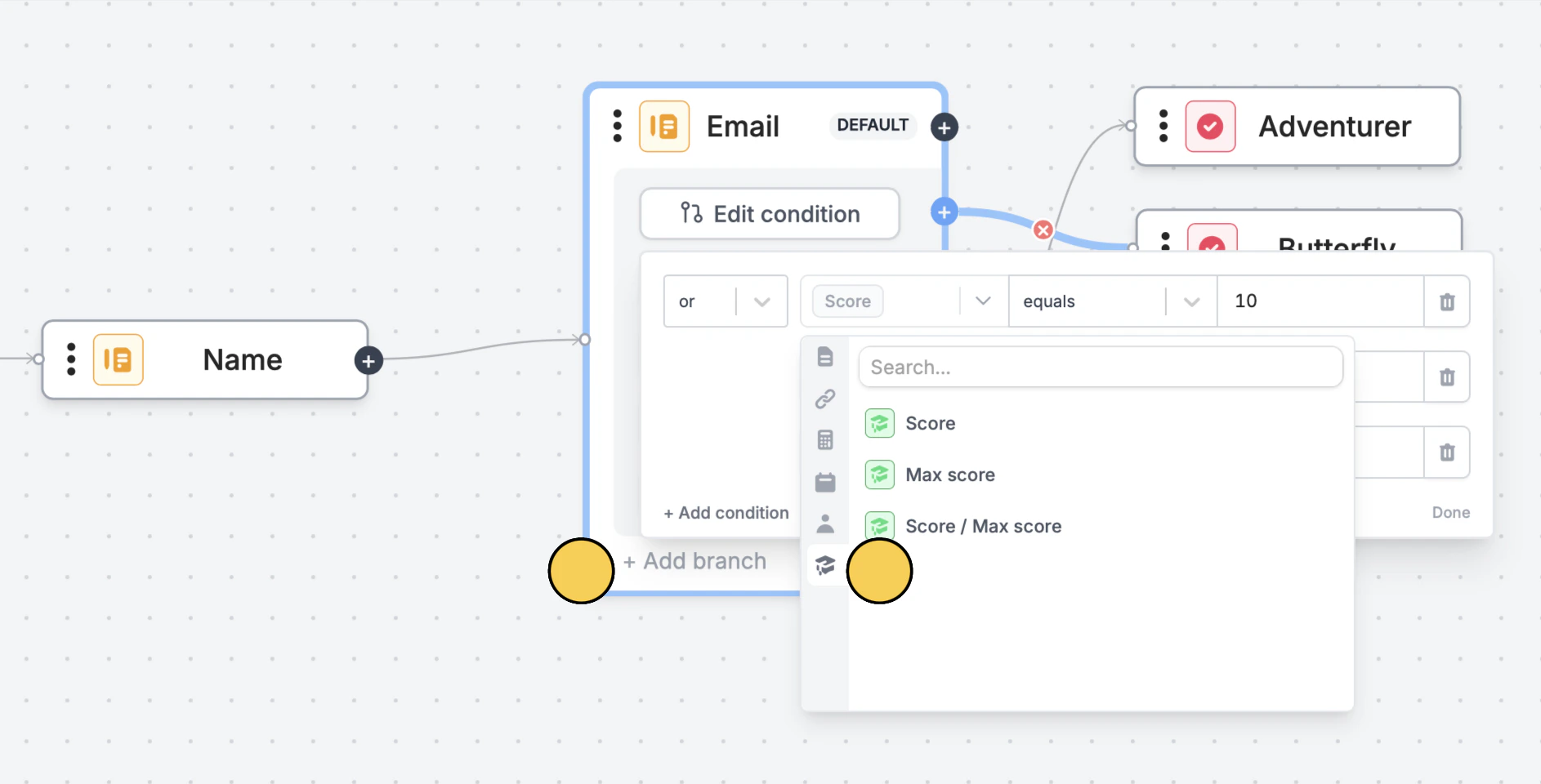 On the left dropdown, click the `graduation cap icon` followed by `Score` and add a value in the right dropdown. Then drag its `connector` to the relevant ending page.
Follow the same steps for the other ending pages. Check [this guide](https://www.fillout.com/help/page-logic#edit-page-branching) for more info on how page logic works.
## Relevant articles
Use different question types, calculate scores, and more.
Calculate prices for order forms, compute quiz scores, and more.
Hide or show pages or custom endings based on respondent input.
On the left dropdown, click the `graduation cap icon` followed by `Score` and add a value in the right dropdown. Then drag its `connector` to the relevant ending page.
Follow the same steps for the other ending pages. Check [this guide](https://www.fillout.com/help/page-logic#edit-page-branching) for more info on how page logic works.
## Relevant articles
Use different question types, calculate scores, and more.
Calculate prices for order forms, compute quiz scores, and more.
Hide or show pages or custom endings based on respondent input.