> ## Documentation Index
> Fetch the complete documentation index at: https://fillout.com/help/llms.txt
> Use this file to discover all available pages before exploring further.
# Share your form with a QR code
> Use a QR code to make it easier for respondents to access and answer your survey or form via mobile quickly. Place your QR code online or offline.
## How it works
Generating **QR codes** for forms enables quick and easy mobile access to forms, surveys, or other response materials. This feature enhances user engagement and promotes efficient data collection.
## How to share a form QR
After publishing your form, click . Alternatively, you can click `Share` in the top center or right.
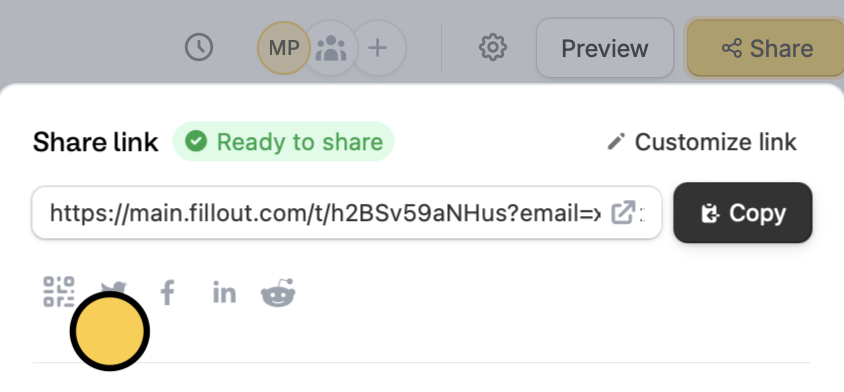 `Copy` or `Download` this to your device.
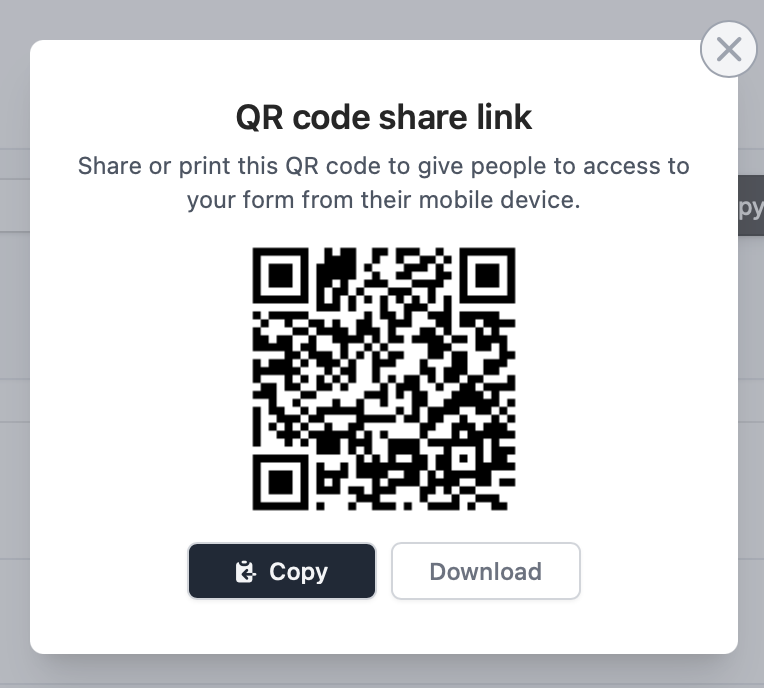 The generated QR code is tied to your form’s current custom link or subdomain (not the default Fillout form link). If you change the custom link or subdomain later, any previously generated QR code will no longer redirect to the updated URL.
## Related articles
Customize your form's share link, subdomain and URL ending.
Add your logo or icon to a browser tab and in link previews.
The generated QR code is tied to your form’s current custom link or subdomain (not the default Fillout form link). If you change the custom link or subdomain later, any previously generated QR code will no longer redirect to the updated URL.
## Related articles
Customize your form's share link, subdomain and URL ending.
Add your logo or icon to a browser tab and in link previews.