> ## Documentation Index
> Fetch the complete documentation index at: https://fillout.com/help/llms.txt
> Use this file to discover all available pages before exploring further.
# Randomize order of answer options
> Shuffle the order in which answers or choices are displayed so each respondent sees them in a different order.
## Overview
Respondents are sometimes more likely to choose the first or last option especially in long surveys or ones that aren’t anonymous as they feel they might be judged for their answers. This bias can be avoided by randomizing the order in which options are shown. This helps you collect more accurate and fair results from your survey or form.
## How to randomize options
First, click the question where you’d like the answers to be randomized followed by its to open the right-hand panel.
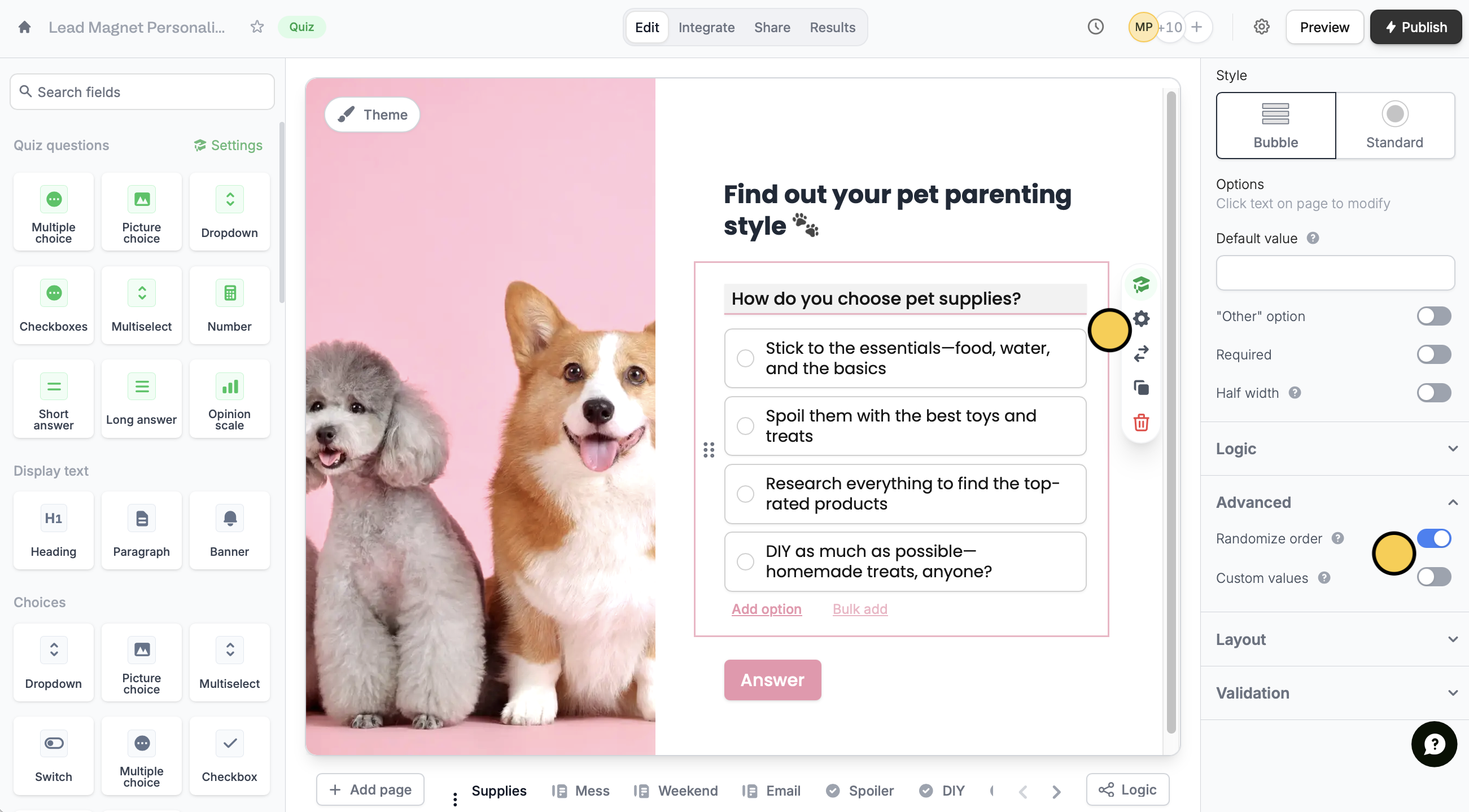 Under **Advanced**, toggle the `Randomize order` switch. That’s it! `Publish` and share your form.
This works for the following fields: Dropdown, Multiple choice, Multiselect, Picture choice, and Checkboxes.
## Related articles
Assign different values to the choices shown to respondents.
Branch to different sections depending on previous answers.
Easily arrange pages and field options.
Under **Advanced**, toggle the `Randomize order` switch. That’s it! `Publish` and share your form.
This works for the following fields: Dropdown, Multiple choice, Multiselect, Picture choice, and Checkboxes.
## Related articles
Assign different values to the choices shown to respondents.
Branch to different sections depending on previous answers.
Easily arrange pages and field options.