> ## Documentation Index
> Fetch the complete documentation index at: https://fillout.com/help/llms.txt
> Use this file to discover all available pages before exploring further.
# Create records on multiple Salesforce objects
> Let respondents create new Salesforce records from your main form and subform at the same time.
## Overview
Connecting a Fillout form to Salesforce enables users to automatically sync form responses into a Salesforce object. Existing fields are [mapped automatically](https://www.fillout.com/help/salesforce#how-it-works), however you can still make edits and updates with [manual mapping](https://www.fillout.com/help/additional-integration-mappings#how-to-map-fields-manually).
Fillout also lets you **create records on multiple objects with a single form** using master-detail relationships. A **master-detail relationship** creates a parent–child connection between two Salesforce records. Add this to your form to let respondents fill out a parent form and a subform to create related records, adding as many as needed.
## How to set up
On your [Salesforce-connected form](https://www.fillout.com/help/salesforce#how-it-works), add a `Relationship field` from the left-hand panel. These are marked by .
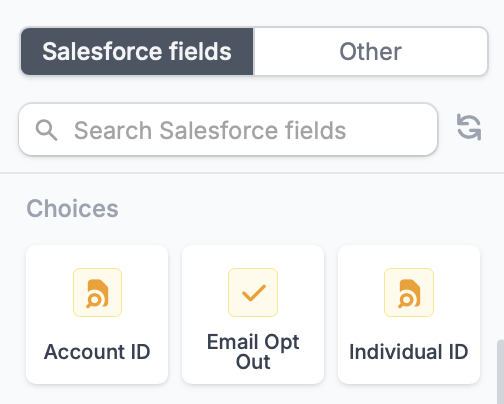 Objects must be linked via a master-detail relationship, not a lookup relationship. Additionally, required Salesforce fields must be filled out by respondents in order for the results to sync.
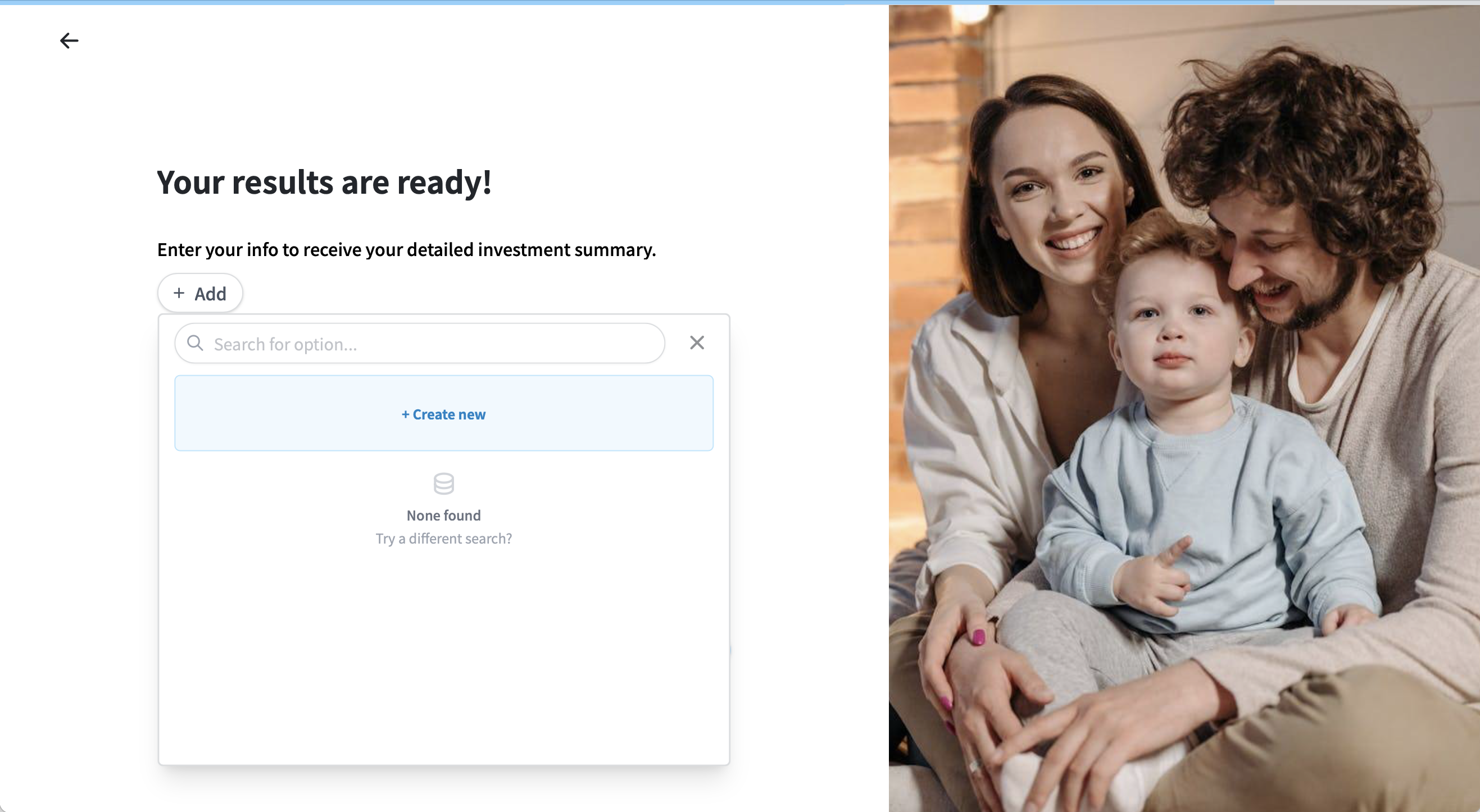
For example, let's link our Fillout form to the Contact object. For the relationship field, we'll pick Individual ID. When a respondent adds a new record, a small popup form (subform) will open for entering the related information.
Click the field's to enable `Can create new records?`.
Objects must be linked via a master-detail relationship, not a lookup relationship. Additionally, required Salesforce fields must be filled out by respondents in order for the results to sync.
For example, let's link our Fillout form to the Contact object. For the relationship field, we'll pick Individual ID. When a respondent adds a new record, a small popup form (subform) will open for entering the related information.
Click the field's to enable `Can create new records?`.
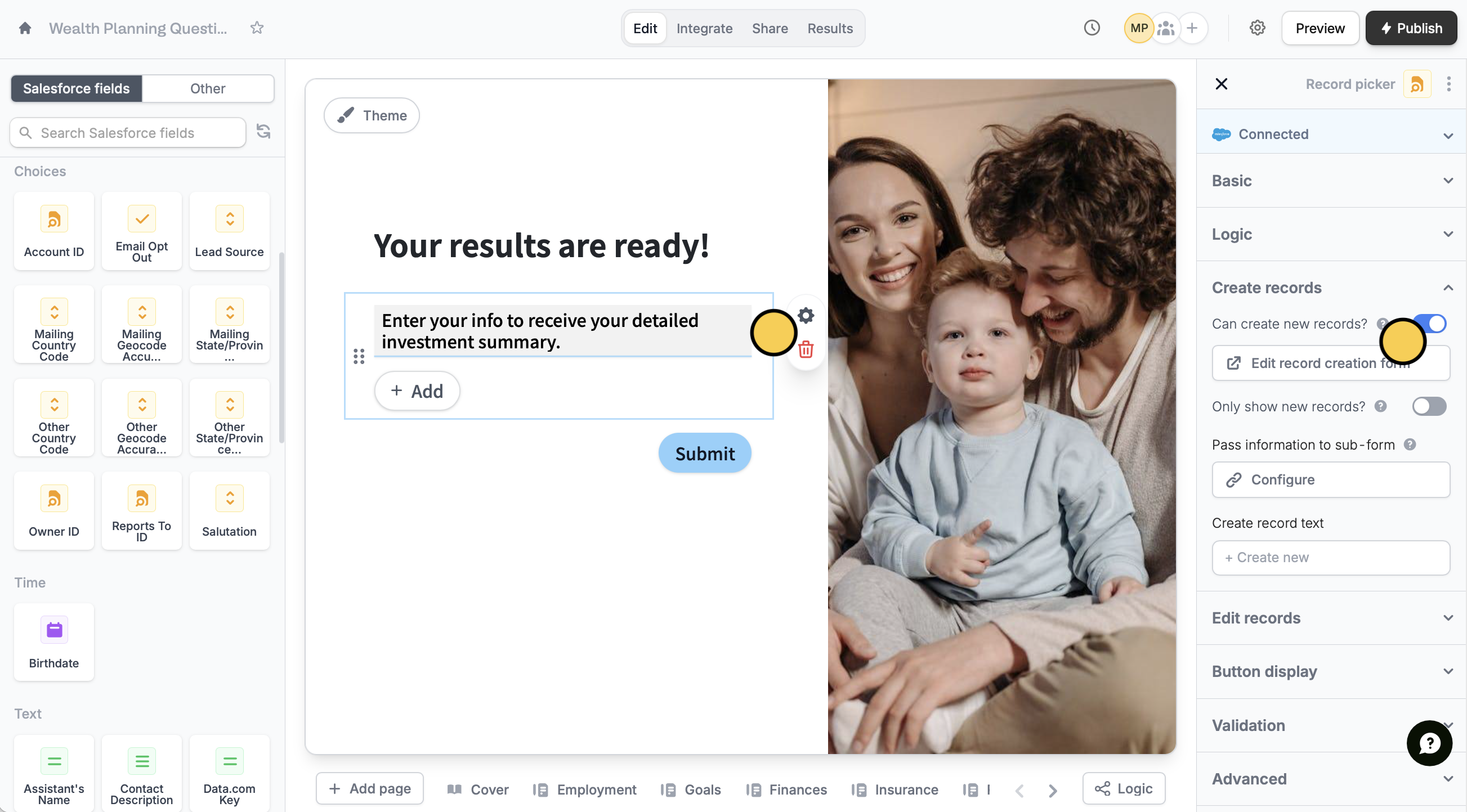 In the right-hand panel, you can also:
* **Edit record creation form** - modify the subform used for creating new records
* **Only show new records** - let respondents create new records, but not select existing records
* **Pass information to subform** - specify fields or info from your main form to the subform
You have to register URL parameters in your subform first. Check out [this short guide](https://www.fillout.com/help/url-parameters#how-to-add-a-url-parameter-or-hidden-field).
When everything's set, click `Publish` to make the changes reflect. That's it! Every form submission will now be created as records on both Salesforce objects.
In the right-hand panel, you can also:
* **Edit record creation form** - modify the subform used for creating new records
* **Only show new records** - let respondents create new records, but not select existing records
* **Pass information to subform** - specify fields or info from your main form to the subform
You have to register URL parameters in your subform first. Check out [this short guide](https://www.fillout.com/help/url-parameters#how-to-add-a-url-parameter-or-hidden-field).
When everything's set, click `Publish` to make the changes reflect. That's it! Every form submission will now be created as records on both Salesforce objects.
 ## Salesforce guides
Add or update records with a form.
Edit existing records and pre-fill fields.
## Salesforce guides
Add or update records with a form.
Edit existing records and pre-fill fields.