> ## Documentation Index
> Fetch the complete documentation index at: https://fillout.com/help/llms.txt
> Use this file to discover all available pages before exploring further.
# Fillout Scheduling actions
> Send reminders to yourself and other meeting hosts via email or Slack. Reduce no-shows by reminding invitees before a call occurs.
export const SupportBanner = () => {
const titleId = React.useId();
return ;
};
## How to send event reminders
In the [Workflows page](https://www.fillout.com/help/workflows#how-to-create-a-workflow), select your preferred template.
 [Event reminders](/help/scheduling-workflows#event-email-reminder-to-invitees) count as workflows, but they won’t appear on this page because they weren’t created as workflows initially. To make changes, use the left-hand panel of your form.
## Types of scheduling actions
### **Event email reminder to host**
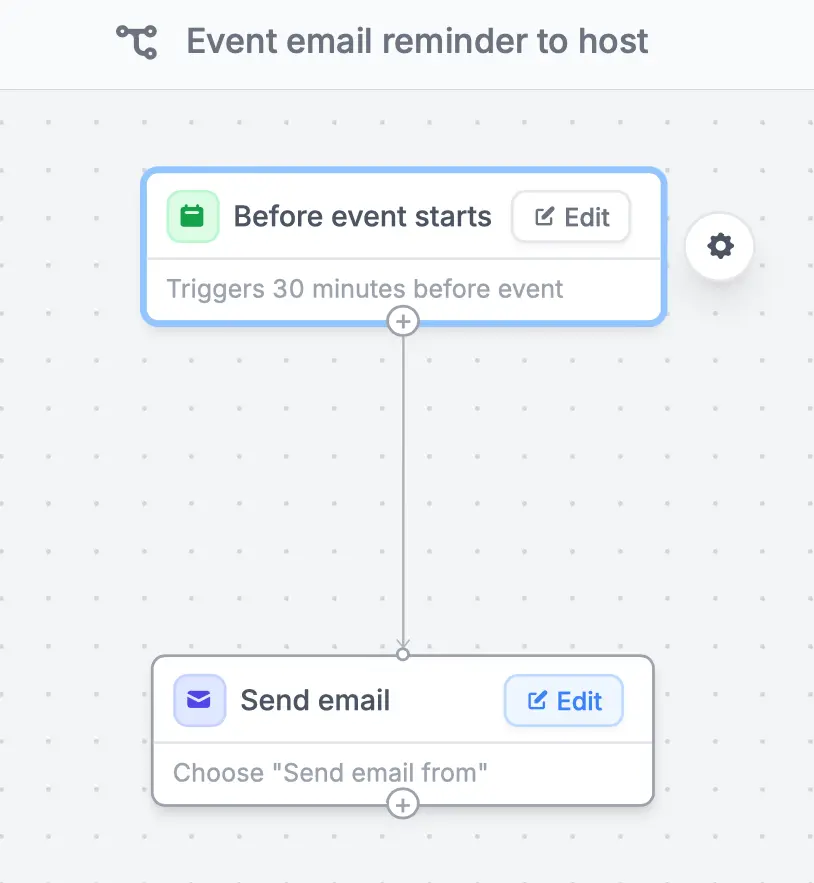
Send reminders to yourself before a meeting takes place. By default, reminders are sent 30 minutes before a calendar event. To change this, `Edit` how soon you prefer to send it **Before event starts**.
[Event reminders](/help/scheduling-workflows#event-email-reminder-to-invitees) count as workflows, but they won’t appear on this page because they weren’t created as workflows initially. To make changes, use the left-hand panel of your form.
## Types of scheduling actions
### **Event email reminder to host**
Send reminders to yourself before a meeting takes place. By default, reminders are sent 30 minutes before a calendar event. To change this, `Edit` how soon you prefer to send it **Before event starts**.
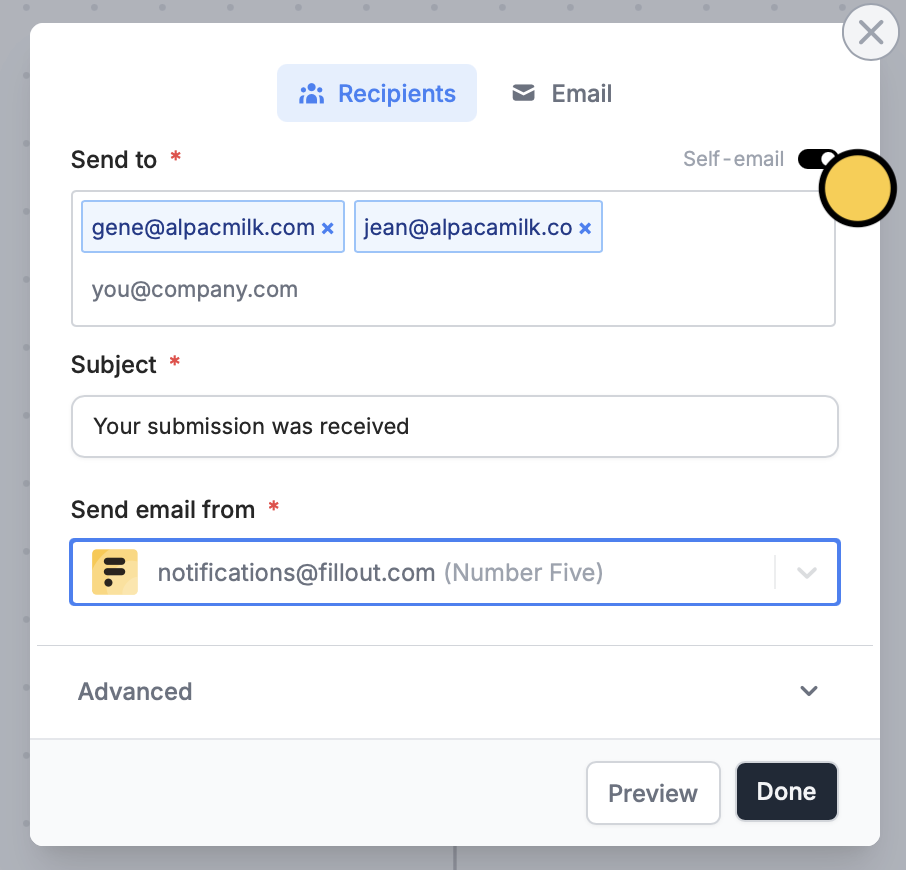
 By default, reminders are sent to the email linked to your Fillout account. To send them to another or additional email (e.g. for multiple hosts), `Edit` your email and toggle `Self-email`.
 ### **Slack reminder before calls**
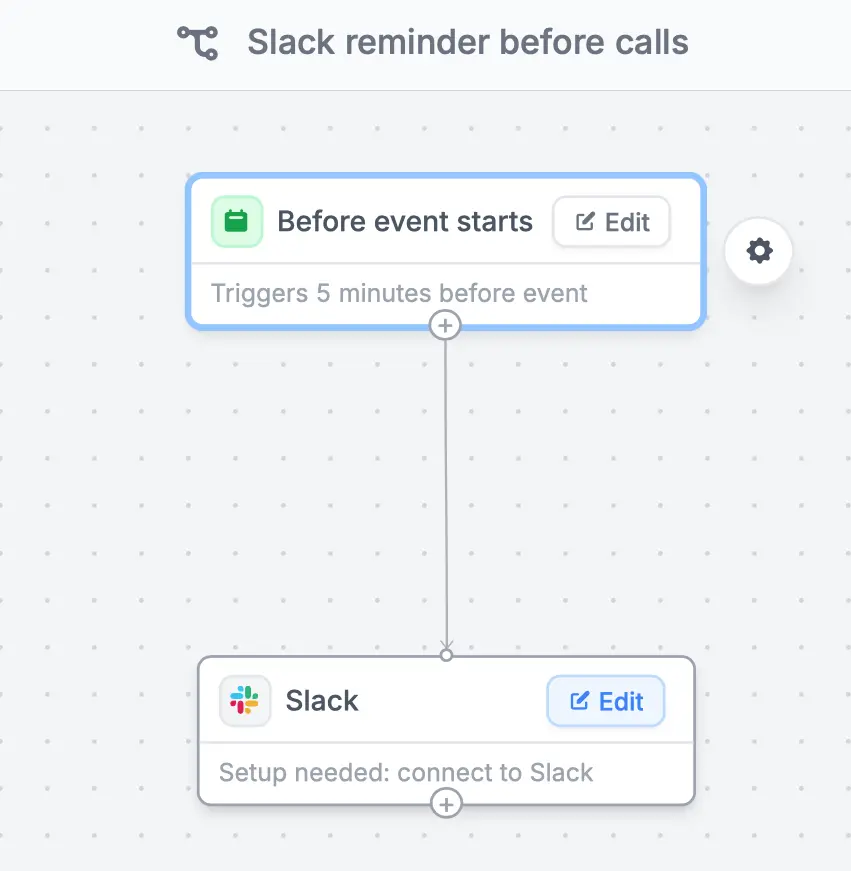
Send a Slack reminder 5 minutes before an event occurs. `Edit` this default time to how soon you would like to send it **Before event starts**.
### **Slack reminder before calls**
Send a Slack reminder 5 minutes before an event occurs. `Edit` this default time to how soon you would like to send it **Before event starts**.
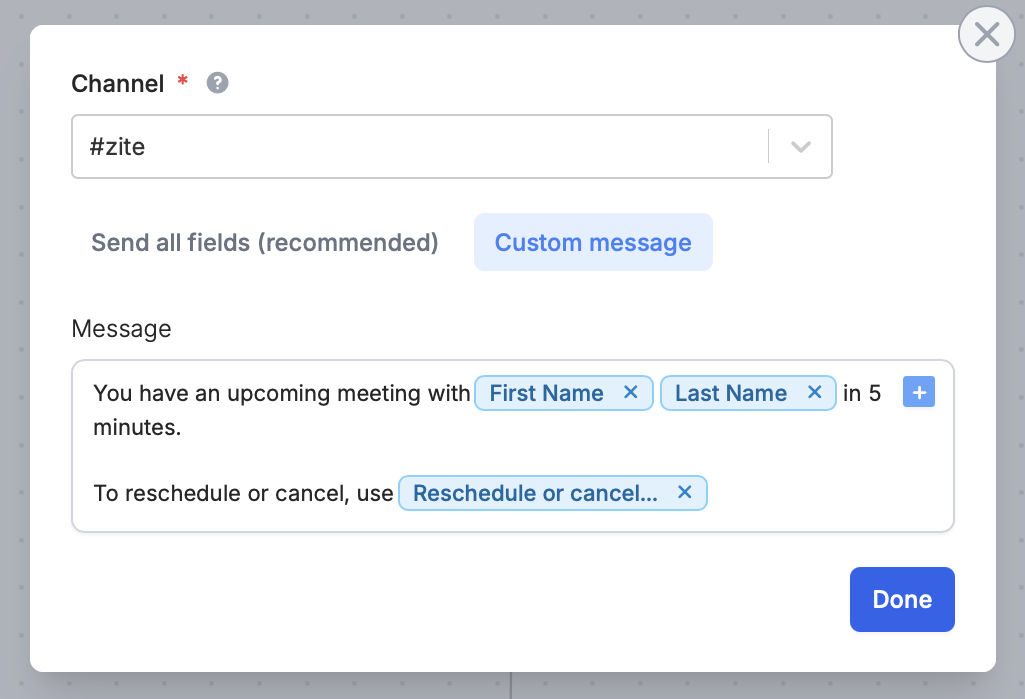
 Connect to **Slack** by clicking `Edit` and selecting the **Channel** you would like to send it to. Edit the message and reference answers by simply hovering and clicking or typing **@** and selecting the corresponding fields or questions.
 ### **Event email reminder to invitees**
Remind invitees to attend calls before they occur via email. By default, this is sent 30 minutes before a call. Click `Edit` to change this to how soon you would like to send it **Before event starts**.
### **Event email reminder to invitees**
Remind invitees to attend calls before they occur via email. By default, this is sent 30 minutes before a call. Click `Edit` to change this to how soon you would like to send it **Before event starts**.
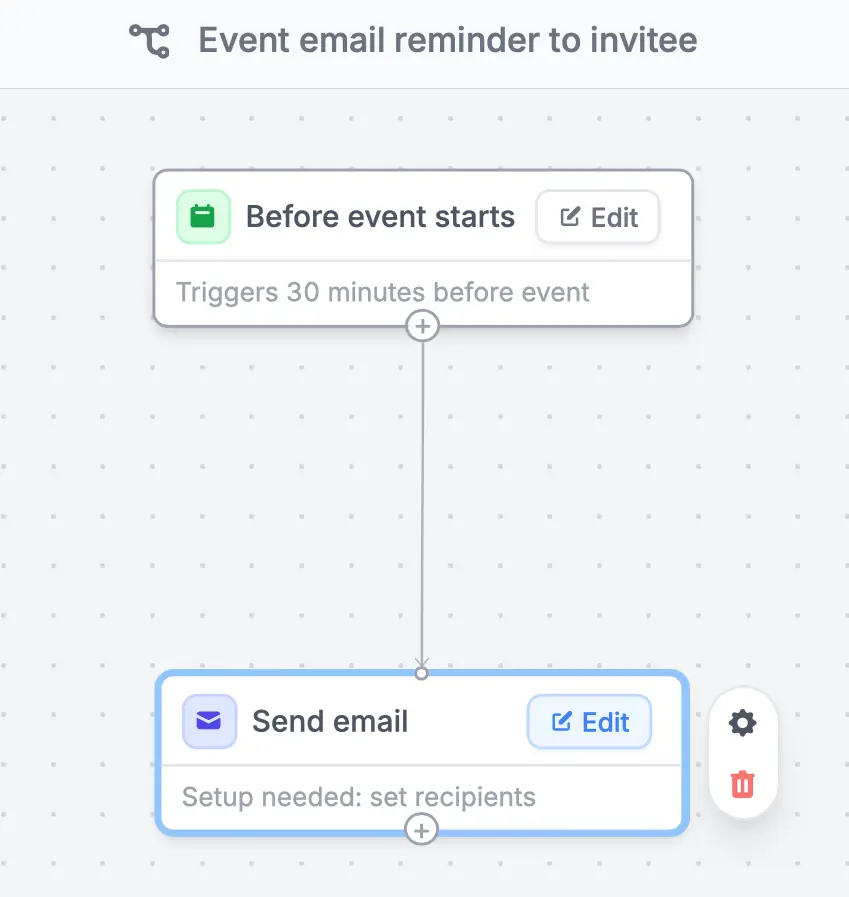 Setup invitees emails by clicking `Edit` in **Send email**.
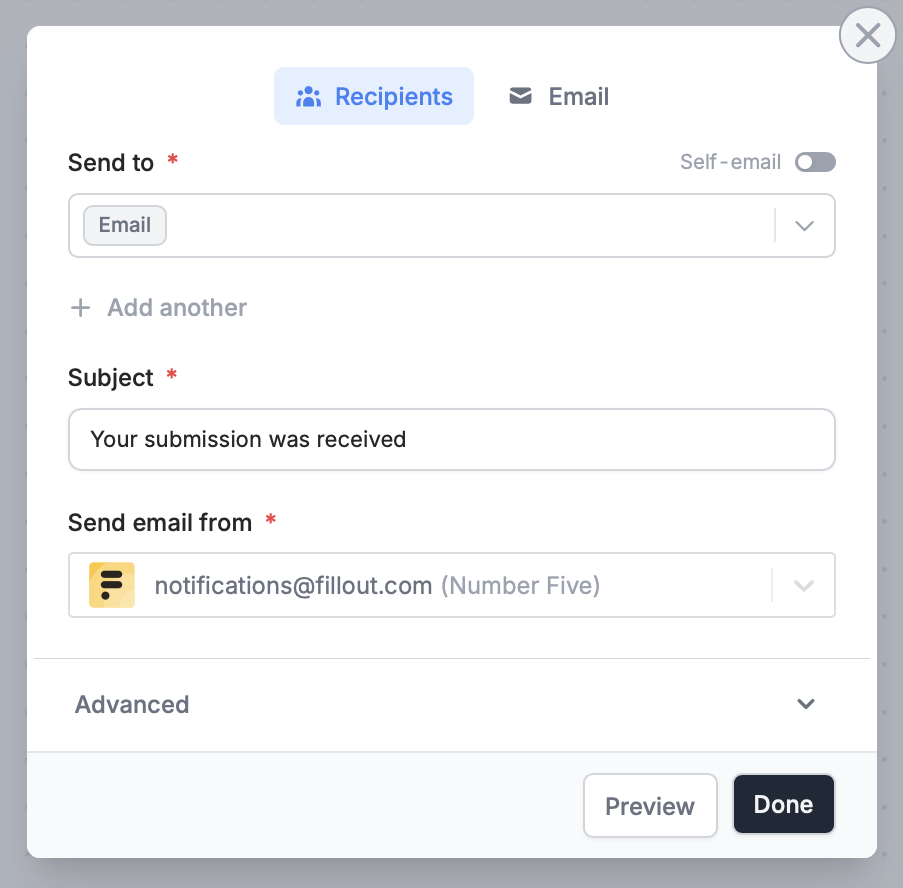 You can edit the contents of your email and more under **Advanced.** To change the look of your email, check out this [quick guide](/help/custom-emails).
Remember to `Test` your workflow first through the upper right corner, and `Publish` it to enable the changes.
## Related articles
Simplify tasks with native multi-step automations.
Automate sending, pipe previous answers, and style your email.
Trigger different actions based on specific conditions.
You can edit the contents of your email and more under **Advanced.** To change the look of your email, check out this [quick guide](/help/custom-emails).
Remember to `Test` your workflow first through the upper right corner, and `Publish` it to enable the changes.
## Related articles
Simplify tasks with native multi-step automations.
Automate sending, pipe previous answers, and style your email.
Trigger different actions based on specific conditions.