> ## Documentation Index
> Fetch the complete documentation index at: https://fillout.com/help/llms.txt
> Use this file to discover all available pages before exploring further.
# Embed Fillout forms on Shopify
> Insert a form directly on your Shopify store. Choose between a standard, popup, full screen, and slider embed styles.
## What is Shopify?
[Shopify](https://www.shopify.com/) is a leading e-commerce platform that allows businesses to easily create and manage their own online stores. With customizable templates, integrated payment options, and powerful tools for marketing and inventory management, Shopify helps entrepreneurs grow and scale their businesses globally.
## How to embed your form
Click `Publish` in the upper right corner of the Fillout form editor. A popup will show up where you can pick an **embed style**.
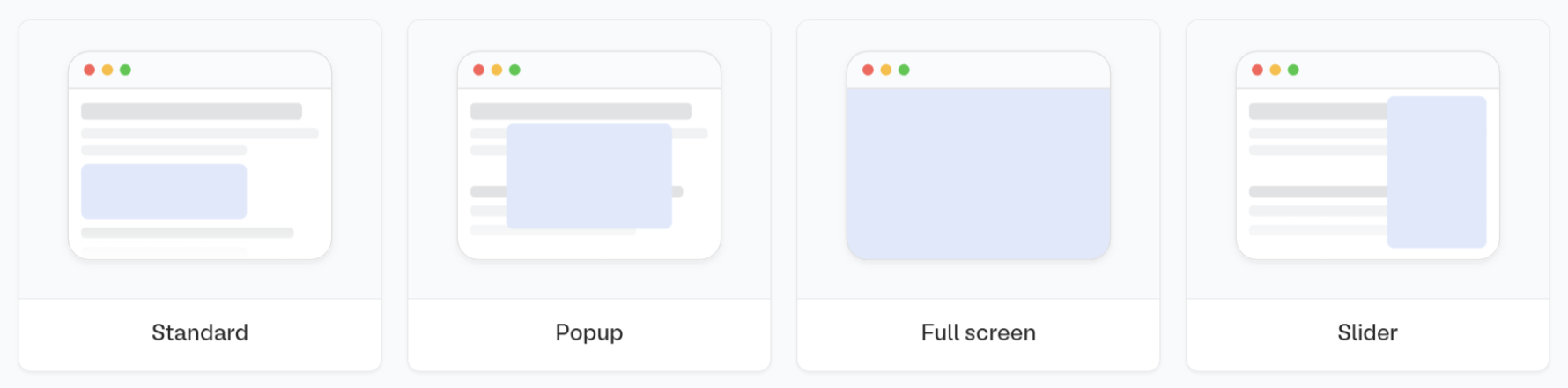 If you've already published your form, click `Share` in the top middle or top right. Adjust your embed style settings to fit your use case. Then, `Get the code`
Log in to your Shopify store and click `Online Store` followed by `Pages`. Then, choose the page where you would like to insert the form into.
If you've already published your form, click `Share` in the top middle or top right. Adjust your embed style settings to fit your use case. Then, `Get the code`
Log in to your Shopify store and click `Online Store` followed by `Pages`. Then, choose the page where you would like to insert the form into.
 Click `` and paste the code in the **Content** field.
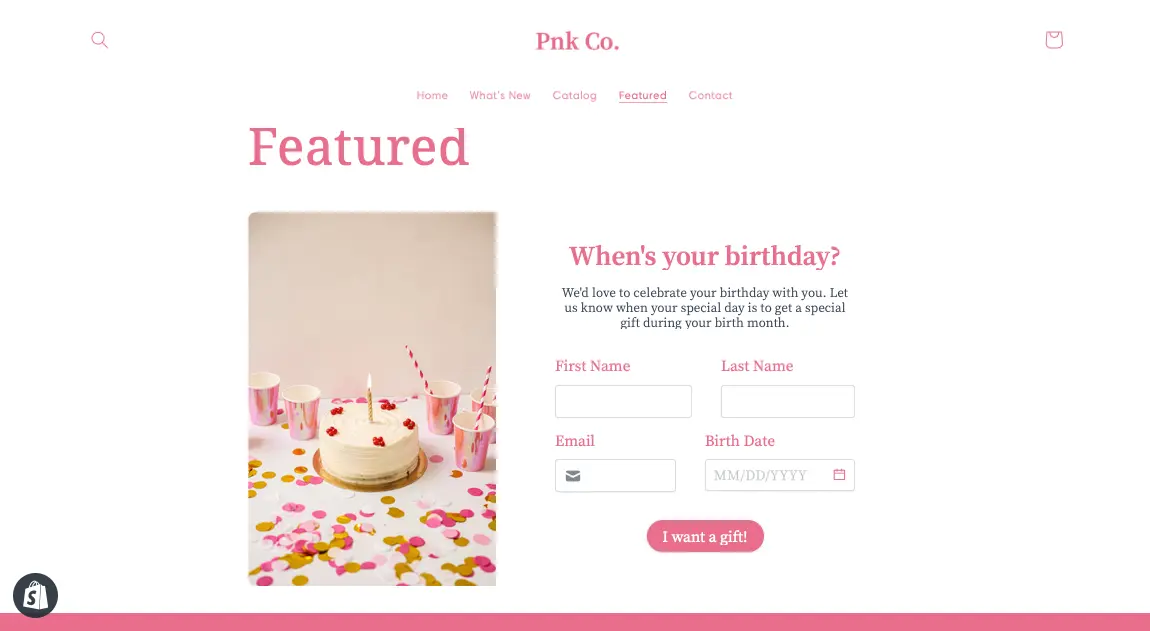
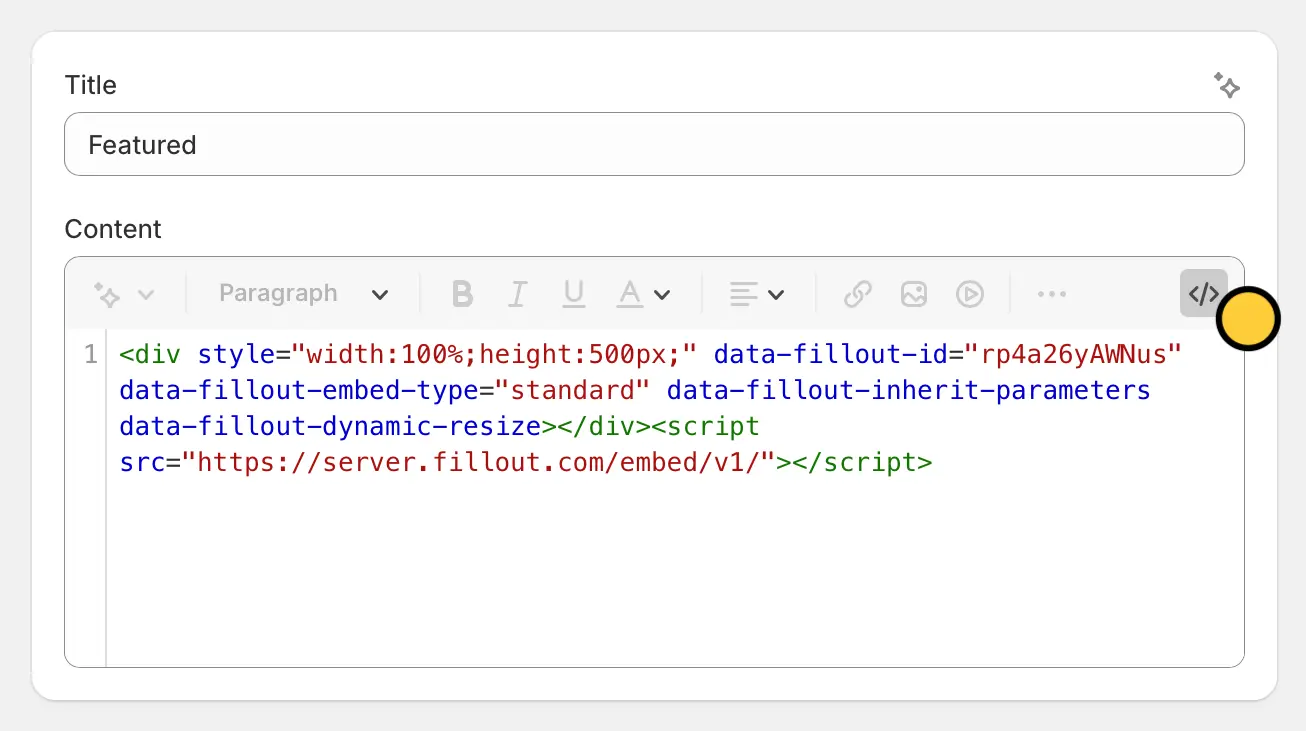 Click `Save` in the lower right corner to preview the page. That's it! Now, you'll be able to see responses under the [**Results**]() tab of your Fillout form.
 ## Add a form to all pages
Select `Themes` in the left menu under `Online Store`. Then, click `...` and select `Edit code`.
## Add a form to all pages
Select `Themes` in the left menu under `Online Store`. Then, click `...` and select `Edit code`.
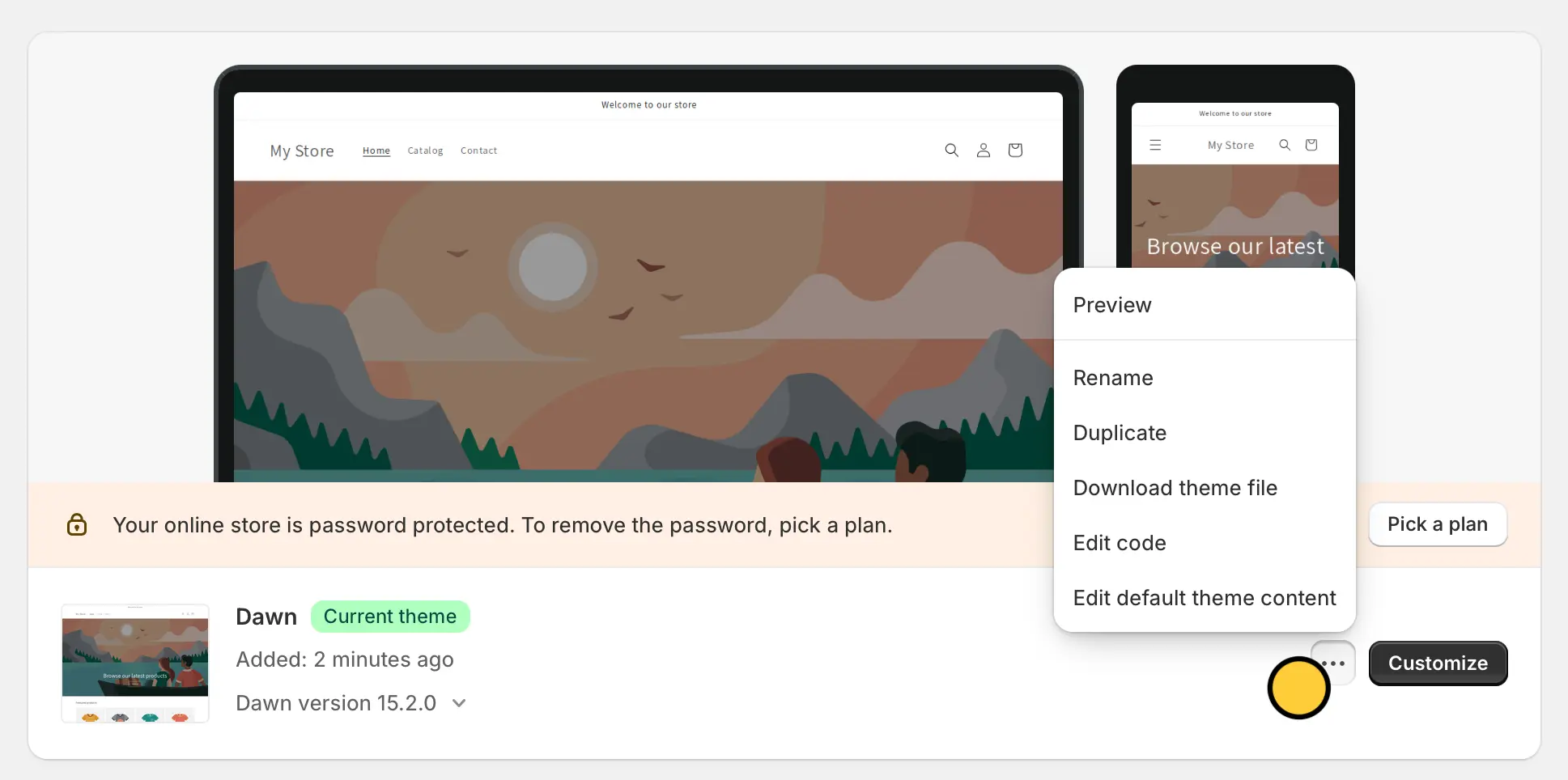 Go to ` theme.liquid` from the left-hand panel and paste the [**embed code**](/shopify) of your Fillout form at the top of \ and \