> ## Documentation Index
> Fetch the complete documentation index at: https://fillout.com/help/llms.txt
> Use this file to discover all available pages before exploring further.
# Update existing SmartSuite records with a form
> Create a Fillout form that automatically updates records in SmartSuite whenever a respondent completes your form.
## How it works
**Only share each update link with people who should see all of that record's fields.** An update link acts as a key to the entire record: anyone who opens it can view every field on the record, even fields that don't appear as questions on the form. This is what lets update forms use any record field for pre-filling, [answer piping](/answer-piping), show/hide [logic](/conditional-hiding), and [calculations](/calculations).
To keep certain fields private, store them in a separate table so they aren't part of the record being updated, or [restrict prefilled data](/update-forms#restrict-prefilled-data) so the form only loads fields mapped to questions.
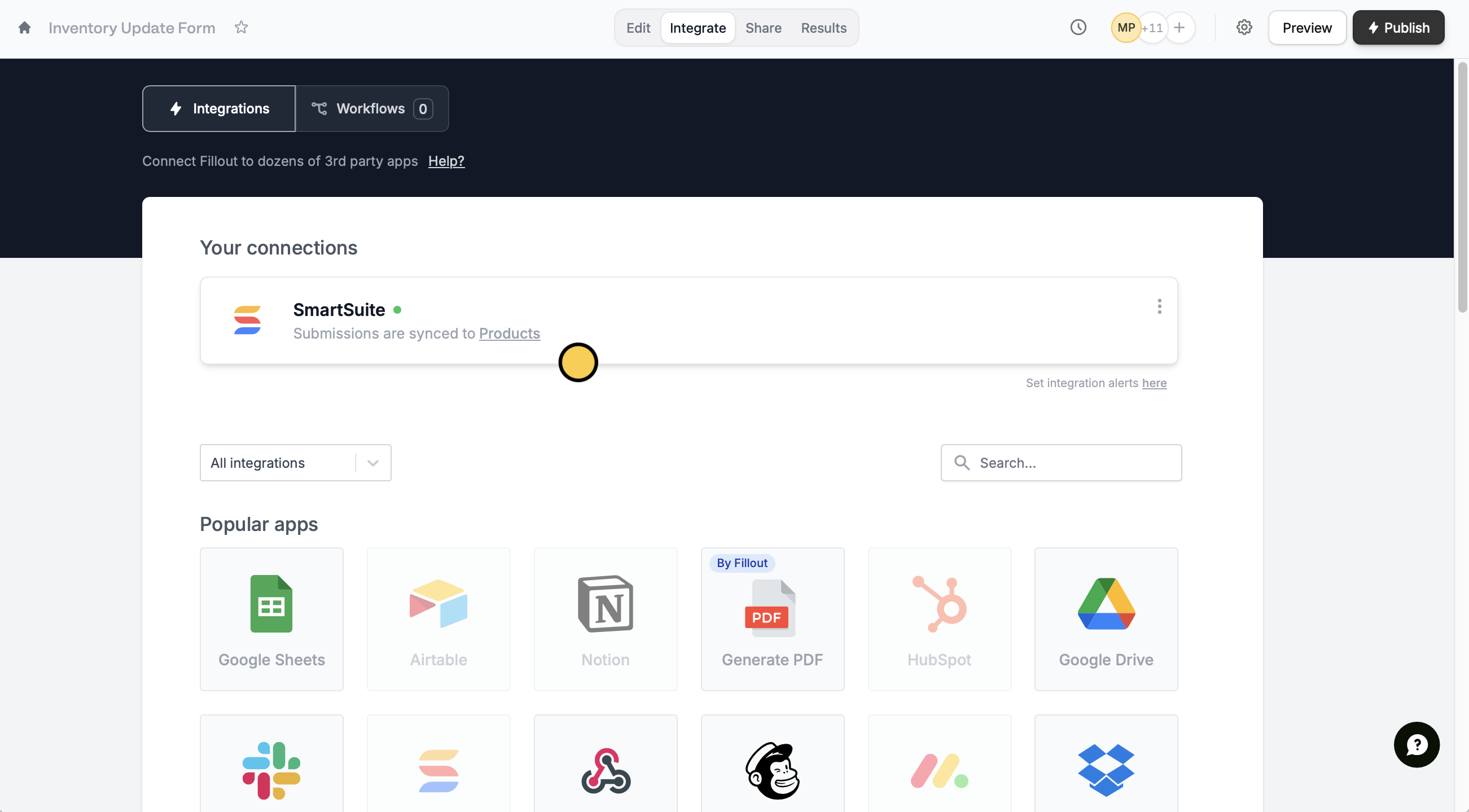
Open your [SmartSuite-connected form](https://www.fillout.com/help/smartsuite). Click `Integrate` followed by `SmartSuite`.
 Then specify that you want to `Update record`.
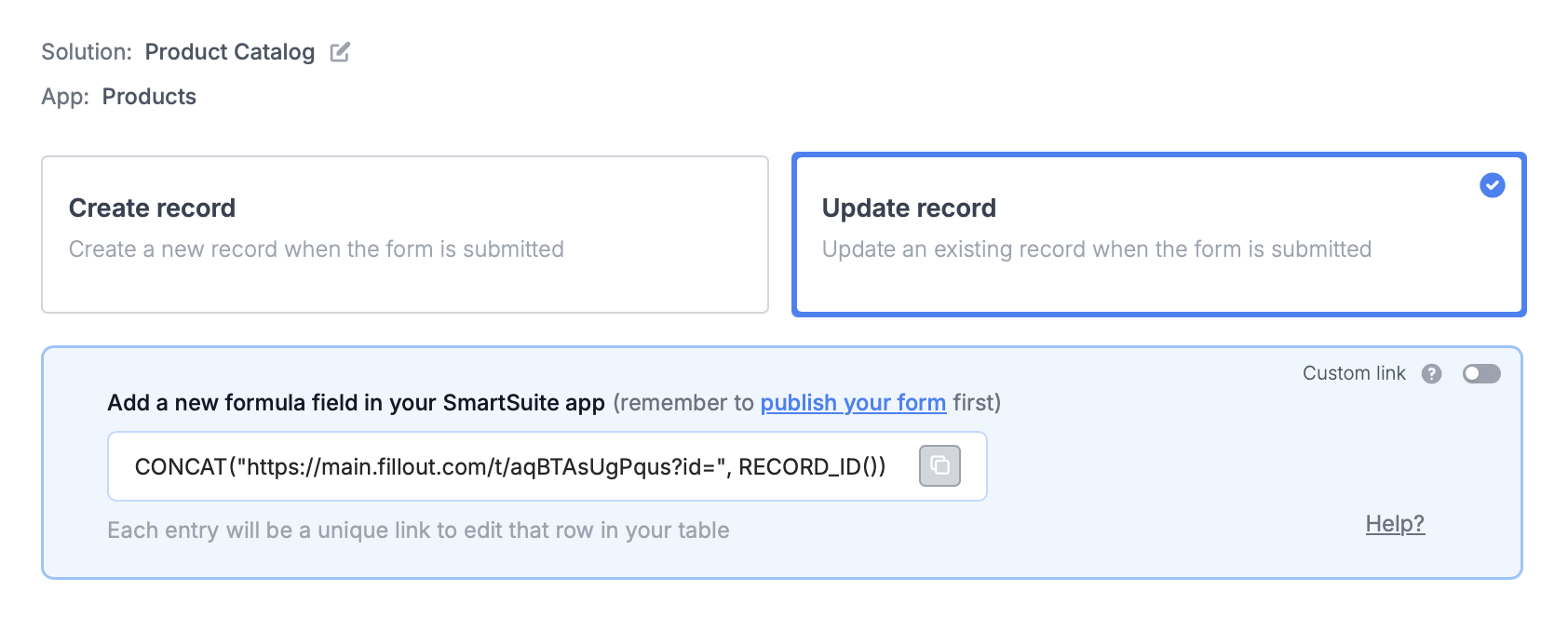 You'll now get a formula that defines a **unique link** for every record in your table.
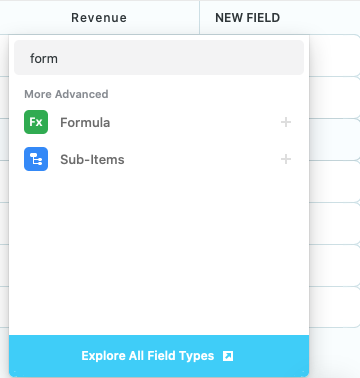
In SmartSuite, create a new `formula` field and paste the formula Fillout provides.
You'll now get a formula that defines a **unique link** for every record in your table.
In SmartSuite, create a new `formula` field and paste the formula Fillout provides.
 That's it! Click `Update` on the upper right corner and `Publish` your form.
To update a SmartSuite solution, click `Preview` and select a **Record to update** or click one of the unique links from SmartSuite.
That's it! Click `Update` on the upper right corner and `Publish` your form.
To update a SmartSuite solution, click `Preview` and select a **Record to update** or click one of the unique links from SmartSuite.
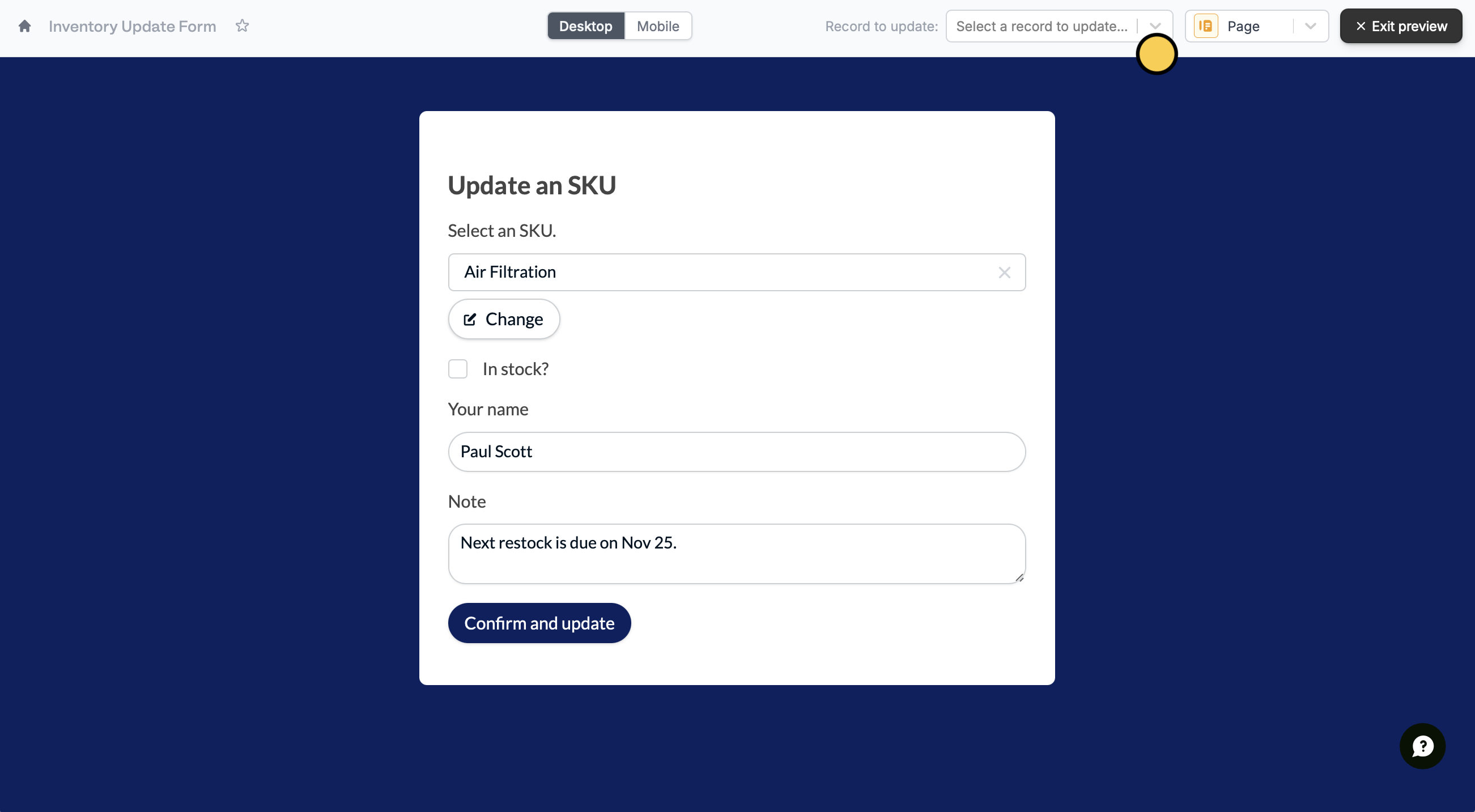 Your form is **automatically pre-filled** for whichever record it is updating.
## SmartSuite specific guide
Add responses to a SmartSuite solution.
Your form is **automatically pre-filled** for whichever record it is updating.
## SmartSuite specific guide
Add responses to a SmartSuite solution.