> ## Documentation Index
> Fetch the complete documentation index at: https://fillout.com/help/llms.txt
> Use this file to discover all available pages before exploring further.
# Send emails from your SMTP server with Fillout
> Send custom emails to customers, colleagues, and respondents using your SMTP server. Ensure reliable delivery and reduce the risk of spam.
## What is SMTP?
**SMTP (Simple Mail Transfer Protocol)** is the technology that handles the sending of emails over the internet. Think of it like the postal system for email. It takes your message from your device and delivers it to the recipient’s email server.
This feature is available on our **Team** and **Enterprise** plans. Learn more about the [Team plan](/team-plan).
## How to use this feature
Click `Integrate` from the top menu followed by `Workflows`. Then, choose an [email notification template](/custom-emails).
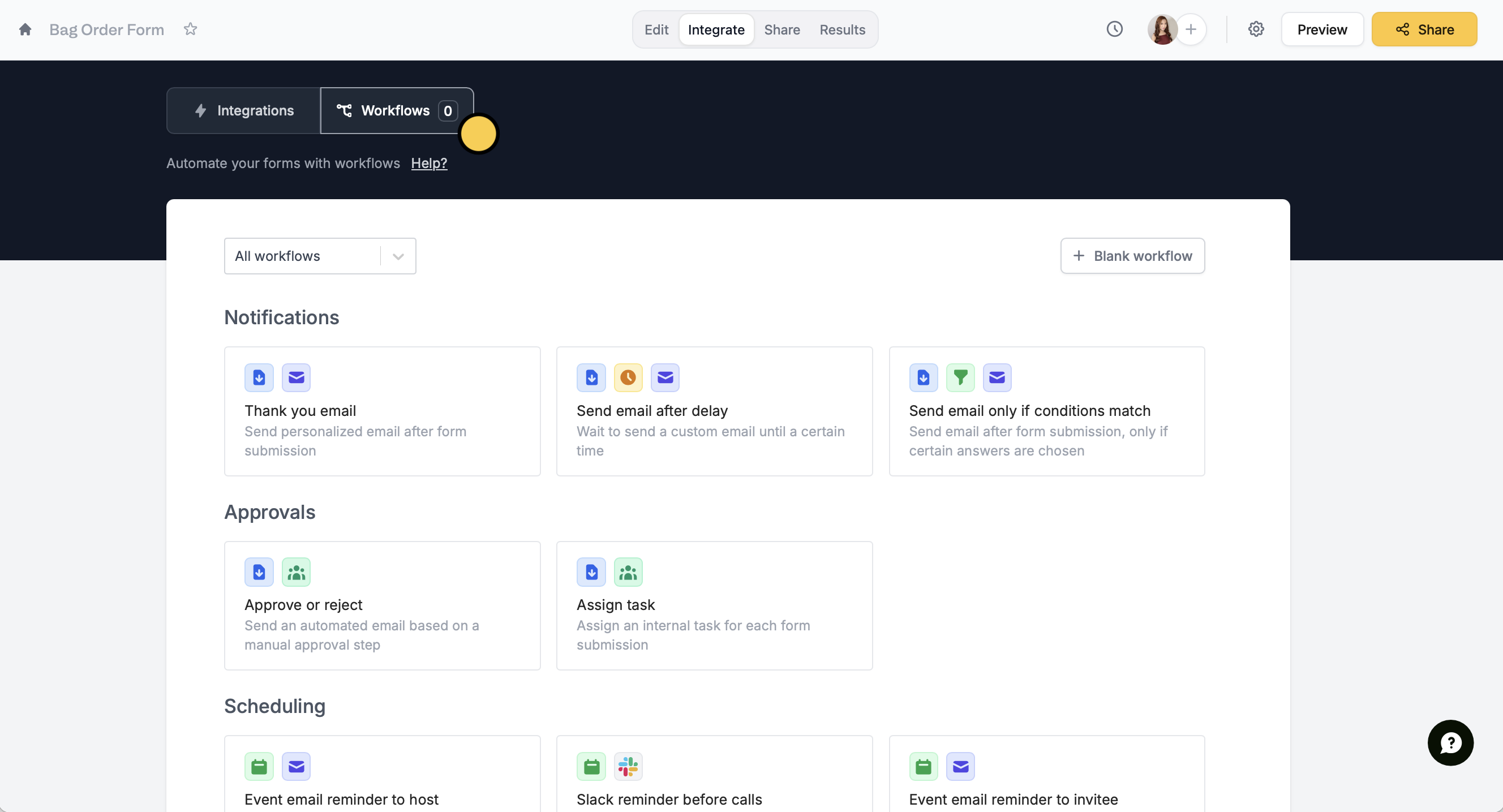 Alternatively, you can click the `settings icon` beside the Preview button in the upper right area to head to **Custom emails**.
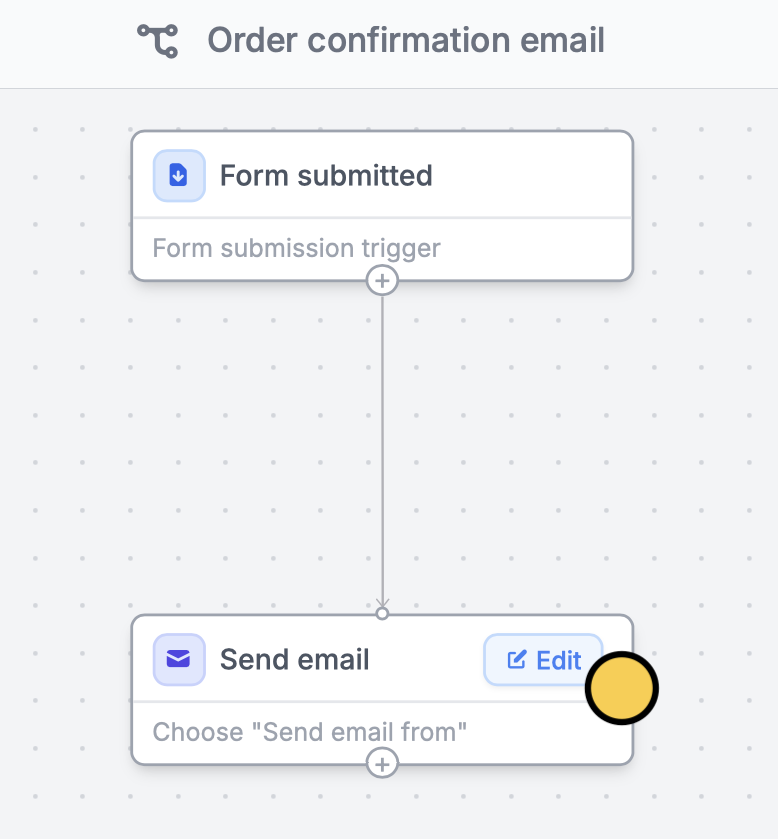
Next, `Edit` the content of your email.
Alternatively, you can click the `settings icon` beside the Preview button in the upper right area to head to **Custom emails**.
Next, `Edit` the content of your email.
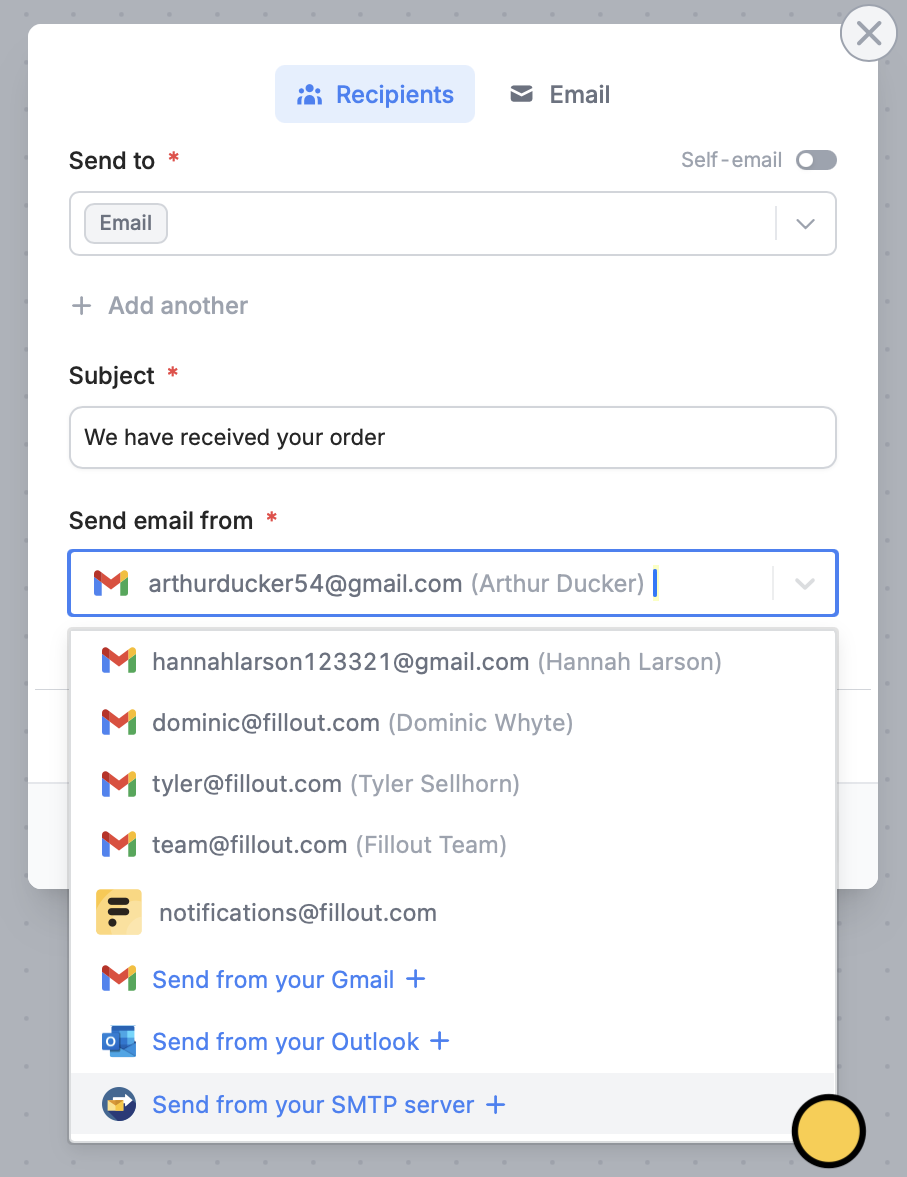
 Click `Recipients` at the top. Under **Send email from**, select `Send from your SMTP server +`. Then, enter the details in the popup.
 You can customize the design of your email. Click this [quick guide](https://www.fillout.com/help/custom-emails#style-your-email) to learn how to.
That’s it! Click `Publish` to share or embed your form. Your automated email will now be sent through your SMTP server once the trigger is met.
## Related articles
Automate sending, pipe previous answers, and style your email.
Simplify task flows with native multi-step automations.
You can customize the design of your email. Click this [quick guide](https://www.fillout.com/help/custom-emails#style-your-email) to learn how to.
That’s it! Click `Publish` to share or embed your form. Your automated email will now be sent through your SMTP server once the trigger is met.
## Related articles
Automate sending, pipe previous answers, and style your email.
Simplify task flows with native multi-step automations.