> ## Documentation Index
> Fetch the complete documentation index at: https://fillout.com/help/llms.txt
> Use this file to discover all available pages before exploring further.
# Single sign-on (SSO) form login
> Add Microsoft, OneLogin, Google Workspaces, Okta and other types of SSO login to your form. Optionally pre-fill fields.
## What is SSO
**Single Sign-On** (SSO) is a user authentication service that allows a user to use one set of login credentials to access multiple applications. It enhances user experience by eliminating the need for password authentication for each application.
Fillout supports adding SSO login to your forms with Microsoft, Okta, OneLogin, Google Workspaces and other SAML providers. When SSO is configured, you can:
* **Pre-fill fields** and add conditional logic based on your SSO user data
* Let users save and continue their forms later on, even from a different device
* Restrict form access to departments or roles
**Note:** SSO login is available on the **Enterprise Plan**. Learn more [here](https://www.fillout.com/enterprise).
## Setup process
First, [configure your single sign-on provider](/saml-sso) with Fillout. Next, add a [login page](/login-page) to your form. Select the `SSO` option as the **Verification type**.
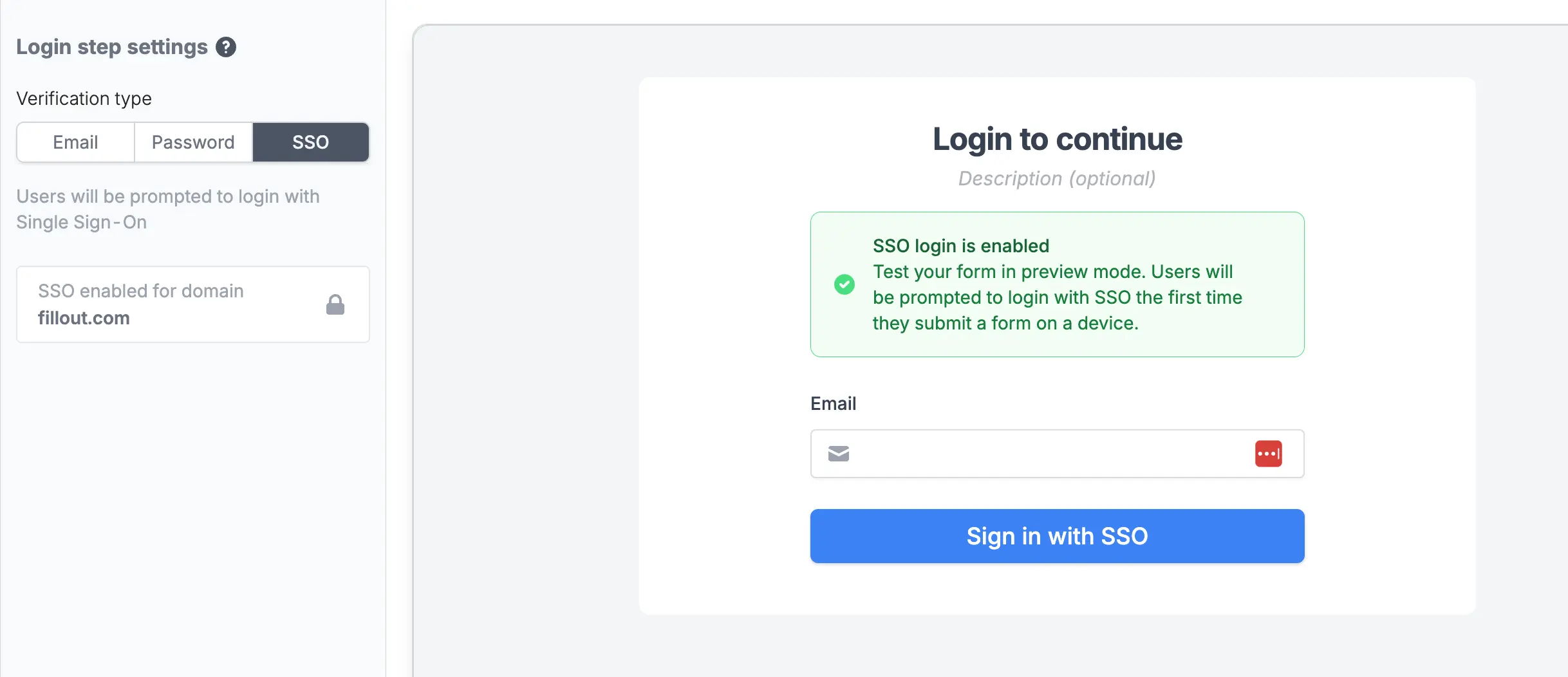 Then, grant your users access to Fillout in your SAML provider. SAML access only allows users to sign in and access forms through SSO. It does not grant access to the Fillout organization or permissions to create or edit forms—only invited members have those permissions.
That’s it - your form is now secured with your single sign-on provider. When a user submits a form, the results page will automatically show you which user submitted the form.
## Pre-filling fields and conditional logic
You can access the logged-in SSO user anywhere in Fillout, like in [default values](/prefill-fields) or [branching logic](/page-logic).
Then, grant your users access to Fillout in your SAML provider. SAML access only allows users to sign in and access forms through SSO. It does not grant access to the Fillout organization or permissions to create or edit forms—only invited members have those permissions.
That’s it - your form is now secured with your single sign-on provider. When a user submits a form, the results page will automatically show you which user submitted the form.
## Pre-filling fields and conditional logic
You can access the logged-in SSO user anywhere in Fillout, like in [default values](/prefill-fields) or [branching logic](/page-logic).
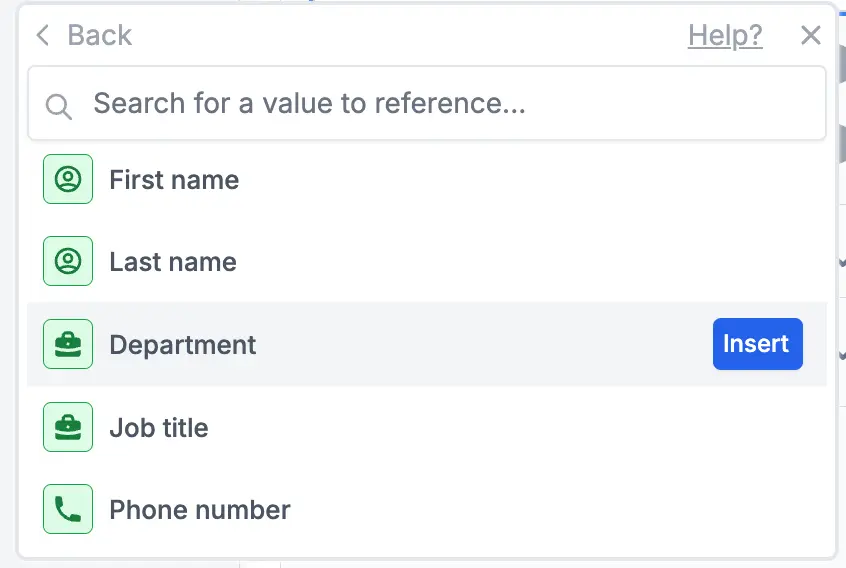 For example, you can pre-fill questions like “Which department are you in?” with the department stored in your SSO provider.
## Custom attributes
You can also pull in **custom attributes** from your SSO provider — like department, role, or cost center — and reference them in your form for pre-filling, conditional logic, and more. [Learn more here.](/sso-custom-attributes)
## Related articles
Use custom SSO attributes like department or role in your forms.
Require respondents to verify their email, enter a password, or use Single Sign-On.
Enable SSO through various providers like Okta, Azure AD, and all SAML providers.
For example, you can pre-fill questions like “Which department are you in?” with the department stored in your SSO provider.
## Custom attributes
You can also pull in **custom attributes** from your SSO provider — like department, role, or cost center — and reference them in your form for pre-filling, conditional logic, and more. [Learn more here.](/sso-custom-attributes)
## Related articles
Use custom SSO attributes like department or role in your forms.
Require respondents to verify their email, enter a password, or use Single Sign-On.
Enable SSO through various providers like Okta, Azure AD, and all SAML providers.