> ## Documentation Index
> Fetch the complete documentation index at: https://fillout.com/help/llms.txt
> Use this file to discover all available pages before exploring further.
# Submission picker
> Allow respondents pre-fill a form using responses from another connected form.
## How to put a submission picker
On the left-hand panel, click `Submission picker`. Then, key in your question or instruction.
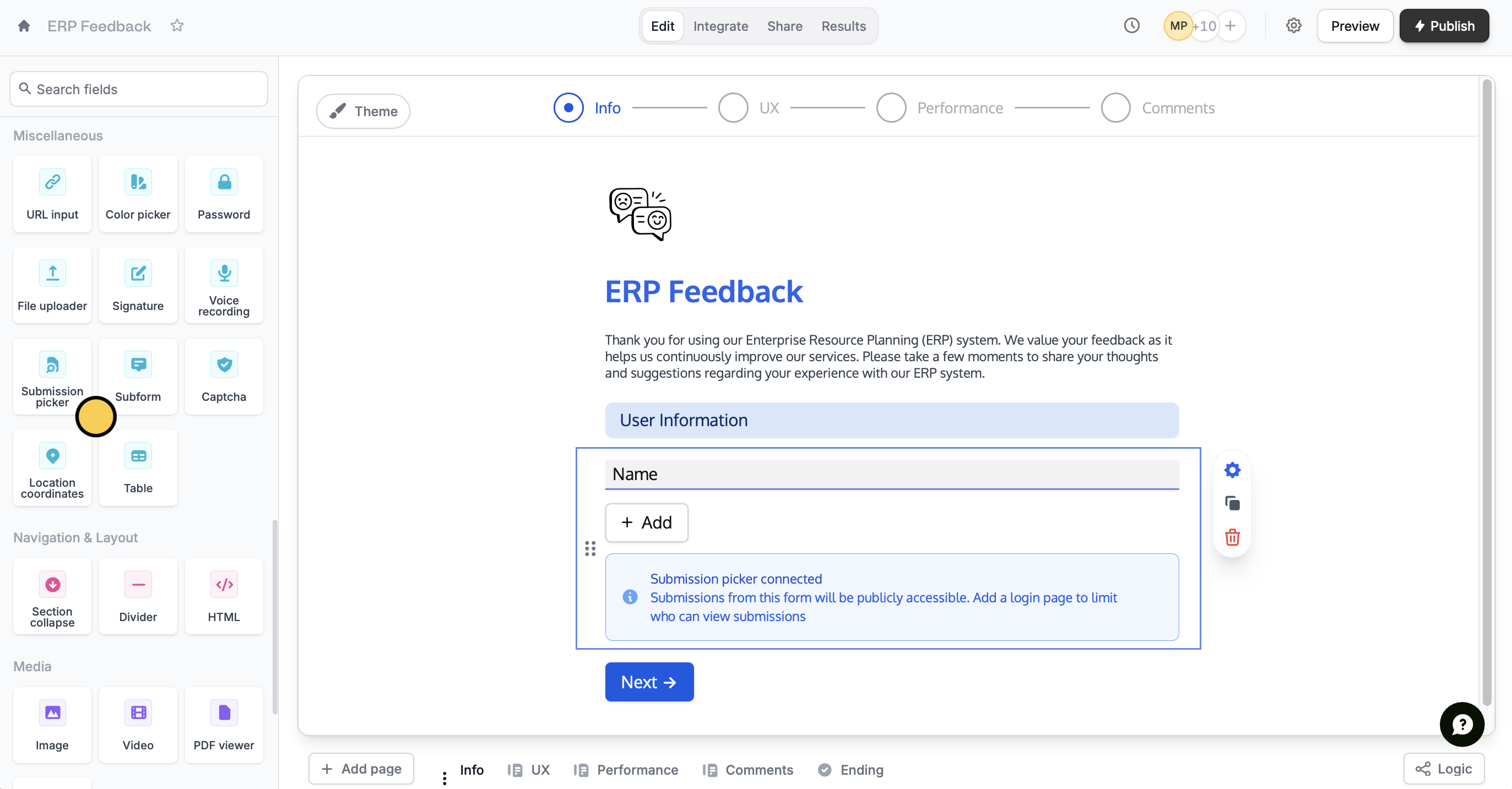 Click the field's to open the right-hand panel. Under **Select submissions from**, choose an existing form you would like to link your new form to.
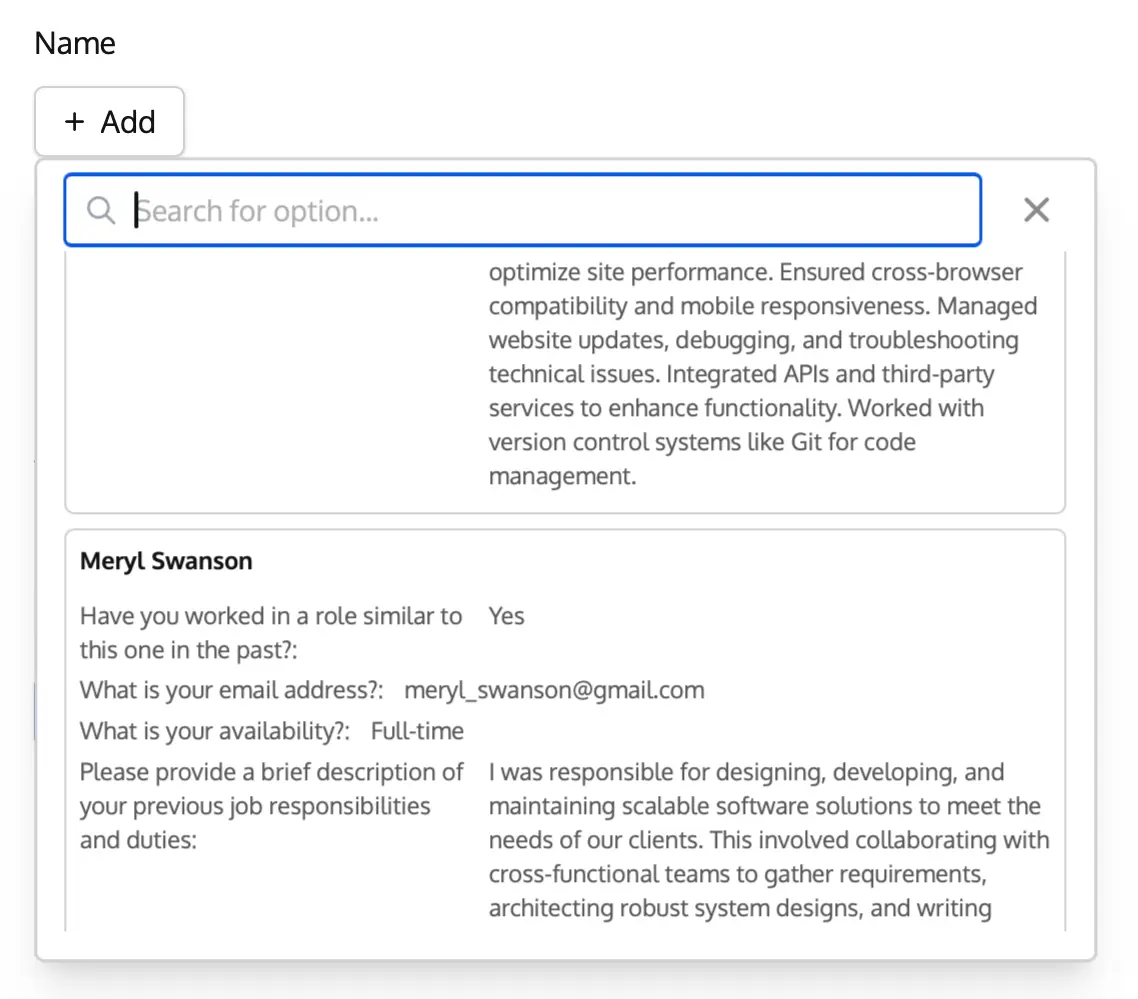
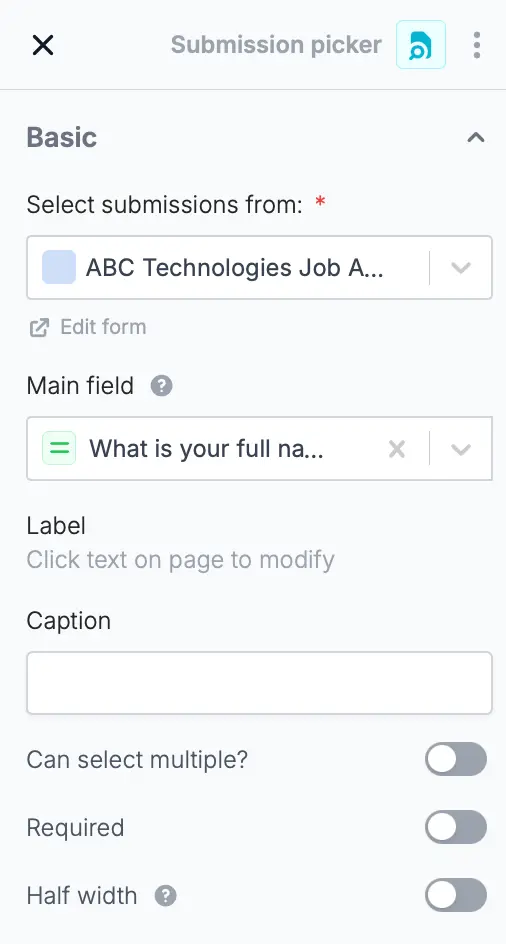 Then, choose a **Main field**. This is the label displayed for each submission from the list of records respondents can choose from. Be sure to choose a field that contains unique input like names and emails.
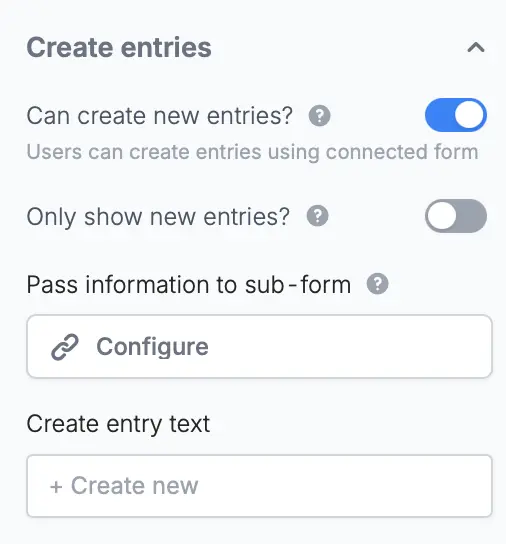
 You can also give respondents the option to fill out the subform from scratch, without selecting an existing submission, by enabling the `Can create new entries?` toggle on the right-hand panel.
 That's it! `Preview` your form to test it. Then, `Publish` and share your form.
Adding a submission picker to your form will grant public access to the submissions from whichever form you select. To restrict who can access the submissions, protect your form with a [login page](/login-page).
## Related articles
Collect repeated data with compact nested forms.
Require respondents to verify their email, key in a password, or use SSO.
That's it! `Preview` your form to test it. Then, `Publish` and share your form.
Adding a submission picker to your form will grant public access to the submissions from whichever form you select. To restrict who can access the submissions, protect your form with a [login page](/login-page).
## Related articles
Collect repeated data with compact nested forms.
Require respondents to verify their email, key in a password, or use SSO.