> ## Documentation Index
> Fetch the complete documentation index at: https://fillout.com/help/llms.txt
> Use this file to discover all available pages before exploring further.
# Connect your form to Trello
> Create new cards on Trello whenever someone submits your Fillout form. Set the card title, description, and due date based on form answers dynamically.
export const SupportBanner = () => {
const titleId = React.useId();
return ;
};
## What is Trello?
[Trello](https://trello.com/?ref=fillout-forms-help-article) is a tool that helps you organize tasks and projects using visual boards and lists. It allows team members to easily collaborate and manage their work.
## How it works
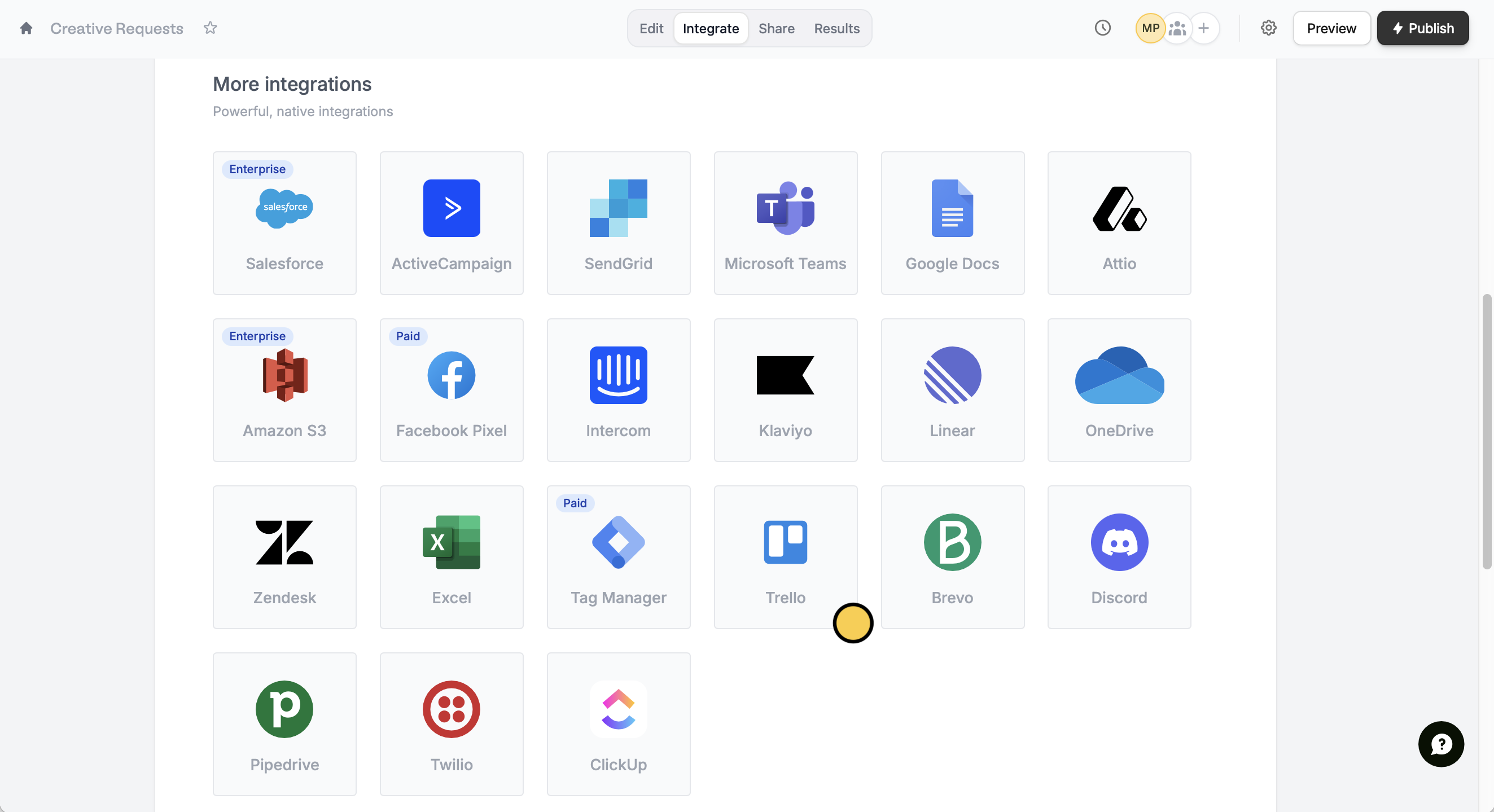
Click `Integrate` on the top menu and look for `Trello`.
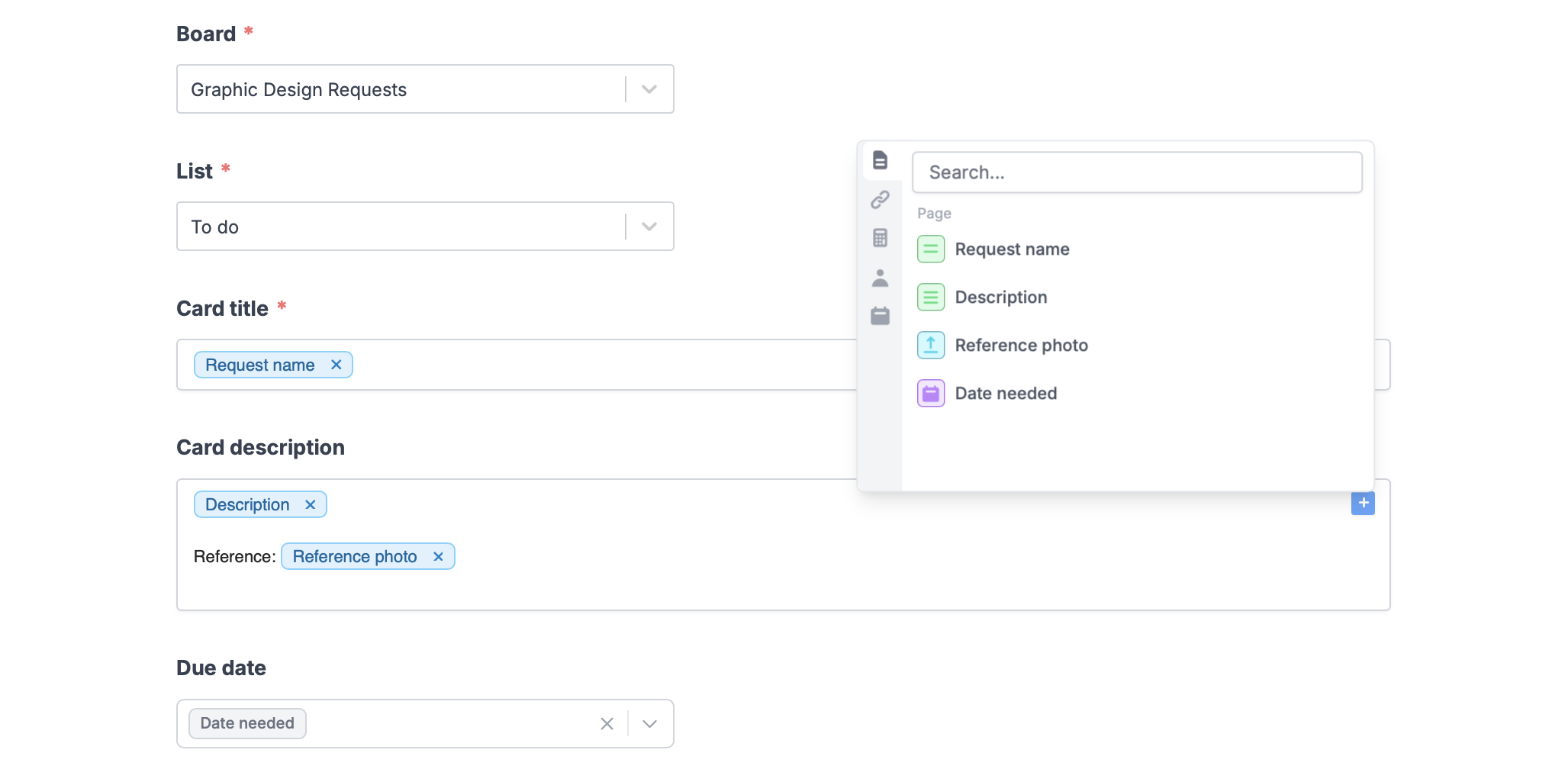
 First, select a **board** and a **list**. Then, reference fields by clicking or typing **@**. You can enter text for the **Card title** and **Card description**, if needed.
 Once your form’s all good, click `Finish setup` on the upper right corner followed by `Publish`. Now, you’ll see a new card in your Trello board for every new form submission.
## Create issues based on conditions
You can choose to create certain types of issues only when a condition is met. For example, create cards for different lists depending on what respondents specify in the form. More details [here](/help/conditional-integration).
## Other similar integrations
Create and manage issues with a form.
Use a form to create leads and more.
Once your form’s all good, click `Finish setup` on the upper right corner followed by `Publish`. Now, you’ll see a new card in your Trello board for every new form submission.
## Create issues based on conditions
You can choose to create certain types of issues only when a condition is met. For example, create cards for different lists depending on what respondents specify in the form. More details [here](/help/conditional-integration).
## Other similar integrations
Create and manage issues with a form.
Use a form to create leads and more.