> ## Documentation Index
> Fetch the complete documentation index at: https://fillout.com/help/llms.txt
> Use this file to discover all available pages before exploring further.
# Send data between forms using URL parameters
> Send data from a main form to a subform with Fillout's URL parameters.
## Overview
When embedding a [subform](https://www.fillout.com/help/subforms#subforms) within a main form, you can pass field answers or values (e.g., name, email, and order ID) from the main form to the subform using URL parameters.
This removes the need for users to re-enter information. For example, you can:
* Pass a user’s name or email for additional details in a subform
* Transfer order or project IDs for tracking submissions
* Pre-fill contact info in follow-up or feedback subforms
## How to send data
Open your subform and follow the steps above. In our example, we have the order form as the main form and a subform for selecting products.
Click the subform field's . Scroll down to **Advanced** and `Configure` the information you'd like to pass to your subform.
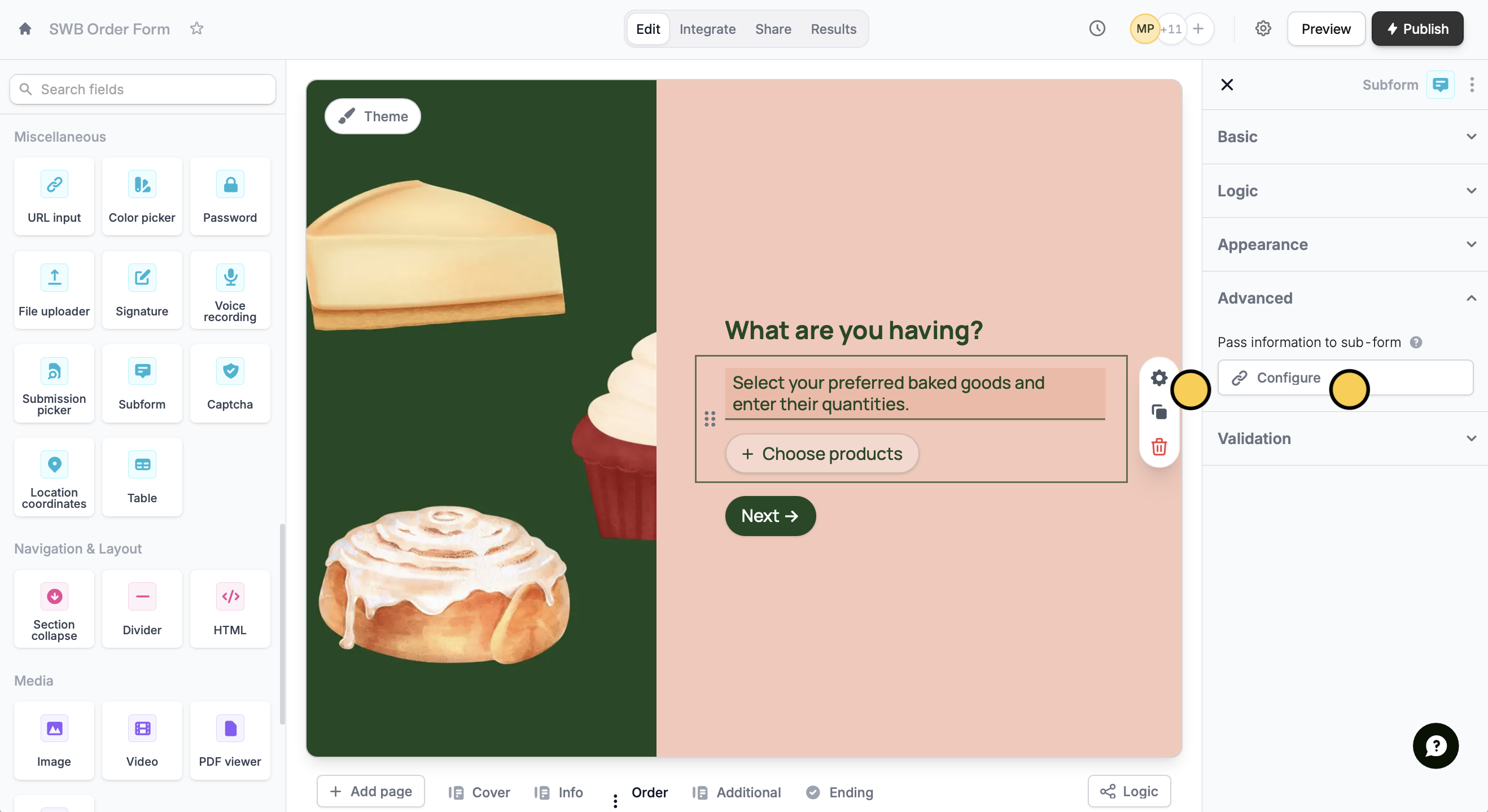 To add a new subform field, check out [this short guide](https://www.fillout.com/help/subforms).
Click `+ Add new` and select the URL parameter from your subform in the left. Then, map this to corresponding field in your main form.
To add a new subform field, check out [this short guide](https://www.fillout.com/help/subforms).
Click `+ Add new` and select the URL parameter from your subform in the left. Then, map this to corresponding field in your main form.
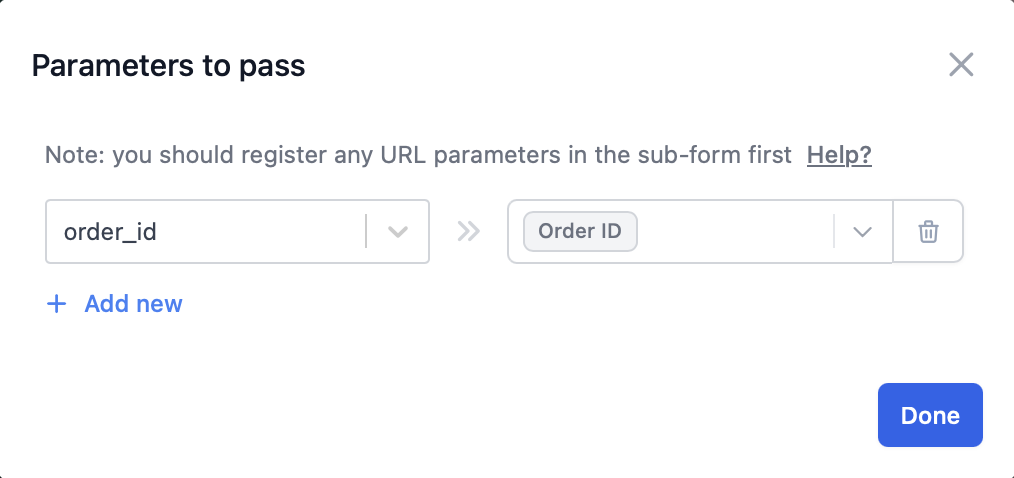 That's it! The field where you set the URL parameter as the default value will now be pre-filled automatically.
`Preview` your form first to ensure it's working as you intended it to. Then, click `Publish` and share or embed your form.
## Send subform data
You can also do it the other way around by passing values from your subform to your main form. Check out this [**quick guide**](https://www.fillout.com/help/import-subform-data).
## Related articles
Pass information to a form to support pre-filling.
Collect repeated data with compact nested forms.
Pass data from a subform to a main form.
That's it! The field where you set the URL parameter as the default value will now be pre-filled automatically.
`Preview` your form first to ensure it's working as you intended it to. Then, click `Publish` and share or embed your form.
## Send subform data
You can also do it the other way around by passing values from your subform to your main form. Check out this [**quick guide**](https://www.fillout.com/help/import-subform-data).
## Related articles
Pass information to a form to support pre-filling.
Collect repeated data with compact nested forms.
Pass data from a subform to a main form.