> ## Documentation Index
> Fetch the complete documentation index at: https://fillout.com/help/llms.txt
> Use this file to discover all available pages before exploring further.
# URL Parameters/Hidden fields
> Pass information to a Fillout form to support pre-filling and personalize form filling experience.
## Overview
**URL parameters**, also known as "hidden fields", can be used to customize your form with information you already know when you're sharing it with respondents. For example:
* Pre-filling fields with the email of the respondent
* Recording where your form was shared via a **utm\_source** parameter (e.g., Facebook, Google, Instagram, etc.)
* Displaying the respondent's name in the form to welcome them
## Video tutorial
## How to add a URL parameter or hidden field
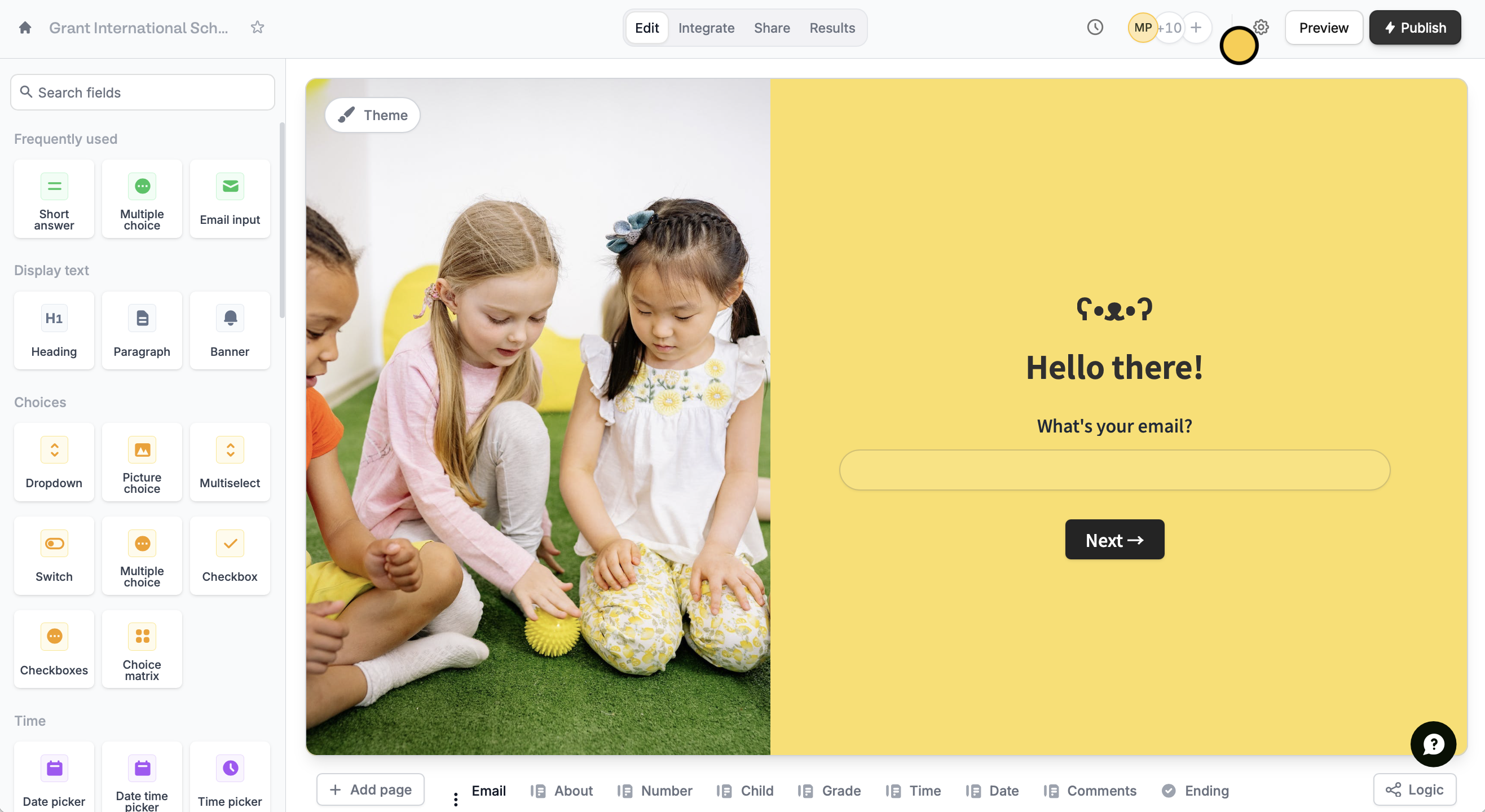
Click followed by `URL parameters`.
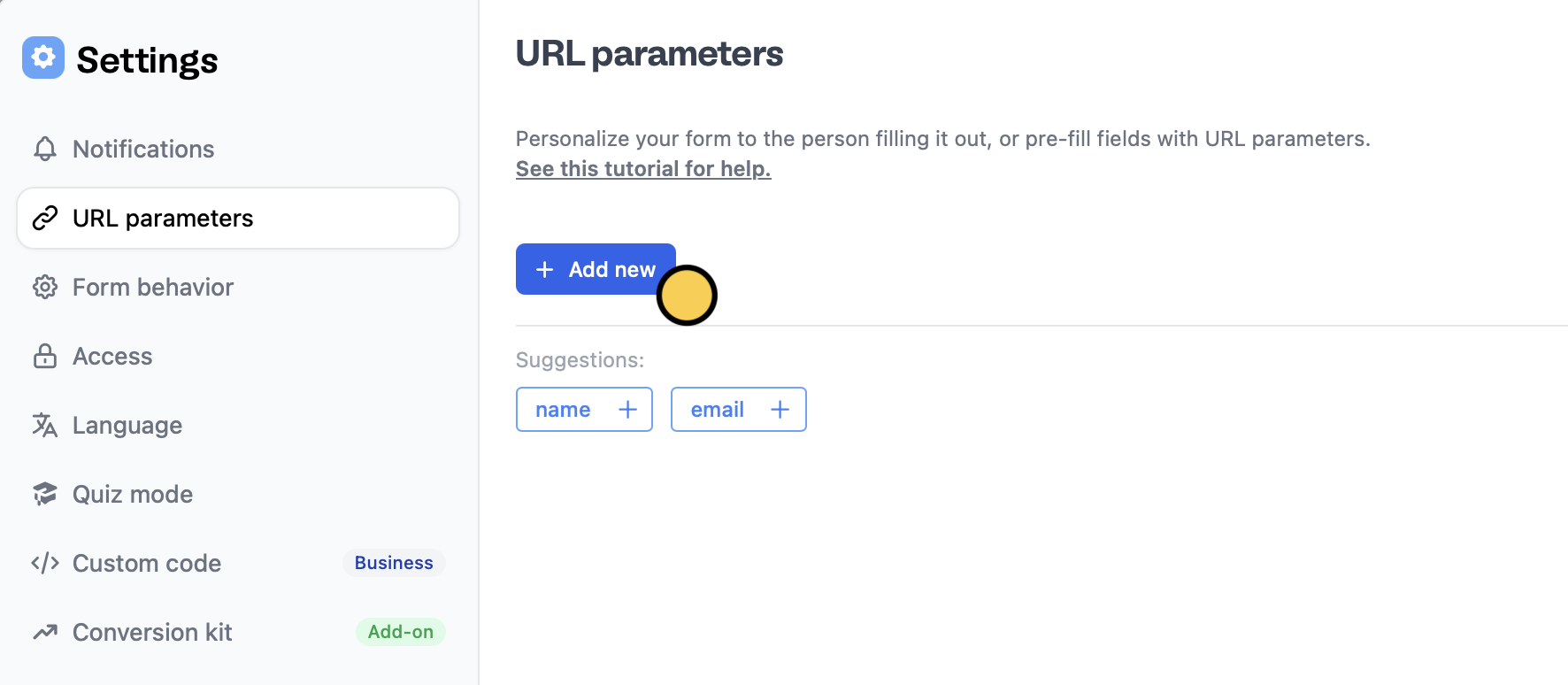
`+ Add new` and enter a name for your parameter. In this example, we'll choose "name".
You can optionally provide a sample value for the parameter, if you'd like to see what your form looks like with that value being used (e.g. if you have some [hide/show logic](/conditional-hiding) based on it).
You're all set! We can now use it to:
* [Pre-fill a field](/prefill-fields), by pressing referencing a value
* [Write to any integration](/integration-static-values), by mapping this URL Parameter to some field like in Airtable or Notion
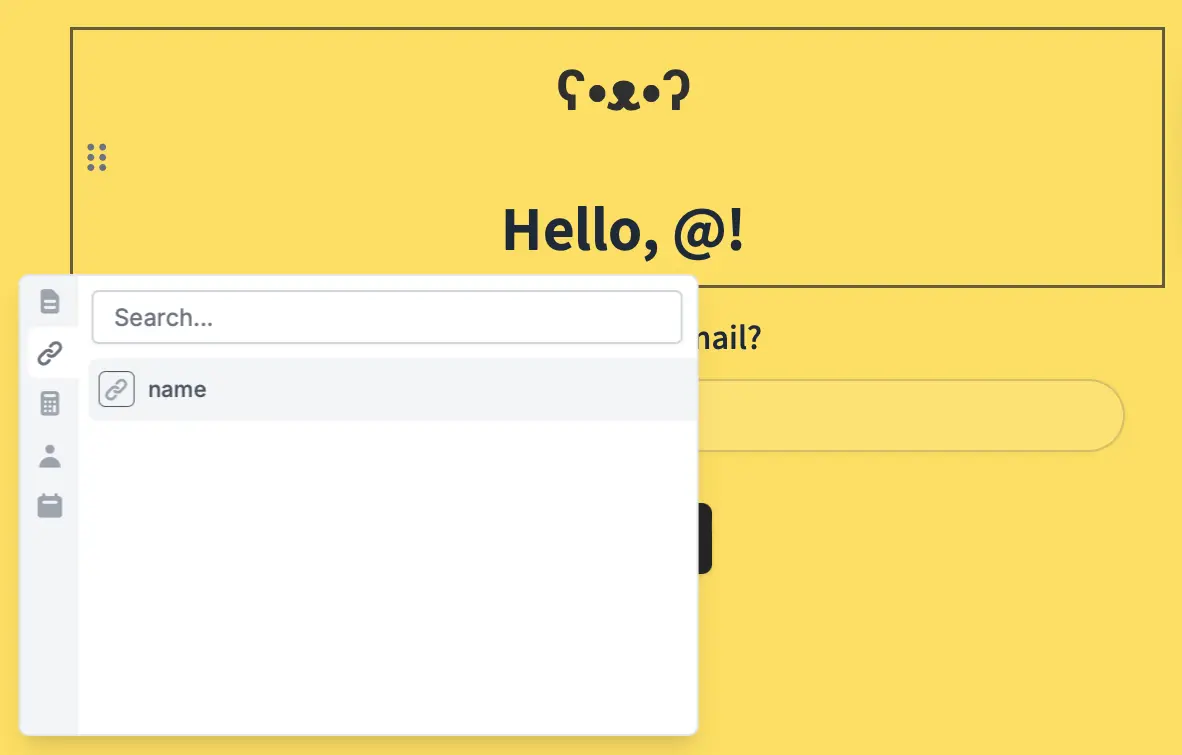
* Display in plaintext in the form by typing **@** and choosing your parameter.
To make the URL parameter active in your form, you need to set its value in the form link. Here, we have a parameter called **name** registered, the default share link would look like: [https://forms.fillout.com/t/9ofaEF4d54us?name=xxxxx](https://forms.fillout.com/t/9ofaEF4d54us?name=xxxxx)
Say we know that the respondent's name that we're sending our form to, Jane. We'll type her name at the end of the link like this: [https://forms.fillout.com/t/9ofaEF4d54us?name=jane](https://forms.fillout.com/t/9ofaEF4d54us?name=jane)
When you have multiple URL parameters for one form, you'll need to separate them using an ampersand (&), like so: [https://forms.fillout.com/t/your\_form\_id?email=jane@gmail.com\&name=jane](https://forms.fillout.com/t/your_form_id?email=jane@gmail.com\&name=jane)
## Record URL parameters in submissions
You may want to track URL parameters in form submissions, like links shared on Facebook, Instagram, or LinkedIn to compare traffic. Fillout stores these by default on the Results page.
If you're using an integration, and want to write your URL parameters there as well, you can either:
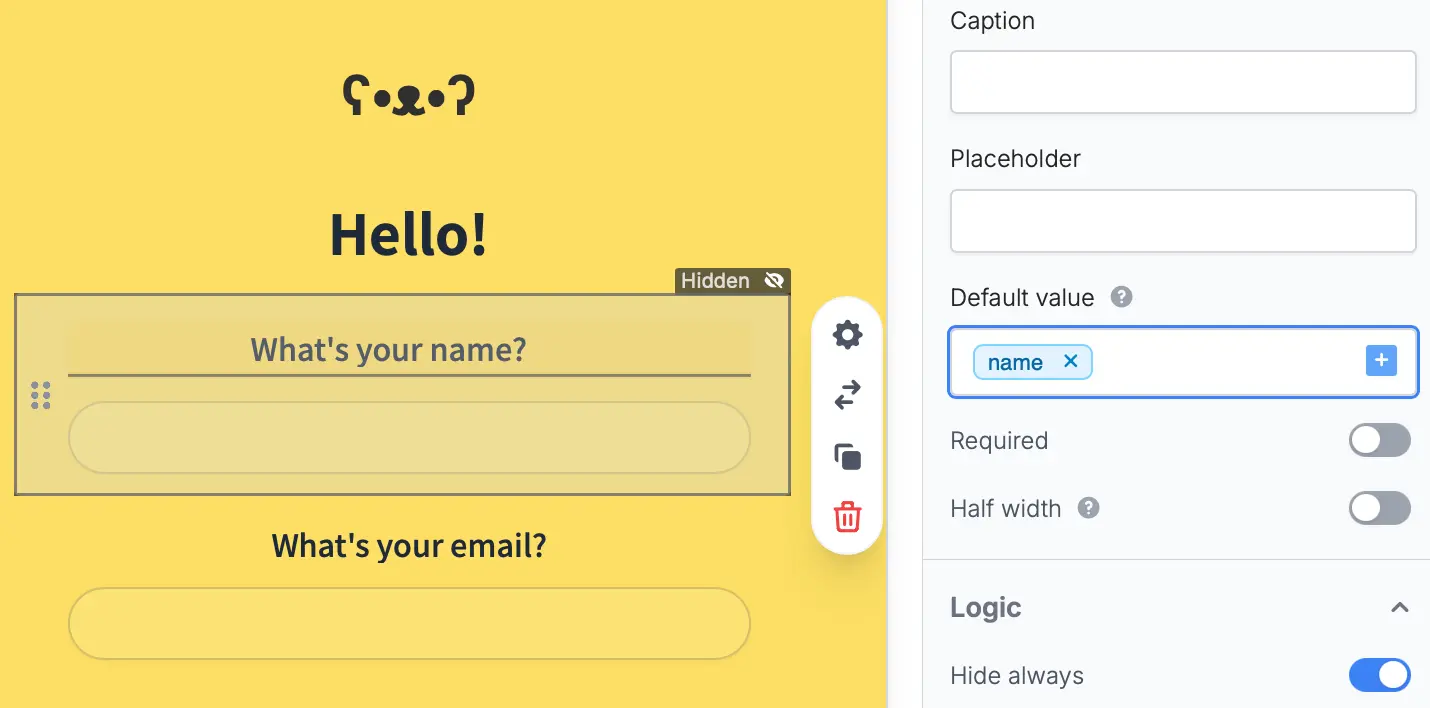
a. Create a Fillout field, set its **Default value** using a URL parameter, and `Hide always`. If it's linked to an integration, it will send the data without being shown to the respondent.
b. Head to your integration settings, and map the URL parameter directly. E.g. for Airtable, there is a **Mappings** section which you can use for this purpose. See [this article](/additional-integration-mappings) for more information.
## Send data between forms
You can pass data from a main form to a subform using URL parameters. Check out [this guide](/url-parameters-between-forms#send-data-between-forms-using-url-parameters).
When embedding a [subform](https://www.fillout.com/help/subforms#subforms) within a main form, you can pass field values (e.g., Name, Email, and Order ID) from the main form to the subform using URL parameters.
This removes the need for users to re-enter information. For example, you can:
* Pass a user’s name or email for additional details in a subform
* Transfer order or project IDs for tracking submissions
* Pre-fill contact info in follow-up or feedback subforms
## Other advanced features
Share data between forms with URL parameters.
Pre-populate fields based on previous inputs and more.
Insert previous answers into upcoming questions or fields.
 You can optionally provide a sample value for the parameter, if you'd like to see what your form looks like with that value being used (e.g. if you have some [hide/show logic](/conditional-hiding) based on it).

 b. Head to your integration settings, and map the URL parameter directly. E.g. for Airtable, there is a **Mappings** section which you can use for this purpose. See [this article](/additional-integration-mappings) for more information.
## Send data between forms
You can pass data from a main form to a subform using URL parameters. Check out [this guide](/url-parameters-between-forms#send-data-between-forms-using-url-parameters).
When embedding a [subform](https://www.fillout.com/help/subforms#subforms) within a main form, you can pass field values (e.g., Name, Email, and Order ID) from the main form to the subform using URL parameters.
This removes the need for users to re-enter information. For example, you can:
* Pass a user’s name or email for additional details in a subform
* Transfer order or project IDs for tracking submissions
* Pre-fill contact info in follow-up or feedback subforms
## Other advanced features
b. Head to your integration settings, and map the URL parameter directly. E.g. for Airtable, there is a **Mappings** section which you can use for this purpose. See [this article](/additional-integration-mappings) for more information.
## Send data between forms
You can pass data from a main form to a subform using URL parameters. Check out [this guide](/url-parameters-between-forms#send-data-between-forms-using-url-parameters).
When embedding a [subform](https://www.fillout.com/help/subforms#subforms) within a main form, you can pass field values (e.g., Name, Email, and Order ID) from the main form to the subform using URL parameters.
This removes the need for users to re-enter information. For example, you can:
* Pass a user’s name or email for additional details in a subform
* Transfer order or project IDs for tracking submissions
* Pre-fill contact info in follow-up or feedback subforms
## Other advanced features