> ## Documentation Index
> Fetch the complete documentation index at: https://fillout.com/help/llms.txt
> Use this file to discover all available pages before exploring further.
# Sync data securely with login forms
> Use Fillout login forms to securely update database records.
## How it works
You can let others update your Zite database securely using a [Fillout login form](https://www.fillout.com/help/login-page). Instead of giving direct access to your tables, users must log in with their email, password, or SSO to access the form. Once logged in, they can [create new records](https://www.fillout.com/help/sync-form-results#link-your-form-to-a-zite-database) or [edit existing ones](https://www.fillout.com/help/update-with-forms#enable-record-updates), and their responses will automatically update your database.
Before you start, you'll need a Fillout form with a login page. See details [here](https://www.fillout.com/help/login-page).
### Common use cases
* **Vendor Management:** Let suppliers add or update contact info, product lists, or pricing
* **Customer Details:** Allow customers to modify their delivery preferences or profile info
* **Event Registrations:** Enable attendees to update registration details or special requests
* **Customer Disputes:** Let customers or support update dispute status
* **Sales Leads:** Let your sales team add or update lead info, deal status, or follow-up notes
## Allow adding records via login
Open the Fillout form where login is enabled. Click `Integrate` on top followed by `Zite database`.
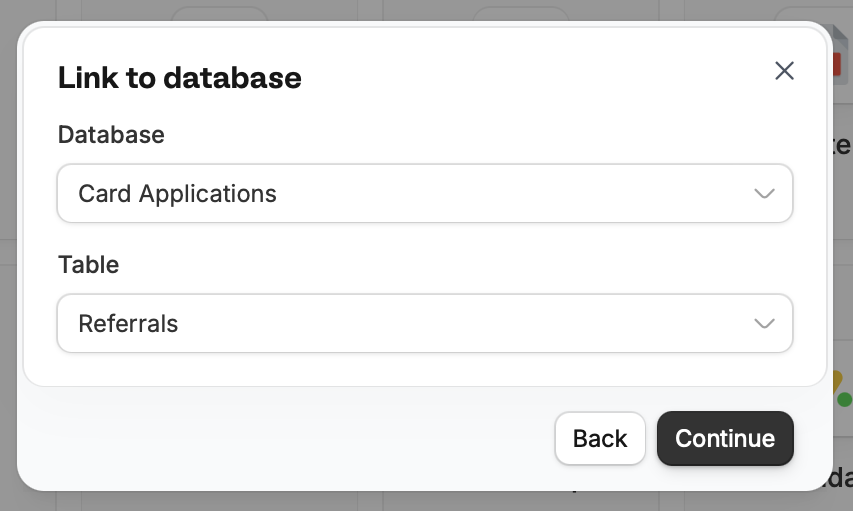
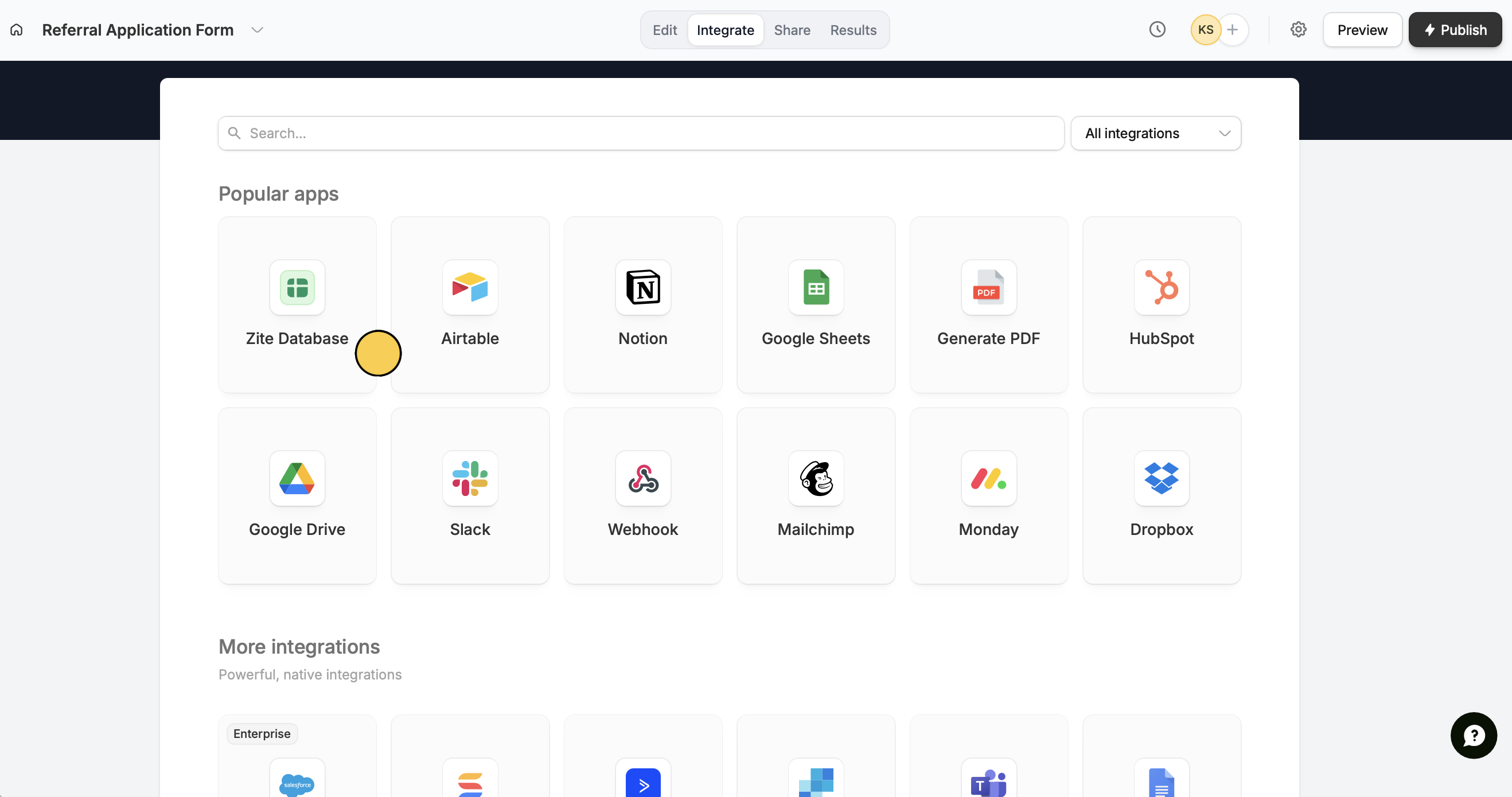 You can update a `New` or `Existing database`. If you choose the latter, select your **Database** and **Table**.
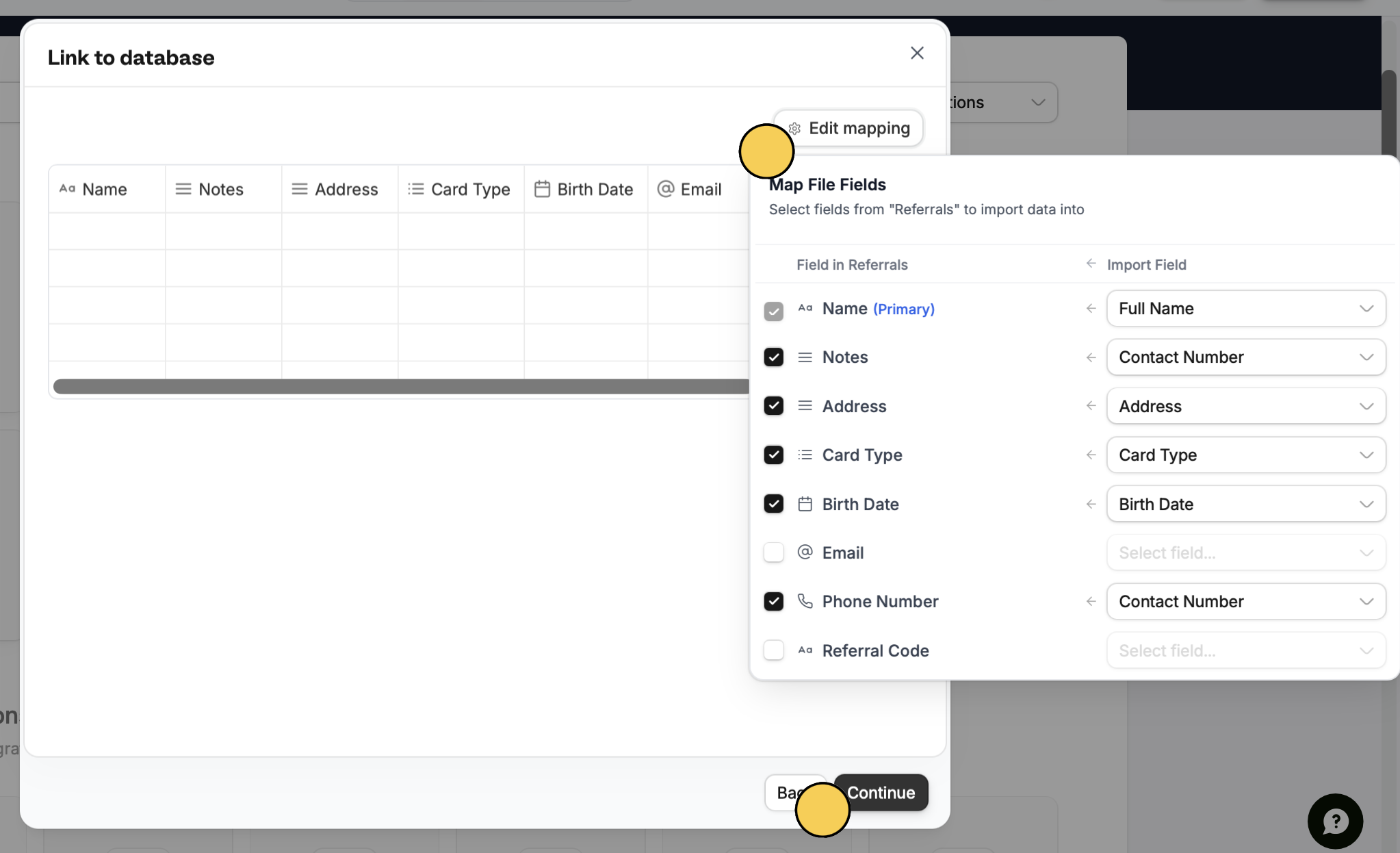
 Zite [automatically links](https://www.fillout.com/help/map-fields#automatic-field-mapping) database columns to matching Fillout form fields. Click `Edit mapping` to review. You can also [manually map](https://www.fillout.com/help/additional-integration-mappings#how-to-map-fields-manually) new or unmatched fields, such as email fields from login pages.
 Click `Publish form` in the next popup to save changes.
`Publish` on the upper right corner to reflect changes, then [share](https://www.fillout.com/help/sharing) your form.
That's it! Now, verified users who have completed the form can add new records to your database automatically.
## Allow updating records via login
To let others update records, follow steps one through three above, then [switch to Update mode](https://www.fillout.com/help/update-with-forms#enable-record-updates).
## Related articles
Add multiple tables, custom fields, views, and more.
Edit existing Zite database records with a Fillout form.
Send values to your Zite columns from a Fillout form.
Click `Publish form` in the next popup to save changes.
`Publish` on the upper right corner to reflect changes, then [share](https://www.fillout.com/help/sharing) your form.
That's it! Now, verified users who have completed the form can add new records to your database automatically.
## Allow updating records via login
To let others update records, follow steps one through three above, then [switch to Update mode](https://www.fillout.com/help/update-with-forms#enable-record-updates).
## Related articles
Add multiple tables, custom fields, views, and more.
Edit existing Zite database records with a Fillout form.
Send values to your Zite columns from a Fillout form.