> ## Documentation Index
> Fetch the complete documentation index at: https://fillout.com/help/llms.txt
> Use this file to discover all available pages before exploring further.
# User Groups
> Create groups to manage workspace and form or app access for multiple team members at once.
## Overview
User Groups let admins bundle team members together and grant them workspace or form access all at once. Instead of assigning permissions to each member individually, you can manage access for an entire group in one place.
Only **admins** can create User Groups on the **Team** and **Enterprise** plans. Learn more about the [Team plan](/team-plan).
## Create a group
From your dashboard, click your `Account name` in the upper left corner and select `Settings`. Then, switch to the [**Groups** tab](https://build.fillout.com/home/settings/groups).
Click `Create group` and give the group a name.
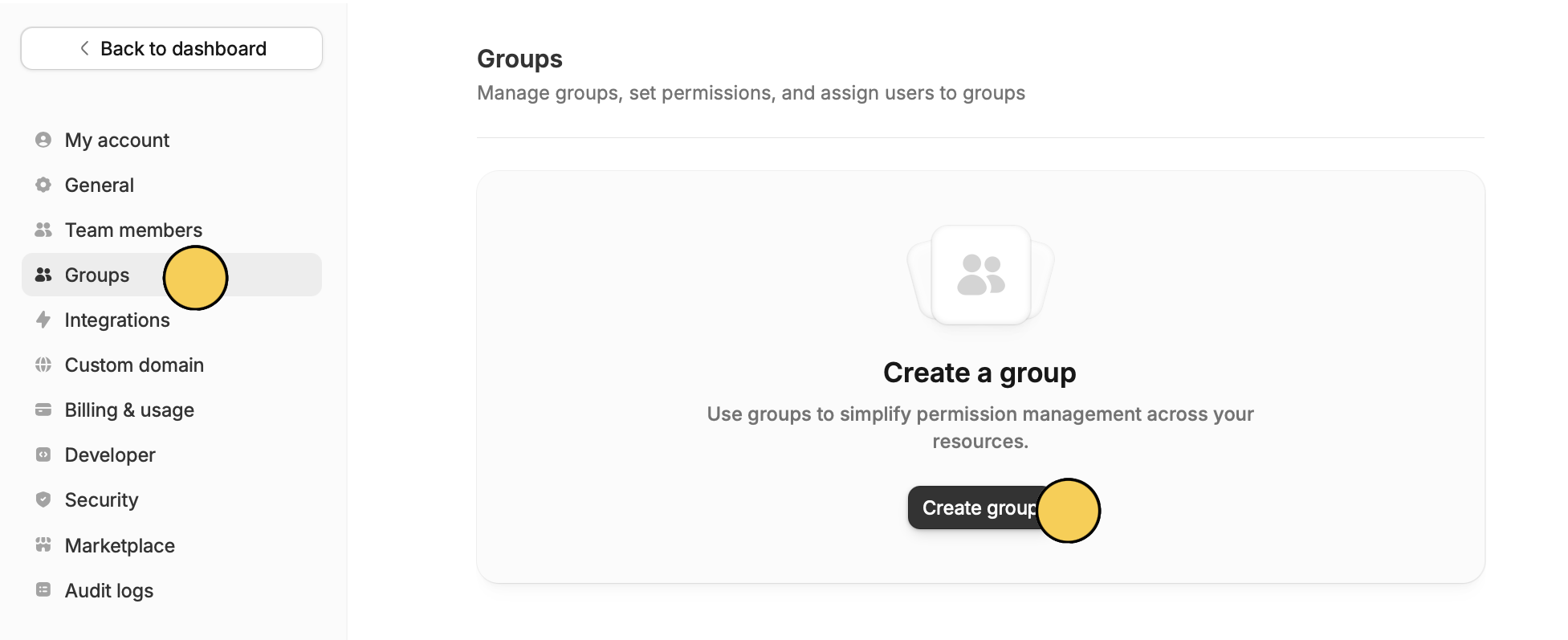 `Add` the emails of users you'd like to include in the group. Then, click `Save` at the bottom.
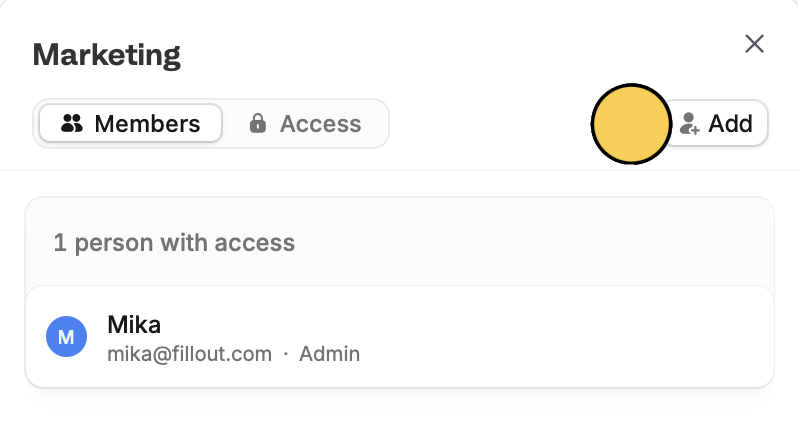 Using the dropdown menu on a group you can manage members or change the permissions of this group.
## Assign permissions to a group
Groups can have **Use** or **Edit** permissions on workspaces or individual forms, apps, or databases within a workspace. Navigate to `Access` to assign.
* **Use** – members can view forms and their results and use apps but aren't able to edit them
* **Edit** – members can edit and remove forms, apps, and databases
Using the dropdown menu on a group you can manage members or change the permissions of this group.
## Assign permissions to a group
Groups can have **Use** or **Edit** permissions on workspaces or individual forms, apps, or databases within a workspace. Navigate to `Access` to assign.
* **Use** – members can view forms and their results and use apps but aren't able to edit them
* **Edit** – members can edit and remove forms, apps, and databases
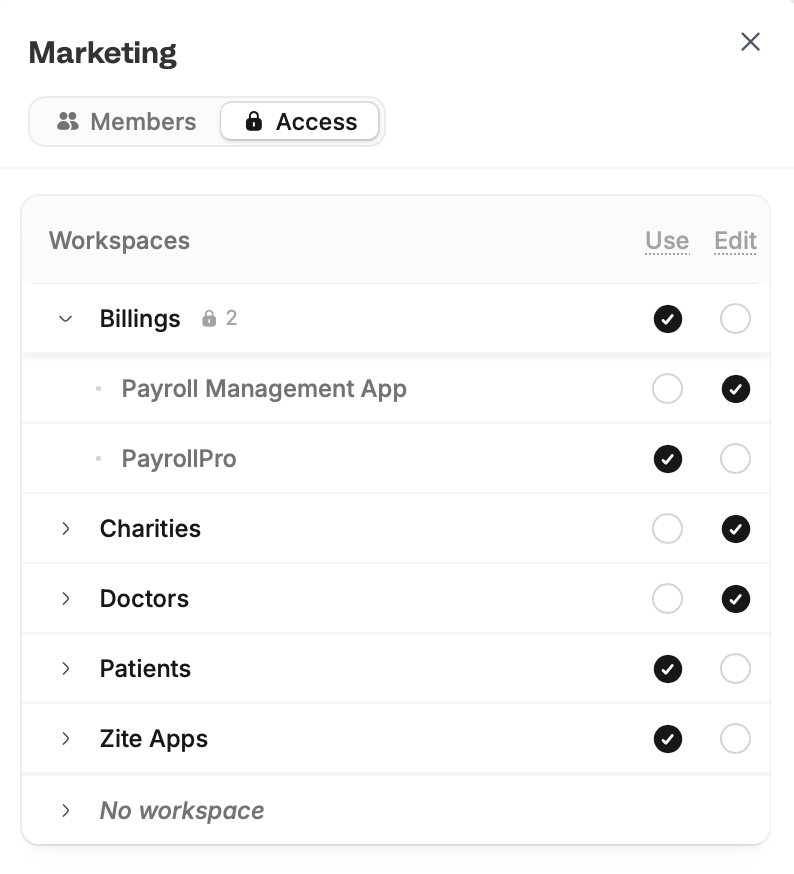 If a user has permissions from multiple sources (e.g., directly and via a group), the highest permission always wins. For example, if a group grants **Use** access but the user was individually granted **Edit** access, they'll have **Edit** access.
**Use** permissions are currently not implemented on databases. If a user only has **Use** permissions for a database, it will not show up for them.
## Related articles
Set member access levels and restrict integration accounts.
Add, remove, and update team members.
Organize forms in folders and control user access.
If a user has permissions from multiple sources (e.g., directly and via a group), the highest permission always wins. For example, if a group grants **Use** access but the user was individually granted **Edit** access, they'll have **Edit** access.
**Use** permissions are currently not implemented on databases. If a user only has **Use** permissions for a database, it will not show up for them.
## Related articles
Set member access levels and restrict integration accounts.
Add, remove, and update team members.
Organize forms in folders and control user access.