> ## Documentation Index
> Fetch the complete documentation index at: https://fillout.com/help/llms.txt
> Use this file to discover all available pages before exploring further.
# View form responses
> View all submissions to your form. Use filtering and sorting to find a specific response or export to CSV.
## How to view submissions
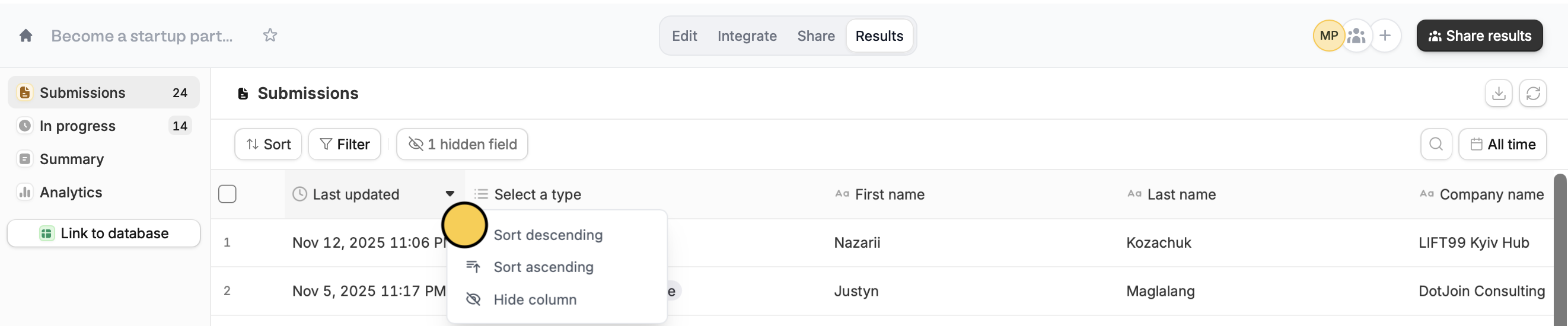
Open your form, and click `Results` on the top menu. Sort responses or hide columns by hovering over a column header, followed by clicking .
 ### Filter submissions
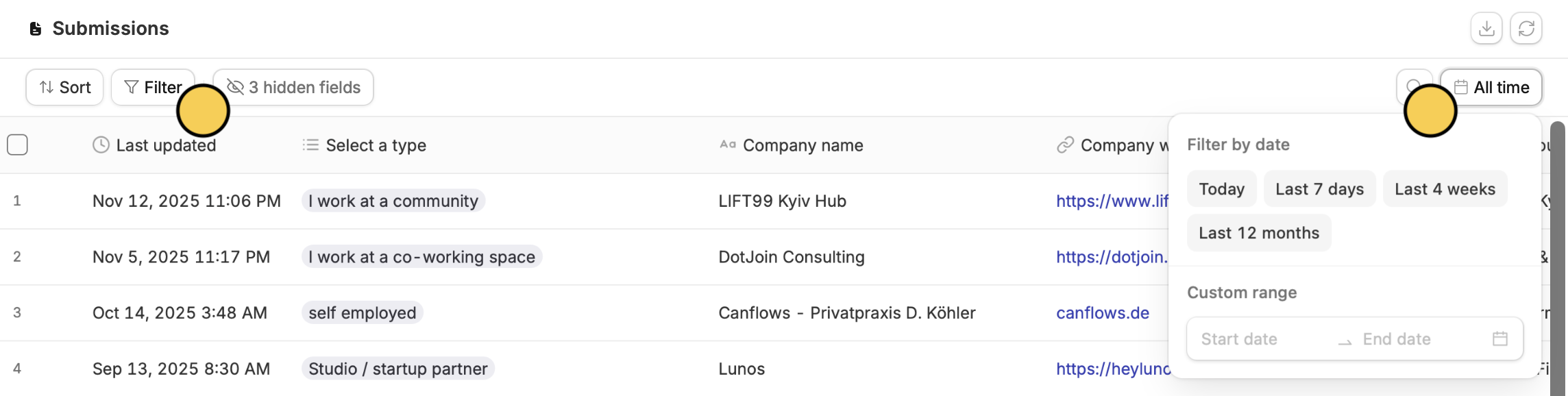
`Filter` to narrow responses based on a specific preference. Click `All time` to change the date range you're viewing.
### Filter submissions
`Filter` to narrow responses based on a specific preference. Click `All time` to change the date range you're viewing.
 ### Export submissions
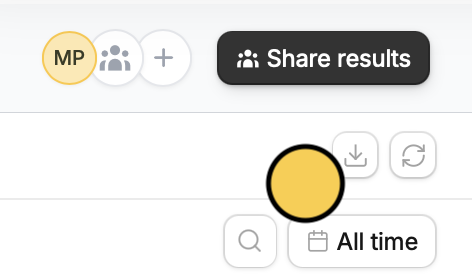
Click the download icon in the top right to export all of your responses in a formatted CSV respective of the filters.
### Export submissions
Click the download icon in the top right to export all of your responses in a formatted CSV respective of the filters.
 ### Shortcuts
* `⌘ + F` or `Ctrl + F` while clicking on any cell to search through your entries
* `⌘ + C` or `Ctrl + C` on a cell to copy its contents
* `Double-click any cell` to enlarge its contents (helpful for long inputs)
## View individual submissions
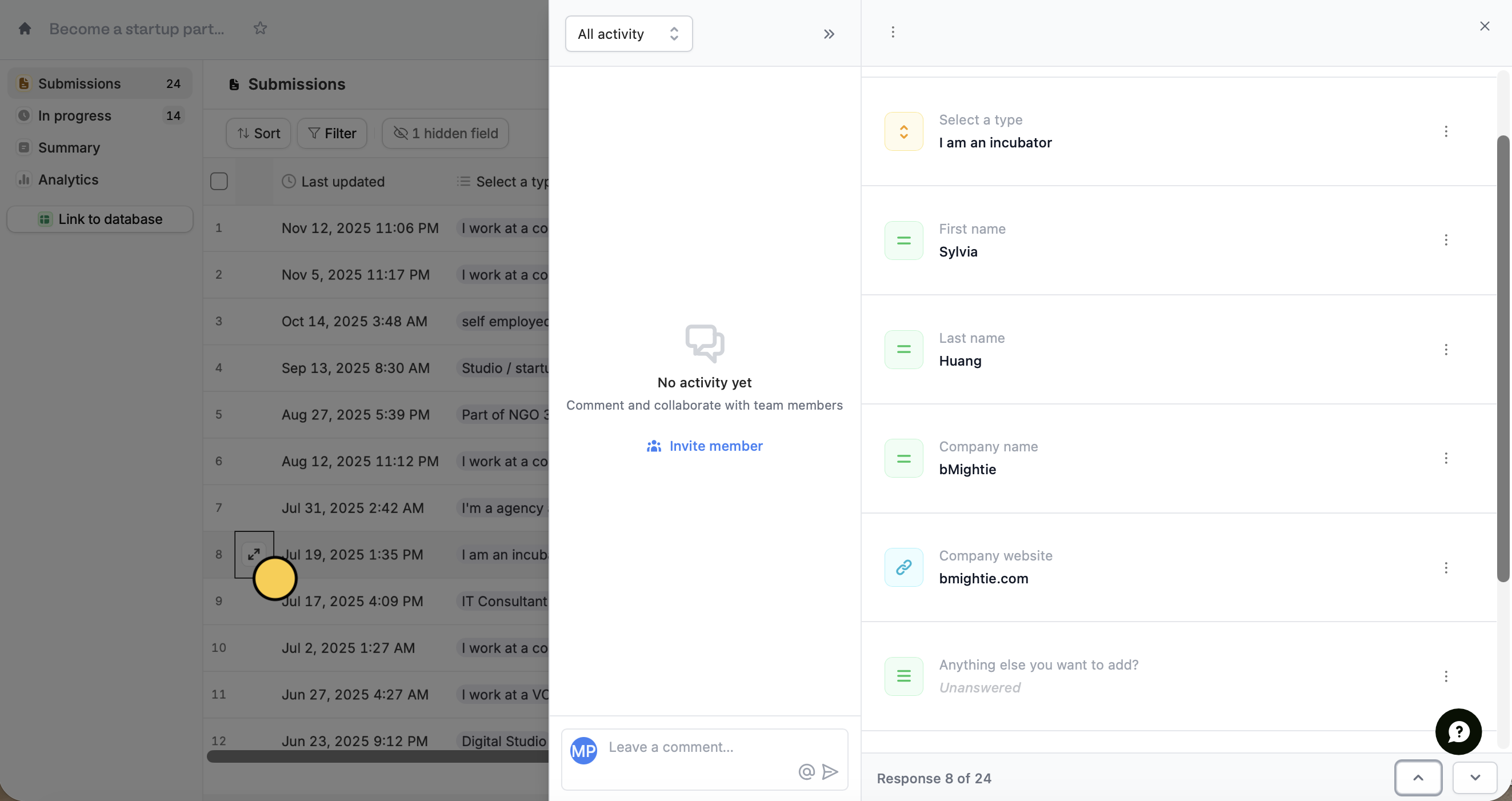
Hover over a cell and click to view the answers and submission details. Here, you can [comment and tag](/comment) your teammates.
### Shortcuts
* `⌘ + F` or `Ctrl + F` while clicking on any cell to search through your entries
* `⌘ + C` or `Ctrl + C` on a cell to copy its contents
* `Double-click any cell` to enlarge its contents (helpful for long inputs)
## View individual submissions
Hover over a cell and click to view the answers and submission details. Here, you can [comment and tag](/comment) your teammates.
 Click or to quickly go to view other individual responses as a whole.
## Check misconfiguration errors
Fillout alerts you of any misconfiguration errors. For example, you recently changed a field type in your Airtable/Notion database, but forgot to change it in Fillout.
Click or to quickly go to view other individual responses as a whole.
## Check misconfiguration errors
Fillout alerts you of any misconfiguration errors. For example, you recently changed a field type in your Airtable/Notion database, but forgot to change it in Fillout.
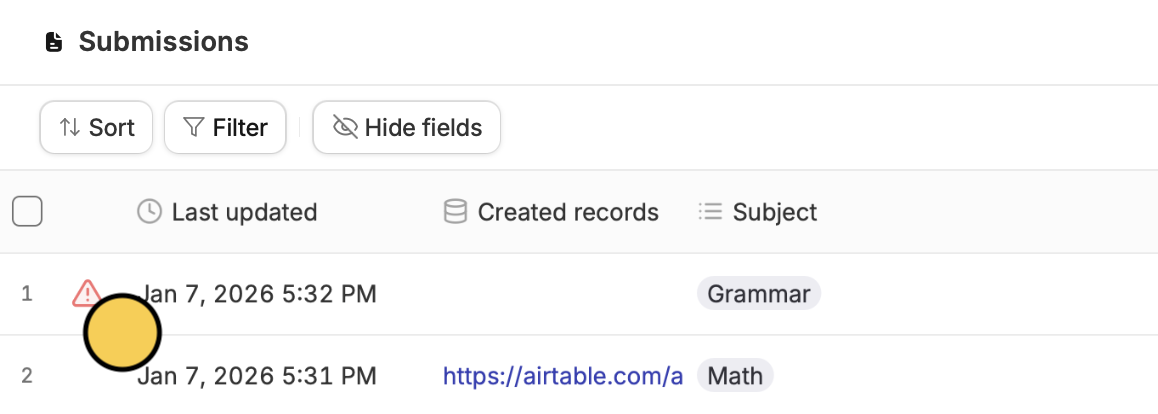 Click to view the error in the right-hand panel. You can also enable [error notifications](/email-notifications) to get notified via email.
## Related articles
Auto-save progress so respondents can resume later.
Get an overview of form responses and visualize them as charts.
Identify patterns, trends, and improve drop-off rates.
Click to view the error in the right-hand panel. You can also enable [error notifications](/email-notifications) to get notified via email.
## Related articles
Auto-save progress so respondents can resume later.
Get an overview of form responses and visualize them as charts.
Identify patterns, trends, and improve drop-off rates.