

Set up an AI field
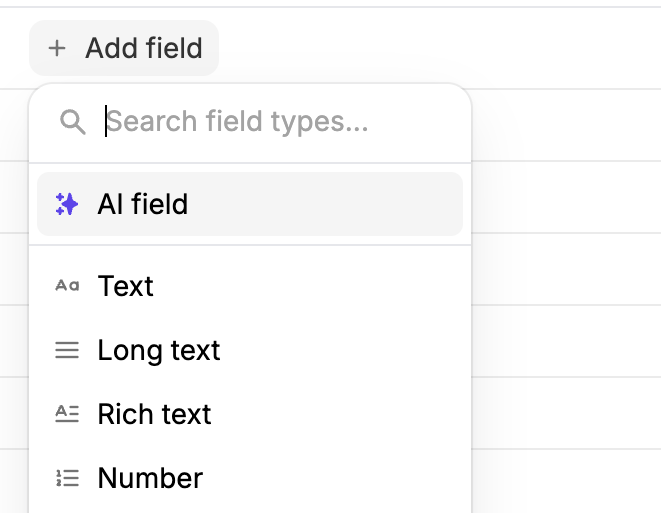
Create or select a field
Open your database and click + Add field. Select AI field from the field type picker, or click the header of an existing field to add AI to it.
Write your prompt
Write a plain-language instruction that tells the AI what to generate. Use @references to point the AI at the fields it should read. For example:
- “Rate the urgency of @Message from 1 to 5, where 5 is extremely time-sensitive”
- “Draft a polite response to @Message based on its @Category. If @Urgency is 4 or 5, apologize for the frustration.”
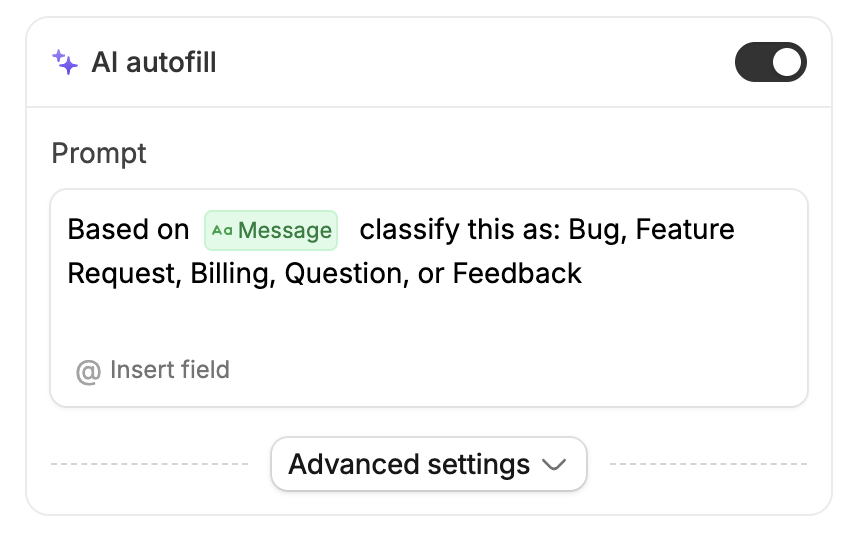
Reference other fields
Use @ to reference other fields in the same row. Click @ Insert field below the prompt box or type@ to open the field picker.
The AI reads the actual data from each row and generates a tailored result. You can reference as many fields as you need.
If a referenced field is empty for a given row, the AI skips that row until the data is filled in.
Run automatically
Open Advanced settings and toggle on Run automatically to have the AI fill in values the moment a new record is added or a referenced field changes. Your database stays up to date on its own — no manual triggers needed. Leave it off if you prefer to generate values on demand.Protect existing values
Two settings under Advanced settings help you avoid overwriting data:- Skip if cell already has a value — the AI won’t overwrite cells that already contain something
- Skip if manually edited — the AI won’t overwrite values you’ve typed in yourself
Generate values manually
You don’t have to wait for automatic triggers:- Single cell — click the Auto-fill button on any empty cell
- Regenerate — hover over a filled cell to reveal a regenerate button
- From the field header — click the field header and choose:
- Generate empty cells — fills all rows that haven’t been generated yet
- Regenerate errors — retries rows that previously failed
- Regenerate edited — regenerates rows you’ve manually overwritten
- Generate all in view — fills all visible cells in the current view (respects your active filters)
Bulk operations are capped at 500 cells per run.
Enable web search
Need live data? Open Advanced settings and toggle on Enable web search. The AI pulls in current information when generating values — for example, company details, pricing, recent news, or websites. This is useful for prompts like “Find the company website for @Company Name” or “What industry is @Company Name in?”Chain AI fields together
AI fields can reference other AI fields. When one field generates a value, any downstream AI field that references it fills in next — like dominoes. For example, in a support tickets table:- Category — “Based on @Message, classify as: Bug, Feature Request, Billing, or Question”
- Urgency — “Rate the urgency of @Message from 1 to 5”
- Assigned Owner — “Based on @Category, assign to the right person: Bugs = @Alice, Features = @Bob, Billing = @Carol”
- Draft Reply — “Draft a response to @Message based on @Category. If @Urgency is 4 or 5, apologize for the frustration. Mention that @AssignedOwner is looking into it.”
Chains work up to 5 levels deep.
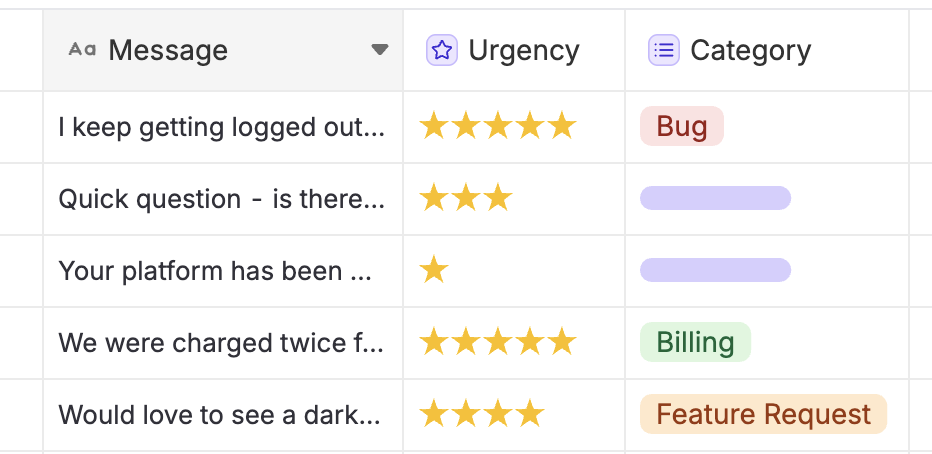
When something goes wrong
If the AI can’t generate a value, the cell turns amber and shows what happened. Hover over it to see the reason, then click regenerate to retry. You can also use Regenerate errors from the field header to retry all failures at once.Credits
AI autofill uses credits from your account balance. Before a bulk generation starts, the system checks that you have enough credits. If credits run out mid-batch, cells that already finished keep their values. Web search-enabled generations use additional credits.Works everywhere in Zite
AI fields aren’t limited to the database view. When a Zite app or workflow creates or updates a row in a table with AI autofill enabled, the automatic triggers fire the same way — no extra setup needed. Configure your AI fields once in the database and they work automatically whenever records are created or updated.Related
Field types
Full reference of all supported field types.
Formulas
Create computed fields using formula expressions.
Automations
Trigger actions automatically when records change.