

Overview
User sync connects your app’s authenticated users to a table in your database. When enabled, users are automatically added to the table when they sign up or log in. This is useful for building user profiles, tracking additional user data, and setting up row-level permissions. User sync works for both internal apps and apps that are shared to the web. Prerequisites- Your app must have a connected database (Zite Database or Airtable)
- The database must have a table with at least one email field
Enable user sync
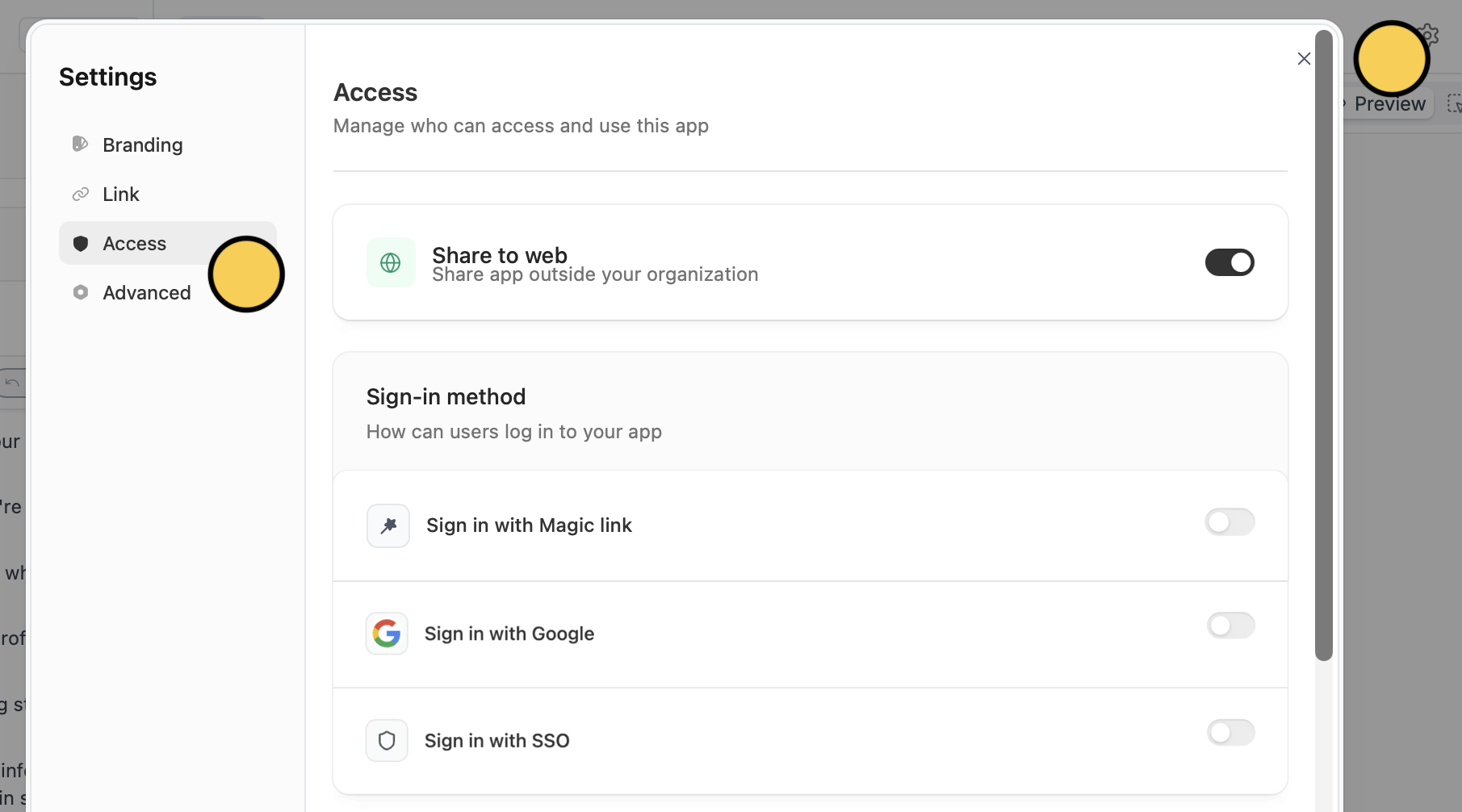
Configure sync settings
Scroll down to Sync users to database section, and make your selections. Then, 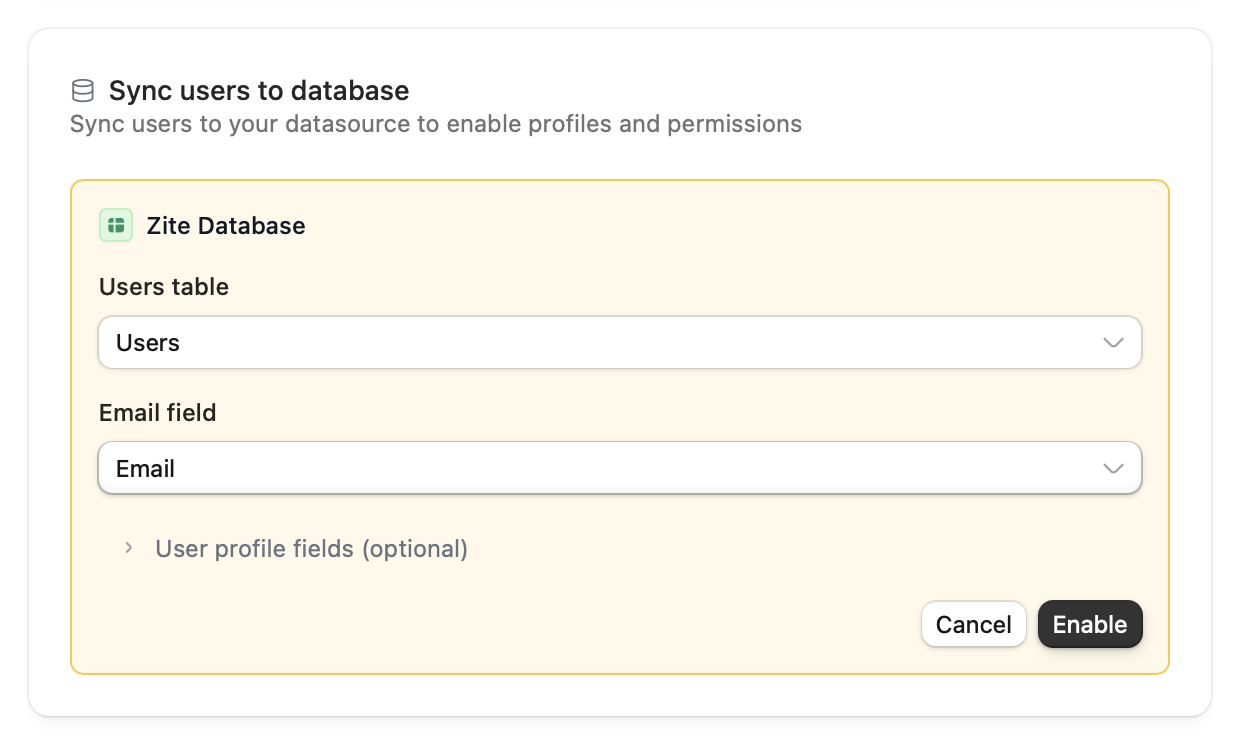
Enable.Connect database to set one up first.Click > User profile fields to map first name and last name fields.That’s it! Now user details will get stored in your database.Manage user sync
Once enabled, the section shows your connected table with a link to open it. ClickEdit to change the table or field configuration, or Remove to disable user sync entirely.

Related articles
Access & Sharing
Overview of internal apps and managing access levels.
Authentication
Add sign-in to your shared app with magic links, Google, or SSO.