

Overview
When your app is shared to the web, you can require users to sign in before accessing it. Zite handles authentication for you — no custom login code needed.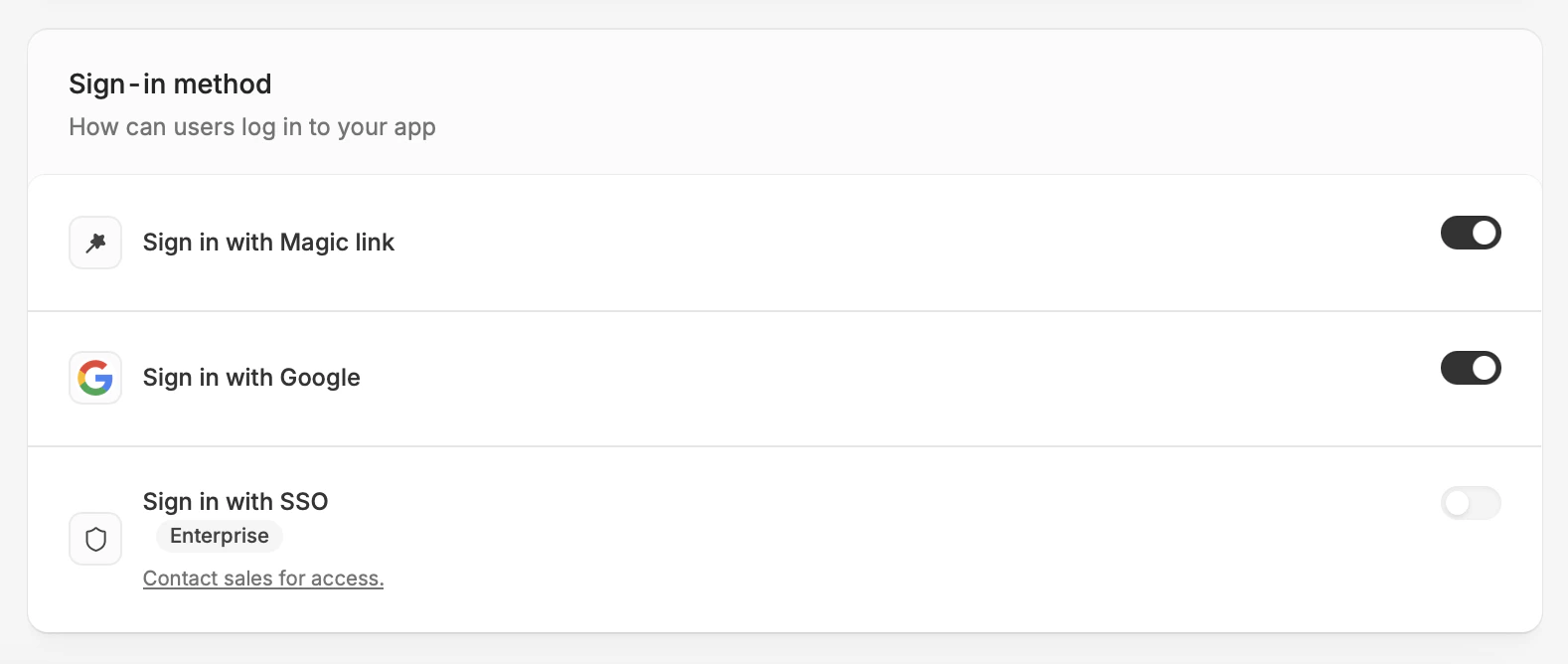
Set up authentication
Share your app to the web
If you haven’t already, enable Share to web.
Add login
Click 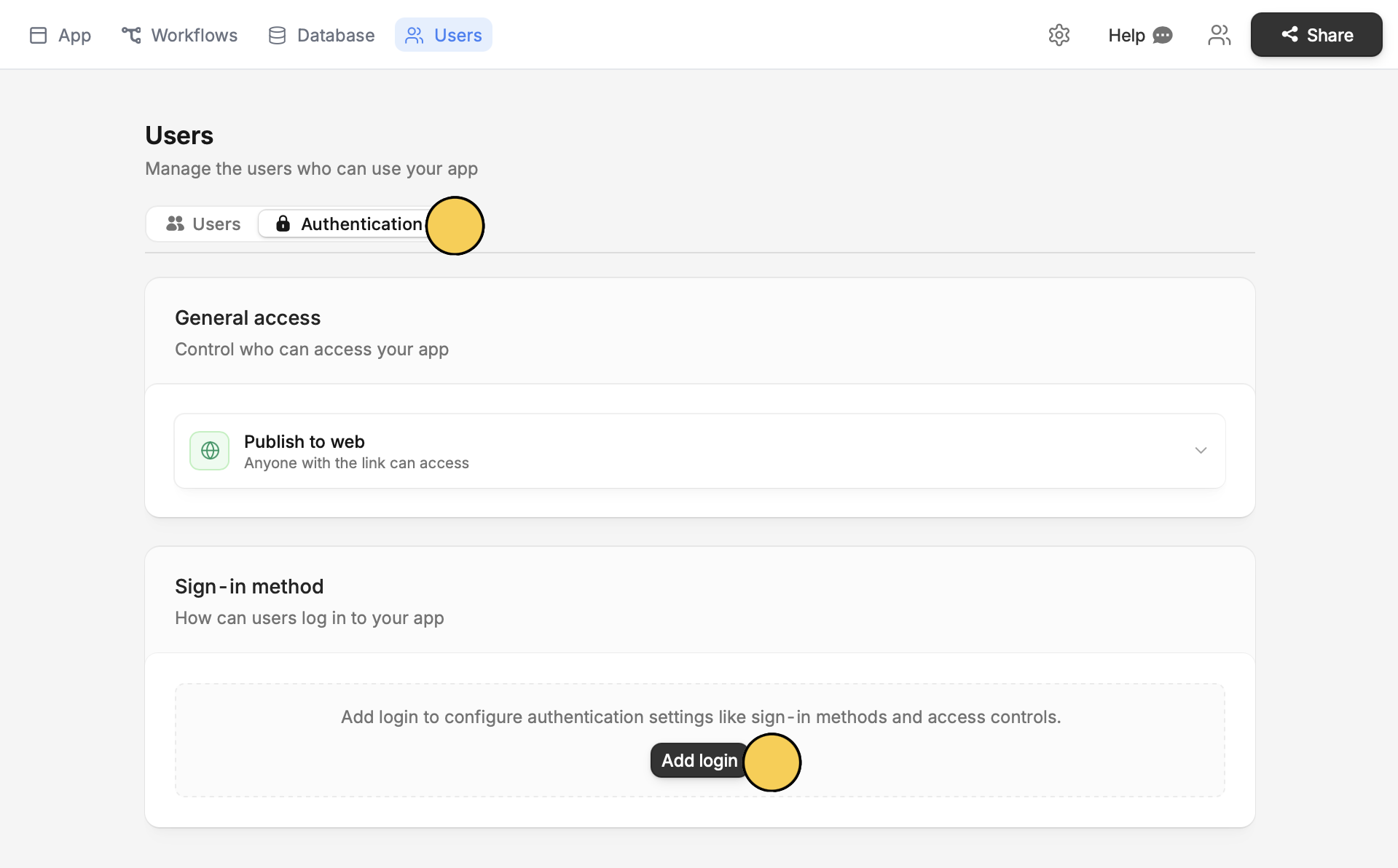
Users on top followed by Authentication. Then, click Add login.Configure sign-in methods
Choose which methods to enable: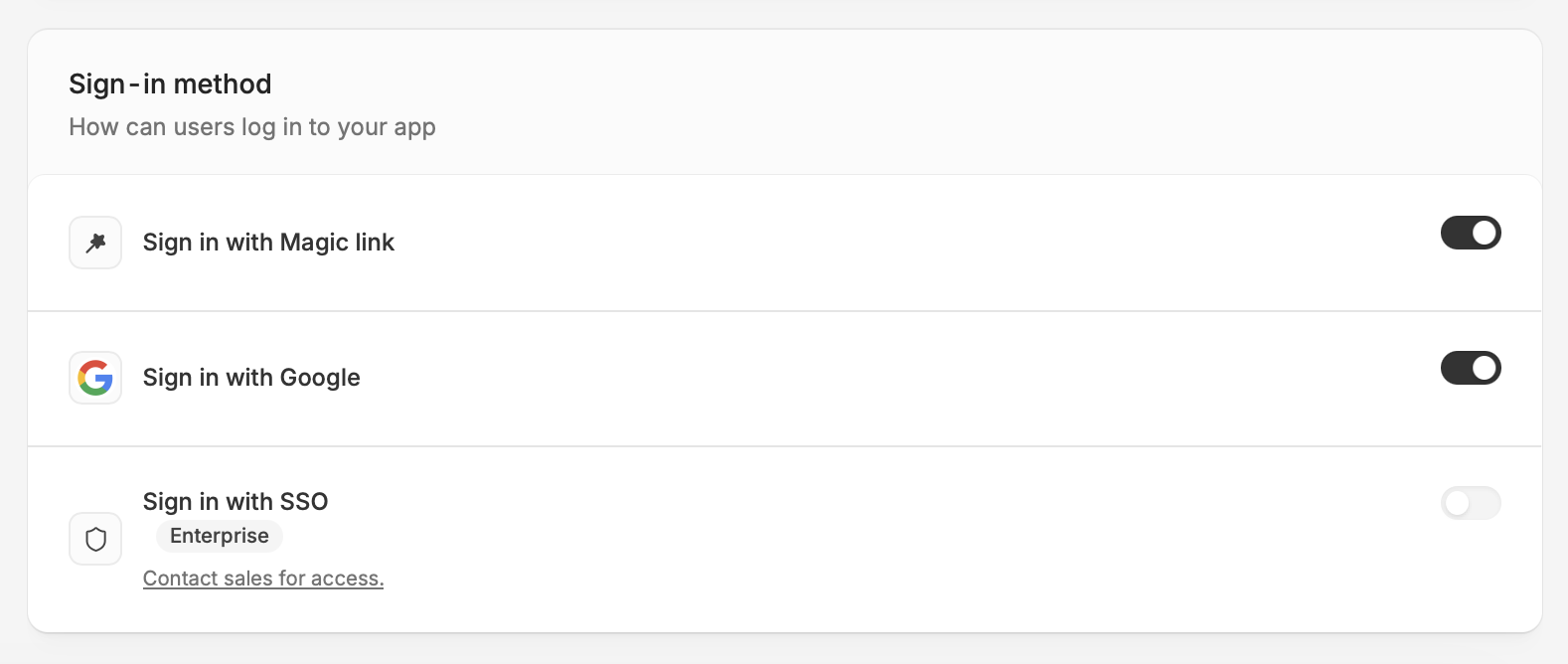
- Magic link — users receive a sign-in link via email (valid for 10 minutes)
- Google — users sign in with their Google account
- SSO — Users authenticate through your organization’s identity provider. Learn more.
Choose who can sign up
Scroll down to see the Who can sign up? section. Then, select one of the ff: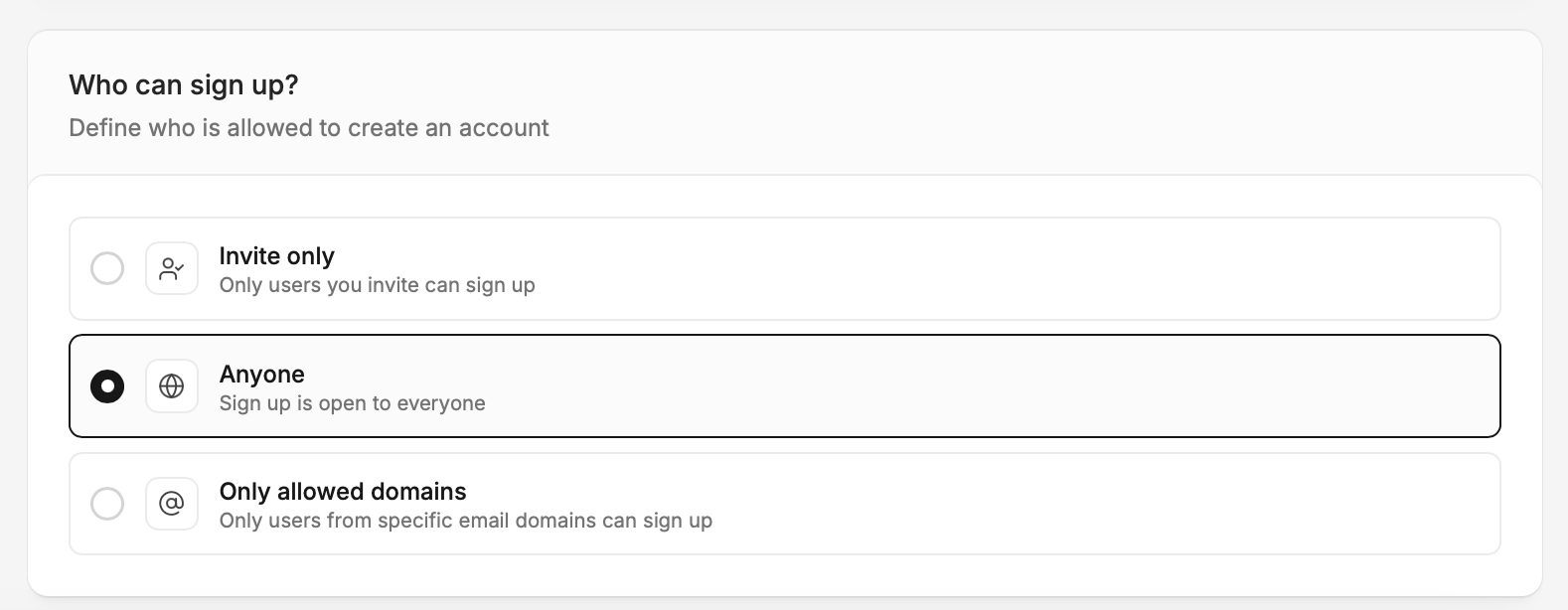
- Invite only (default) - only users you explicitly add can sign in
- Anyone - anybody who visits your app can create an account
- Only allowed domains - only users from specific email domains (e.g., example.com) can sign up
Publish and deploy
Click
Publish on the upper right corner to reflect the changes, then share your app.Manage users
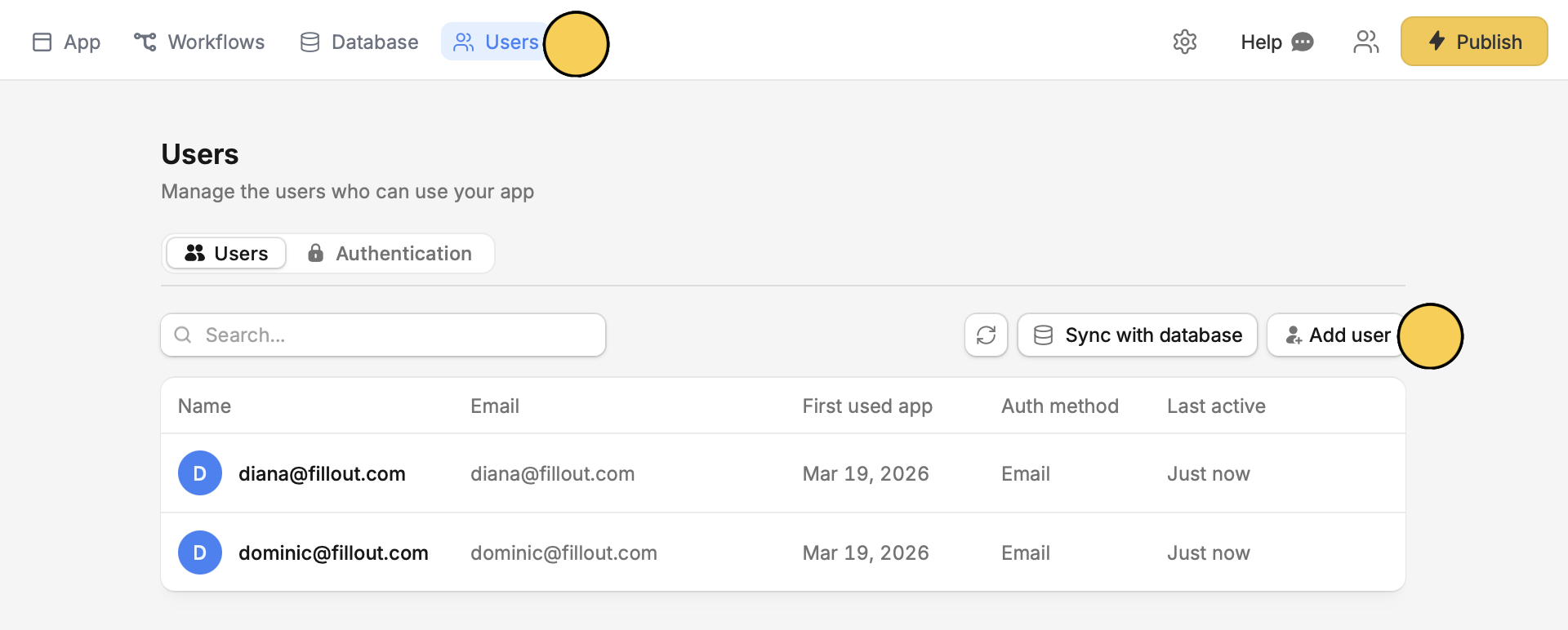
You can also specify a list of people who are allowed to use your Zite app. ClickUsers on the top nav bar followed by Add users.
Related articles
Single Sign-On (SSO)
Require SSO authentication and use custom attributes.
Share to web
Make your app accessible outside your organization.
User sync
Sync app users to a database table automatically.