

Video tutorial
How it works
Calculations in Fillout forms let you compute values and respondent input, and display them. They are built using step-by-step rules rather than a single formula. For example, let’s calculate the total cost of a chicken wings order based on quantity.Interactive demo
Each rule performs one operation, and the result is passed to the next rule in sequence. For example, instead of writing “(A + B) x C” in one line, you would break it down into separate rules:- Rule 1: Start with A (initial value = @FieldA) and Add @FieldB
- Rule 2: Take the total from Rule 1 and multiply by @FieldC
- Values are rounded to 2 decimal places
- Trailing zeros are not displayed (e.g.
10.2not10.20) - No currency symbols or thousands separators are added
Add a calculation
By opening the Logic modal, you can create calculations to compute values dynamically based on static values or previous respondent input. Let’s add calculations to an order form.1
Open Logic
Click the 
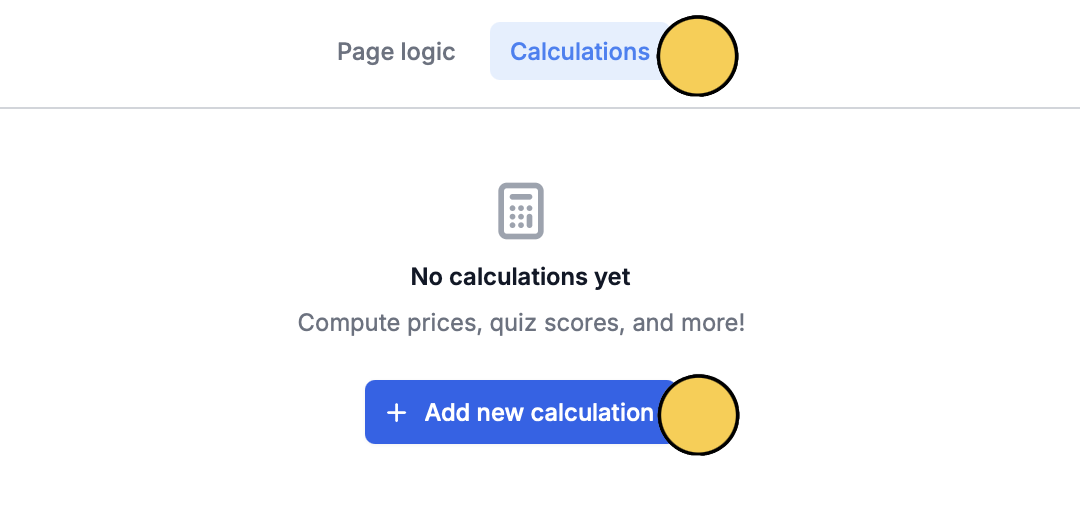
Logic modal in the bottom-right of your form editor.Calculations on top followed by + Add new calculation.- Number - for numerical results like price or score
- Text - for dynamic text based on responses
- Duration - for intervals between dates or times, like age, term or hours worked
number type.2
Enter initial value
Type the value you’d like to start with. Some common examples: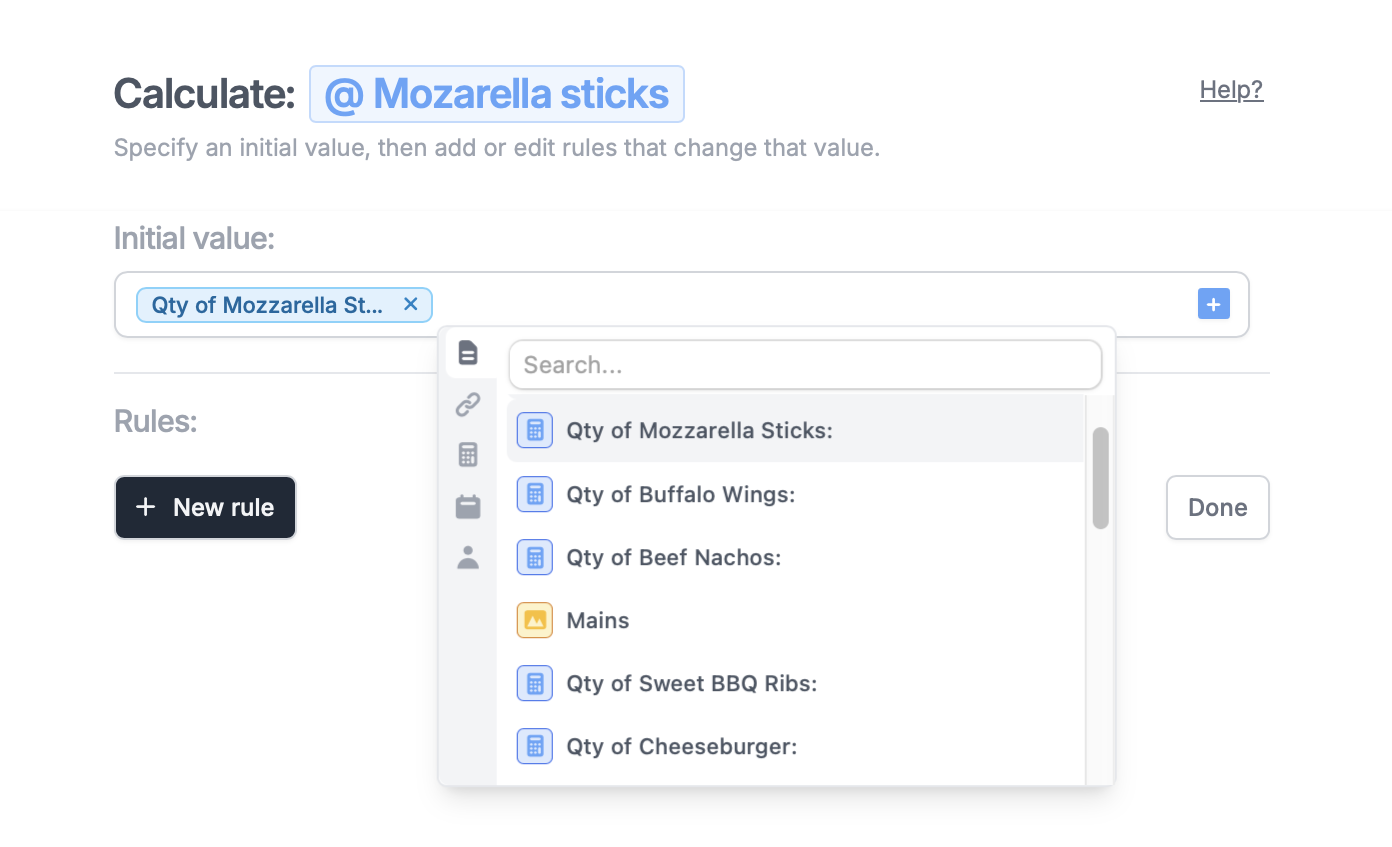
- 0 - to add to a price variable as options are selected
- 100 - to deduct points from a quiz
- Any arbitrary text - for a text calculation, or leave empty
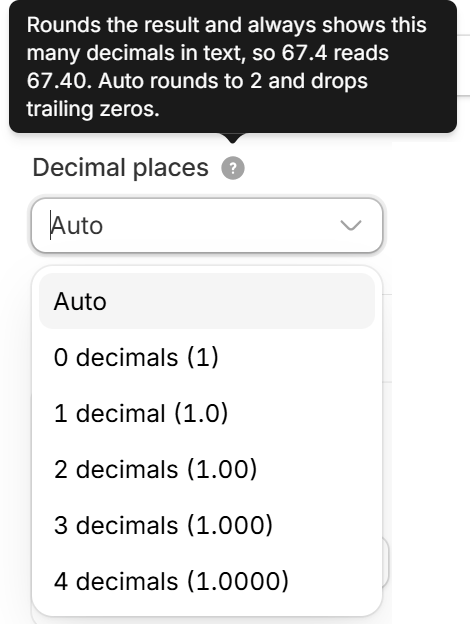
plus icon and selecting the field.- Auto - rounds to 2 decimal places and drops trailing zeros, so
67.40shows as67.4 - 0 to 4 decimals - rounds the result and always shows that many decimals in text, so with 2 decimals,
67.4shows as67.40
3
Define rules
Click 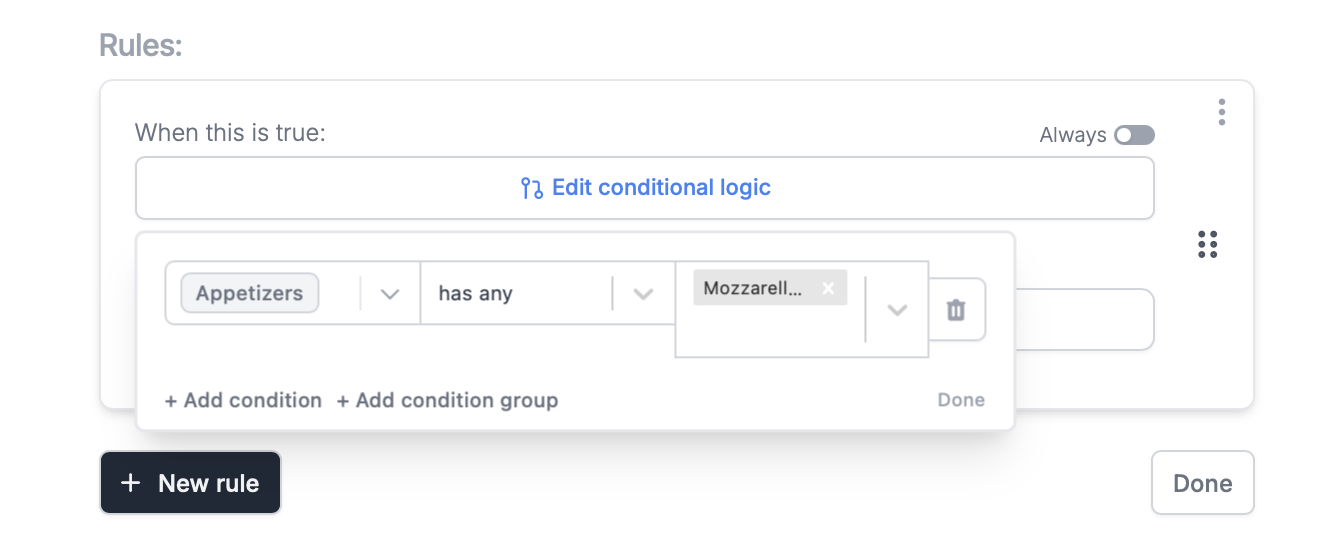
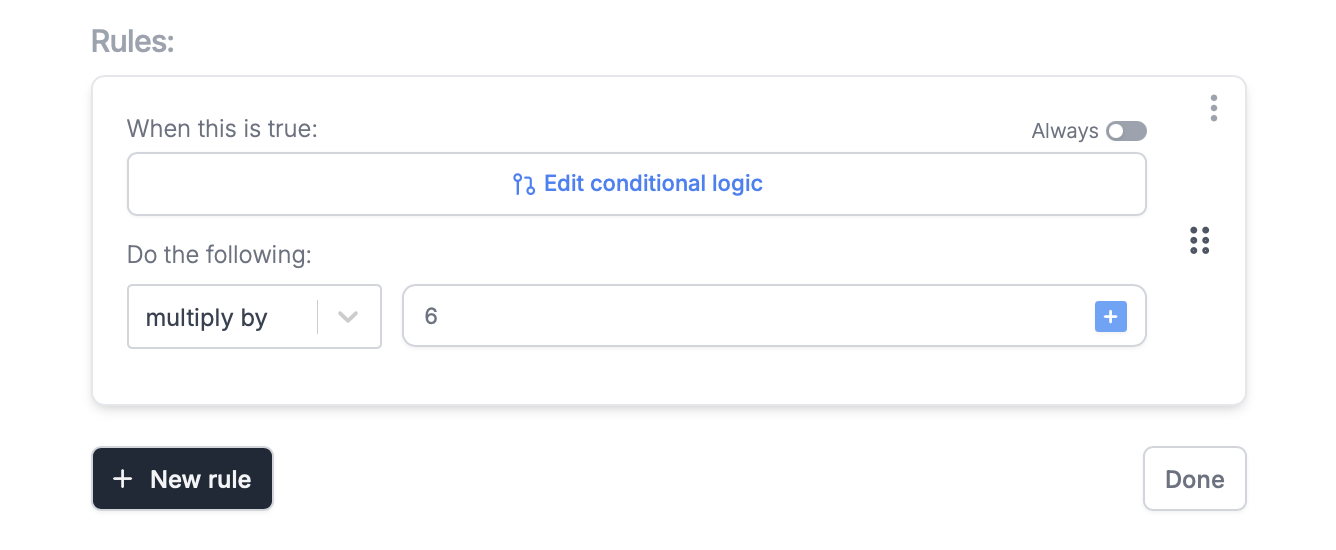
+ New rule to determine how the initial value will change. A rule is made up of 3 main parts:- Condition - a parameter, that when true, performs the calculation (e.g. add x amount when a respondent selects “yes” to a previous question)
- Operation - what to do to the calculation: add, subtract, multiply by, divide by or assign. assign replaces the current value with the operation value. A Text calculation can only use assign.
- Operation value - the value used with the operation (e.g. add x amount to your initial value)
Set conditional logic followed by + Add condition. Select the question or field on the left, qualifier in the middle, and choice on the right.4
Test your calculation
Exit Logic and click
Preview on the upper right corner to check that it works as intended.5
Publish and share
Once everything’s set,
Publish and share or embed your form.Combine calculations
Each rule does one operation, so a formula like (A × B) + (C × D) needs more than one calculation:- Add a Number calculation that starts from A and has a rule that will multiply by B.
- Add a second Number calculation that starts from C and has a rule that will multiply by D.
- Add a third Number calculation. For its Initial value, click the plus icon, then the calculator icon, and pick the first calculation. Add a rule that will add the second calculation.
Calculate a percentage
Add a Number calculation that starts from the value. Add a rule that will divide by the total, then another that will multiply by 100. Turn on Always for both rules so they run every time. For example, for a 10-question quiz, start from Correct answers, divide by 10, then multiply by 100. A respondent with 7 correct answers gets 70.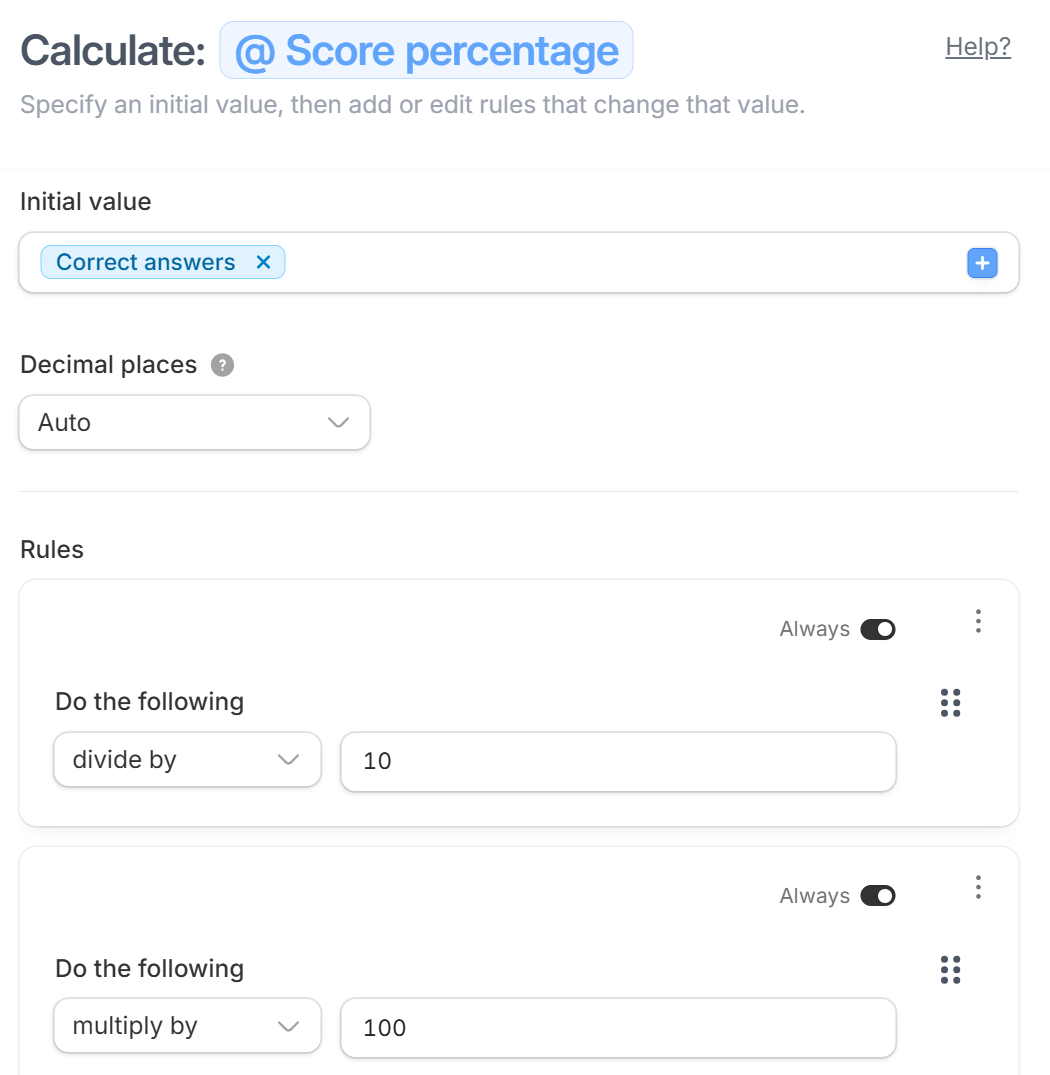
Rule hierarchy for results
To resolve conflicts between rules, results follow a clear priority order. Higher-priority rules always take precedence over lower-priority ones.- A always wins (Highest priority): All A rules take precedence over every other rule.
- B always wins after A: Applies after A. B rules are overridden when they conflict with A.
- C always wins after B: Applies after A and B. C rules are overridden when they conflict with A or B.
- D only wins when the others don’t (Lowest priority): Only applies when none of the higher-priority rules (A, B, or C) apply.
Dynamic calculation
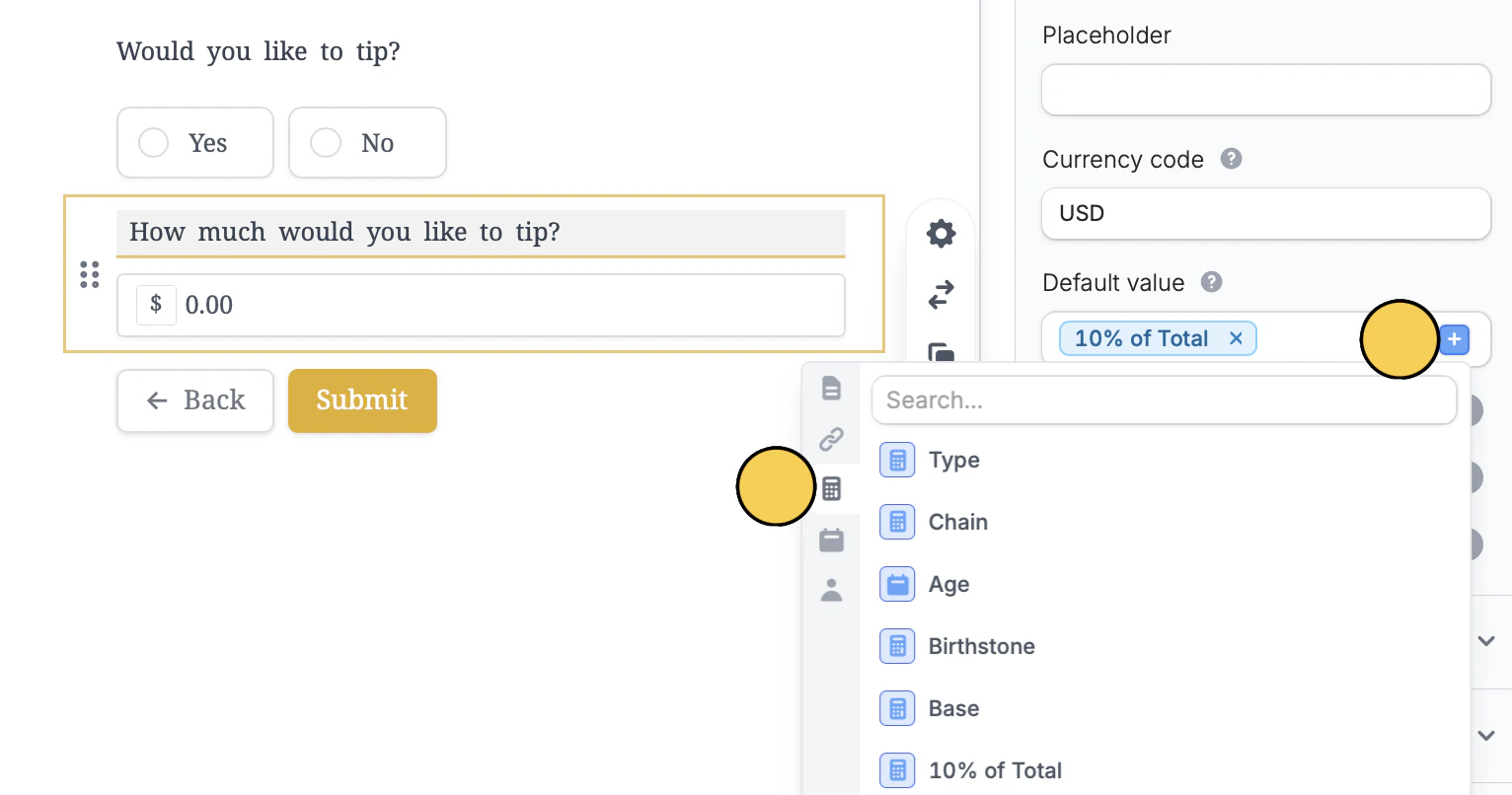
Make the price dynamic After adding a payment page, type @ or click theplus icon and click the calculator icon to reference a calculation. Now, the price will change depending on the customer’s order.
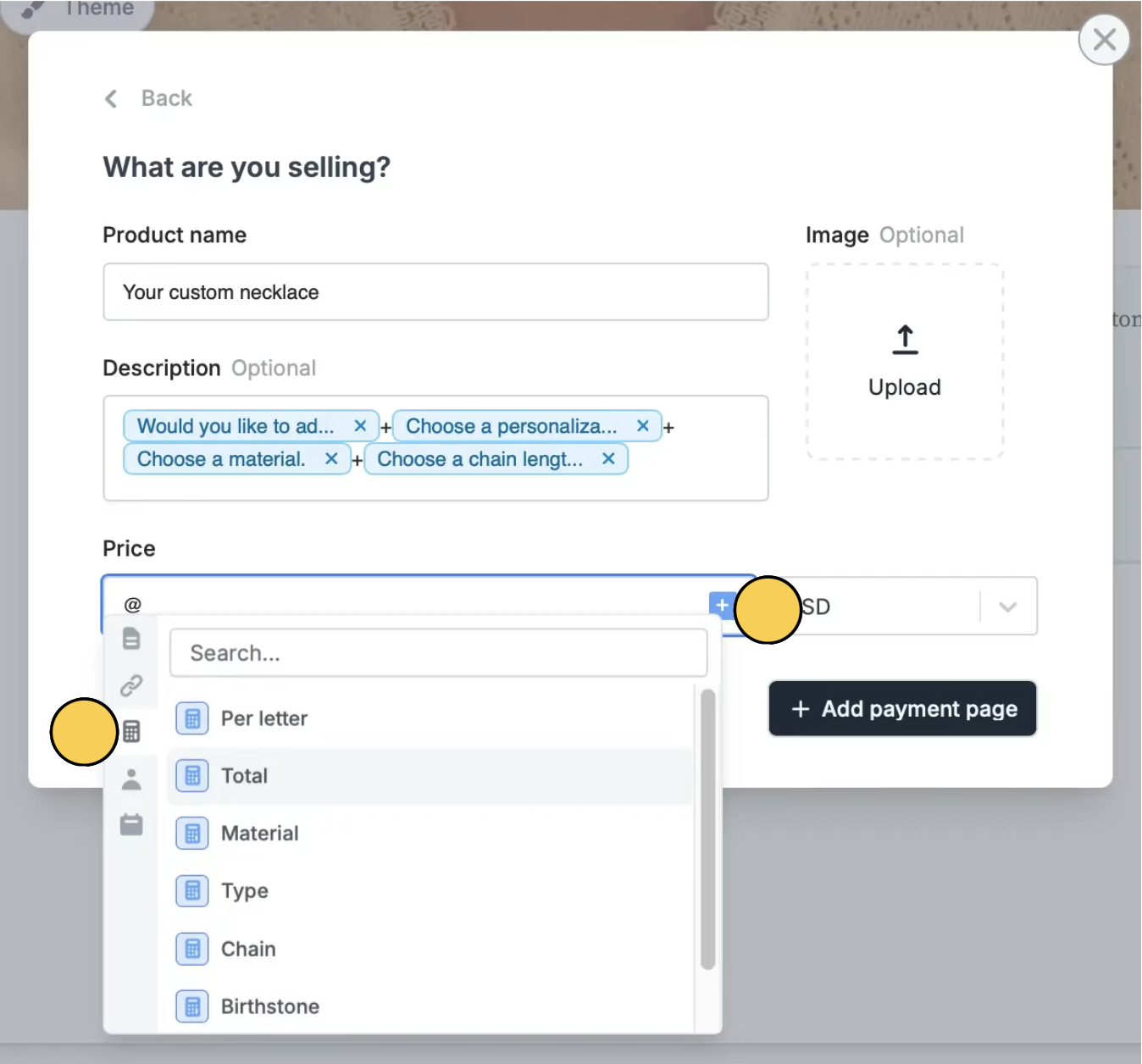
calculator icon to reference previous answers or calculations.
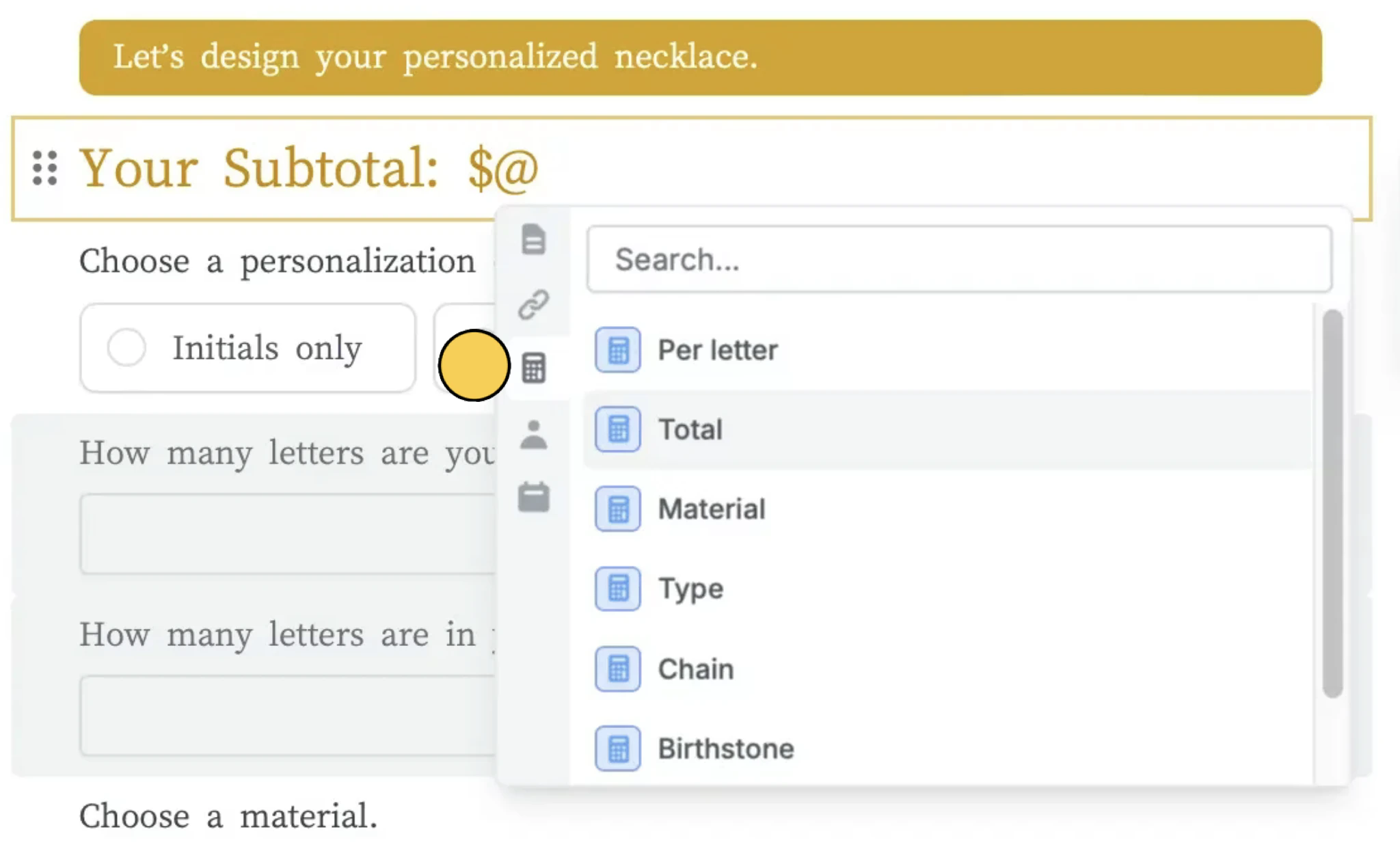
plus icon followed by the calculator icon to reference a calculation.
Calculate the time between dates or times
Use a Duration calculation to work out someone’s age, how long a trip lasts, or how many hours someone worked. Pick the Start and End questions, then the Units you want the result in: years, months, weeks, days, hours or minutes. For Start or End, you can also click the calendar icon and pick a date utility, like Today or Submission time. For example, start from a date of birth and end on Today to get someone’s age. The result is always a whole number, rounded down. For example, from 1:00 PM to 4:30 PM in hours gives 3, not 3.5.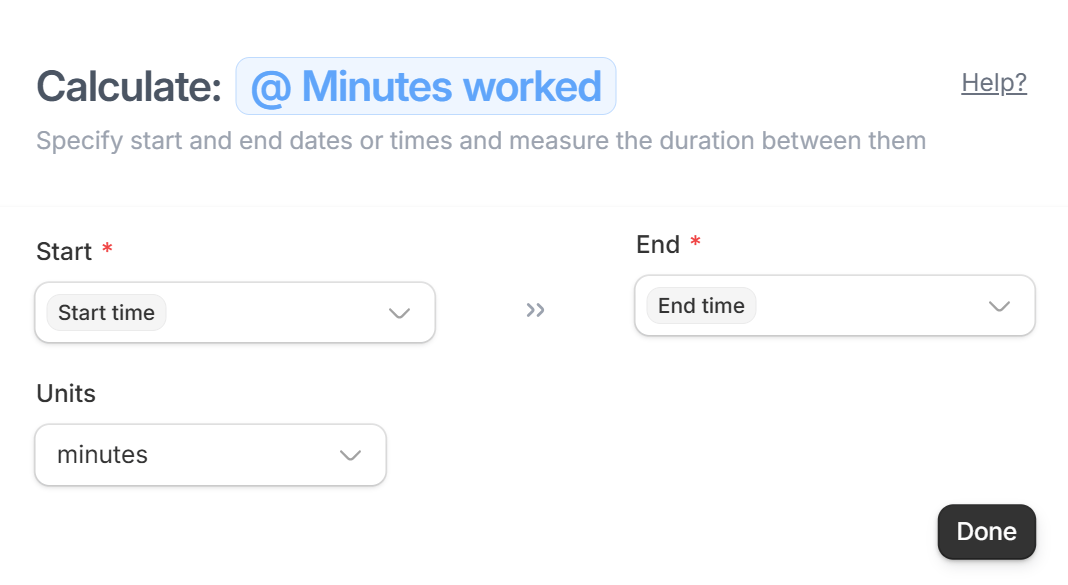
Get hours with decimals, or take off a break
For a timesheet, you might want 3.5 hours instead of 3, or to take off a lunch break. A Duration calculation can’t do that on its own, so add a second calculation that does the math:- Add a Duration calculation in minutes. From 1:00 PM to 4:30 PM, it gives 210.
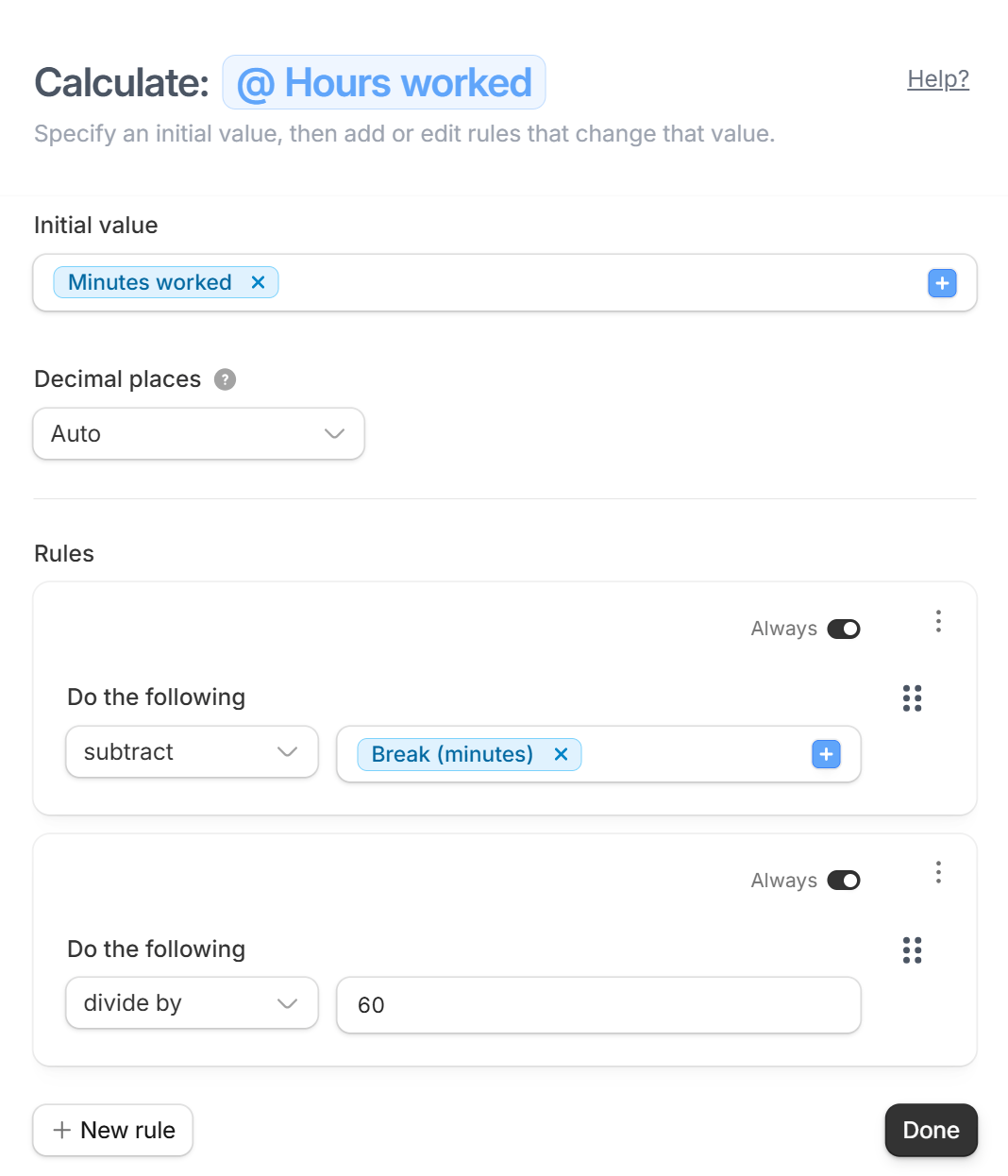
- Add a Number calculation. For its Initial value, pick the Duration calculation.
- If you ask for a break, click + New rule, choose subtract and pick the break question. With a 30-minute break, that leaves 180.
- Click + New rule again, choose divide by and enter 60. 210 minutes becomes 3.5 hours, or 3 hours with the break.
- Show the Number calculation on your form, not the Duration one.
Add days to a date
Calculations can’t add days, weeks or months to a date, so they can’t work out a due date or an end date. A calculation can be Text, Number or Duration, and none of them gives a date as its result. A Duration calculation only measures the time between two dates or times. To show a date a set number of days from today, set a date field’s Default value to N days from now instead. See Pre-fill dates in your form.Other things calculations can’t do
- Take part of an answer, like a first name from a full name. A Text calculation can only set a value.
- Generate random values or number respondents, like Respondent 1, 2, 3. Forms can’t see how many submissions they already have. Each submission gets a unique Submission ID instead.
- Show a clickable link. A Text calculation shows as plain text. To send respondents to a link from a calculation, add a URL button to the ending page and reference the calculation in its URL. You can also select text in a Paragraph, add a link, and type @ in its URL to insert the calculation.
Pre-fill fields with a calculation
Much like how fields are pre-filled elsewhere in Fillout, you can reference calculations there as well.Calculate quiz scores
Fillout automatically computes the score and lets you display it on any page you prefer. Additionally, you can use weighted scoring, which also lets you assign results based on total score.Related articles
Answer piping
Insert previous answers into upcoming questions or fields.
Pre-fill fields
Pre-populate fields based on previous inputs and more.
Integration logic
Perform an integration only when a certain condition is met.