

Overview
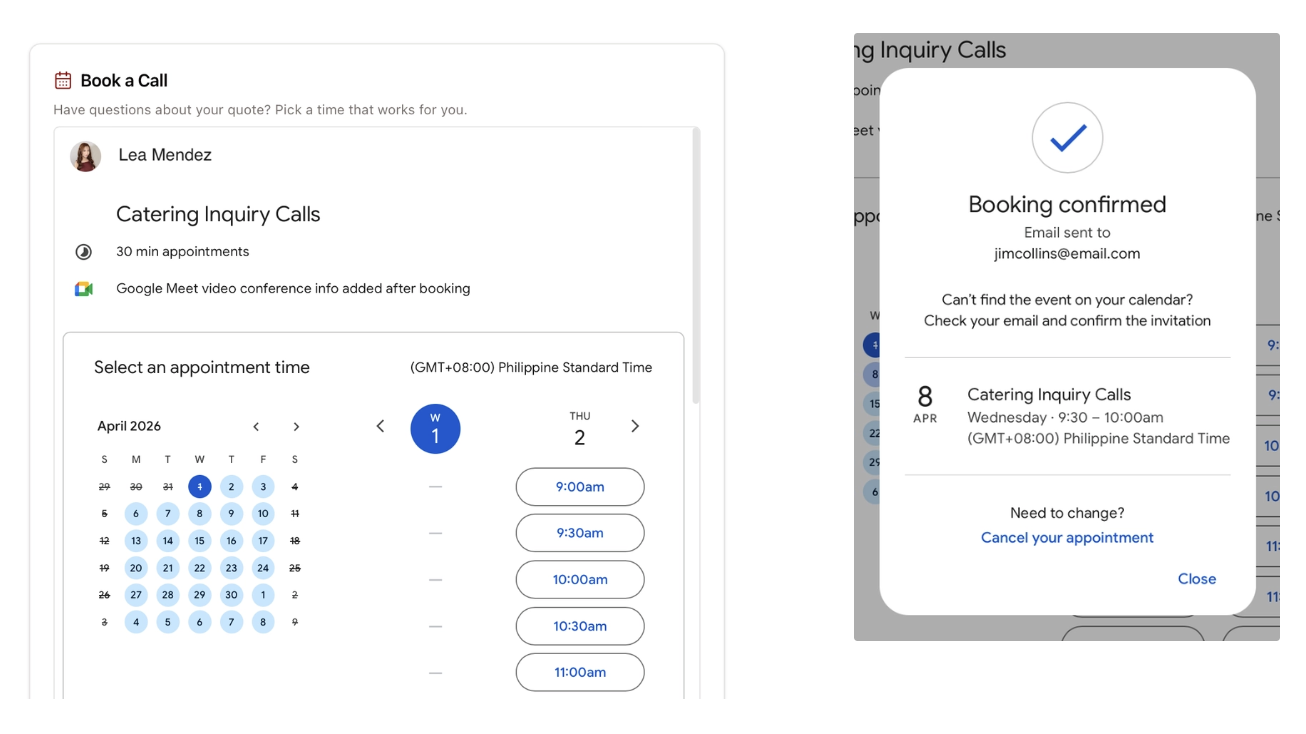
Let users schedule calls on your Google Calendar by linking it to your Zite app either as a button or an embed. This is useful for meetings, appointments, and other events.How to insert your booking page
Connect to Google Calendar
In the chat box, ask Zite to connect to Google Calendar or click .
Enter your use case
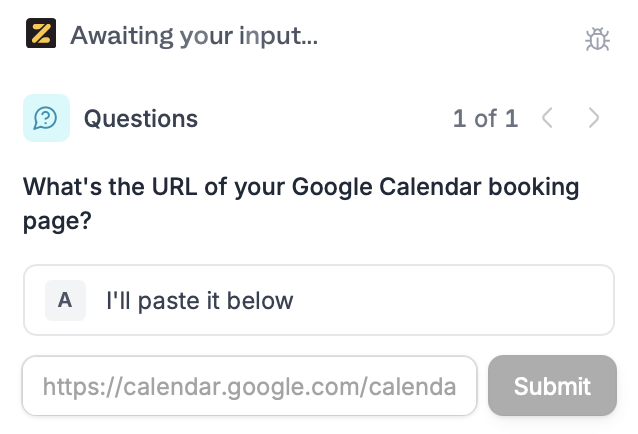
Describe how you’d like to use Google Calendar in your app. In this example, we’ll let users book a call after seeing their generated quote.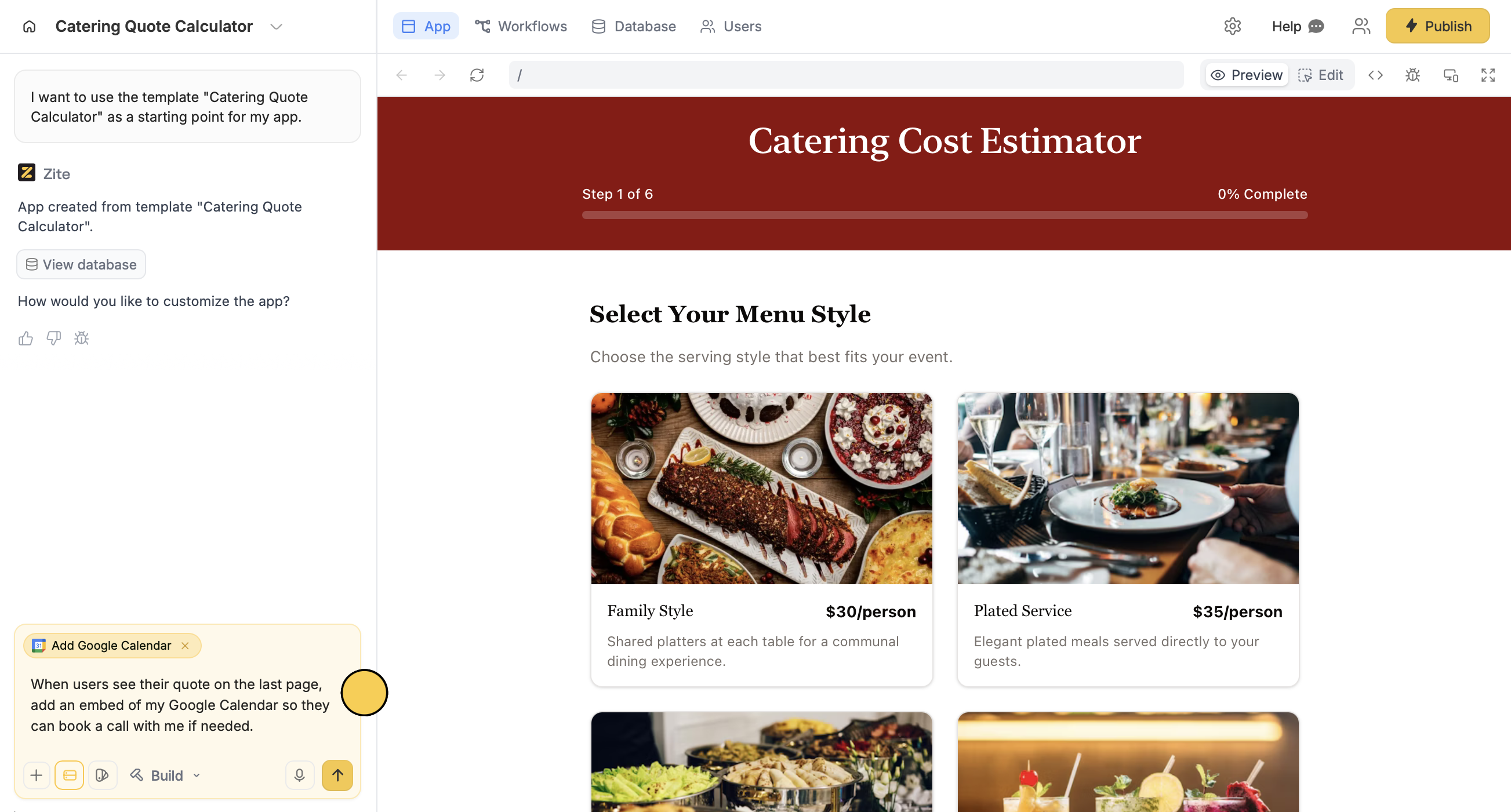
Deploy and share
Use a custom booking page
If you don’t want to use the standard Google Calendar design, you can create a branded Fillout scheduling form instead. Then link the form to your Zite app so others can book appointments with your custom design.Common use cases
With a Google Calendar connection, you create apps like:- Product Sites: Let potential customers book demo calls
- Team Meetings: Let team members book meeting slots without back-and-forth emails
- Bookings or Appointments: Allow others to book appointments like patients and etc.
- Interview Scheduling: Let candidates pick available interview slots
- Consultations: Let clients schedule virtual consults