

How to build a form in minutes
1

2
Create a new form
On your Home page, click 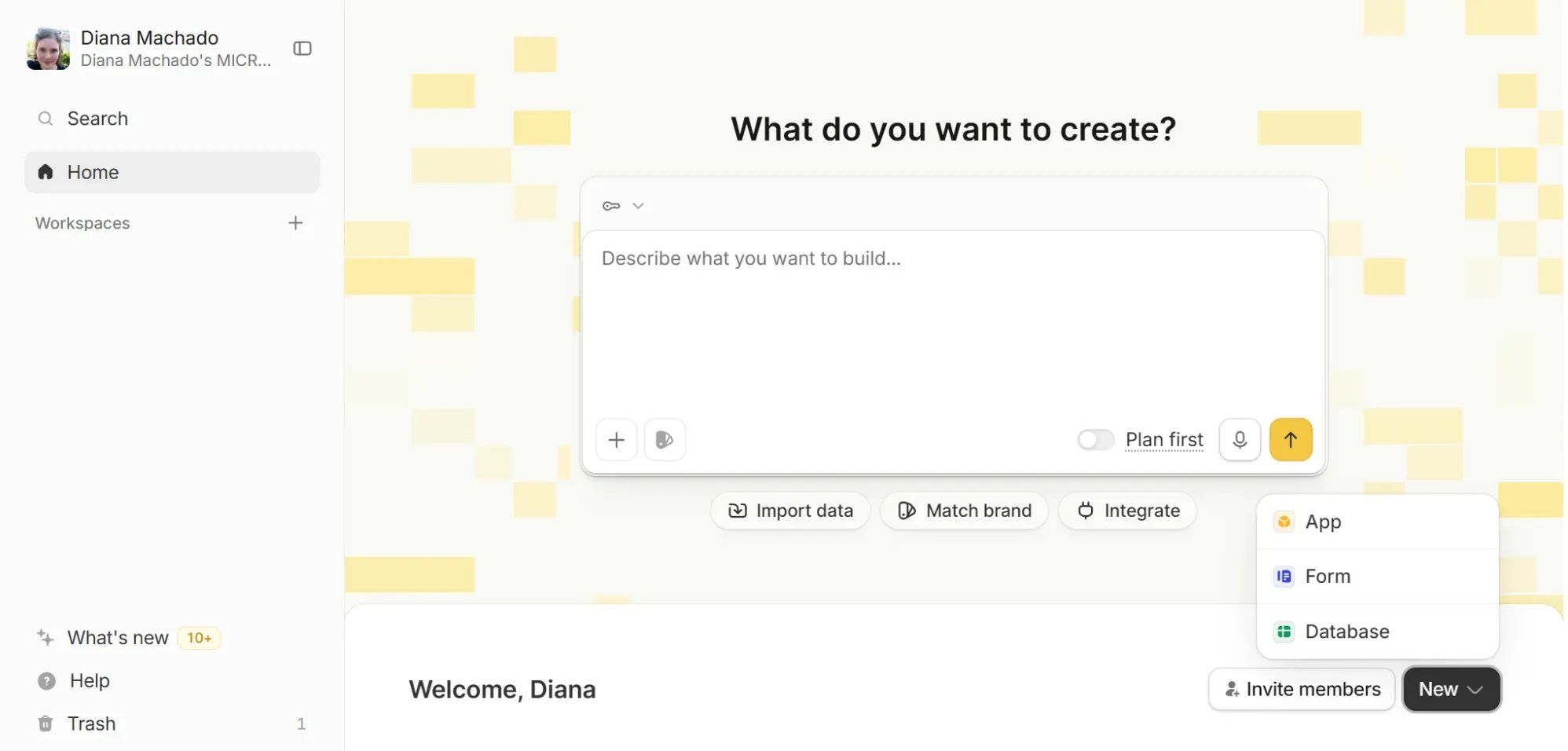
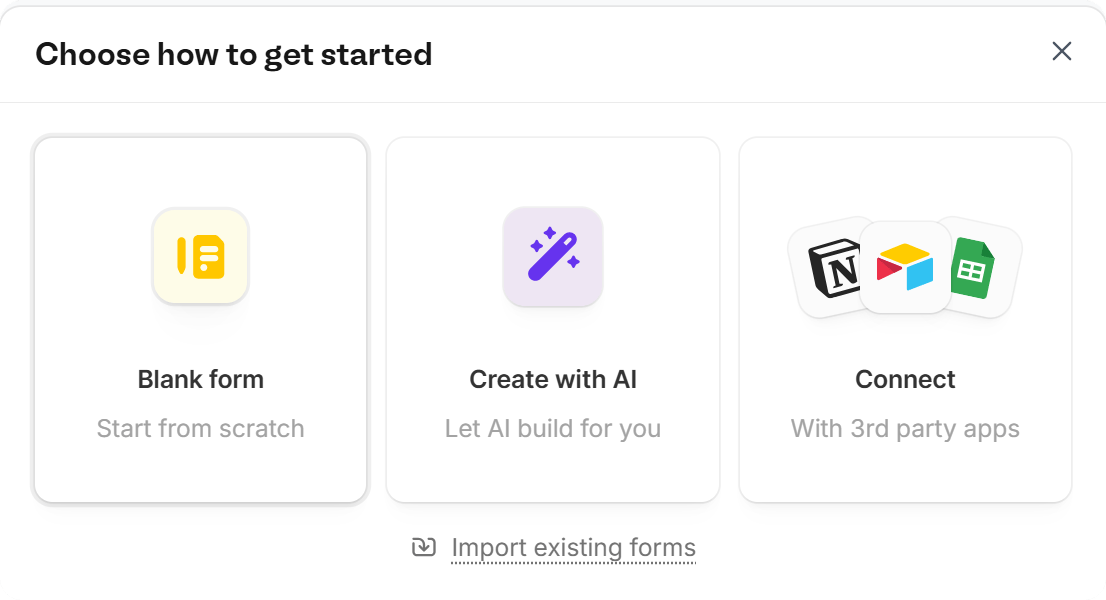
New in the lower right, then select Form.Import existing forms to import a form, convert a PDF, or start from a Template.Blank form. You can always connect to an integration later.3
Customize the design
Click 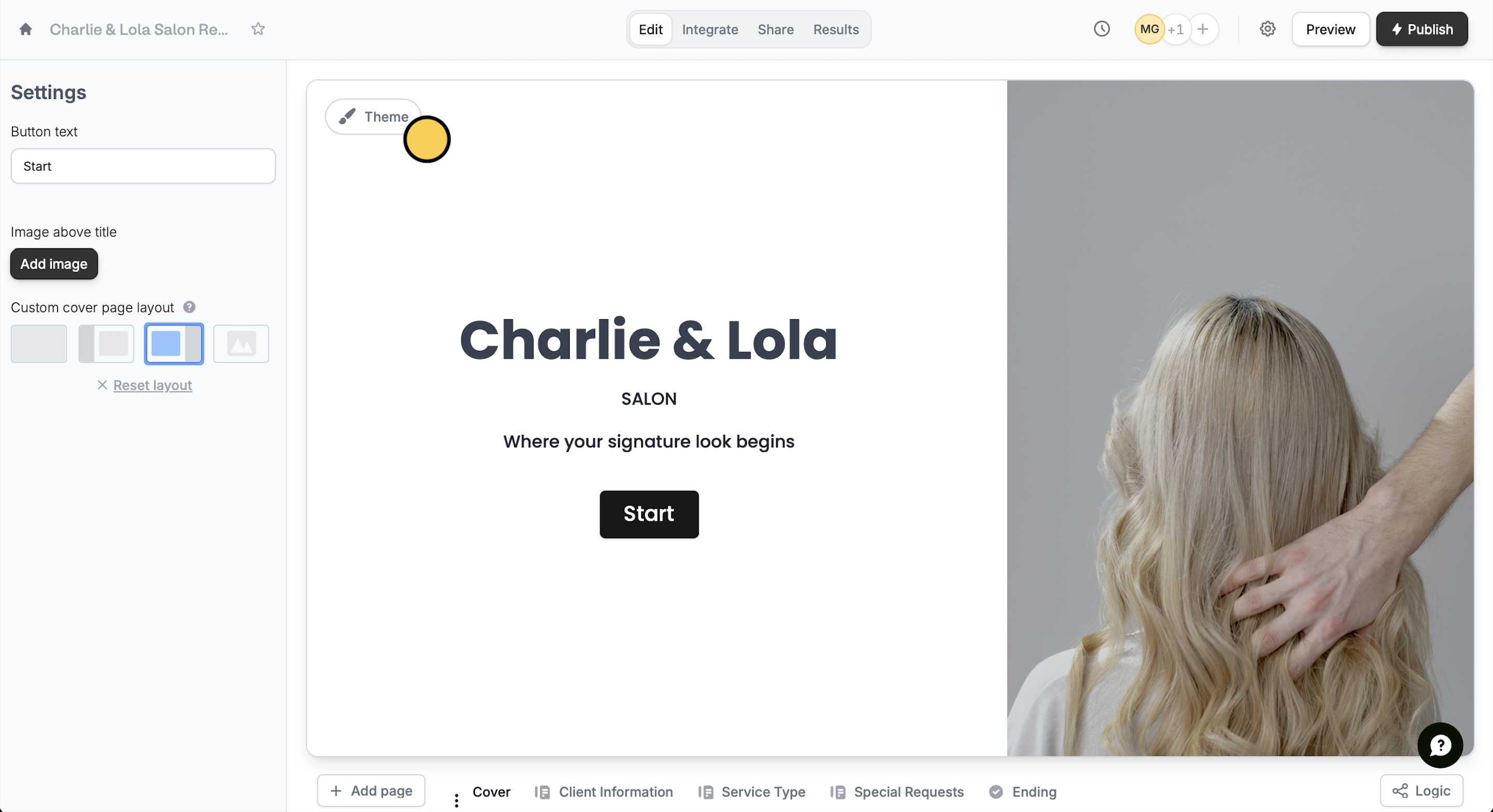
Theme to pick from one of the pre-made themes or customize your own.4
Add questions or fields
Click or drag and drop your desired field types from the left-hand panel. Choose between over 50 different types.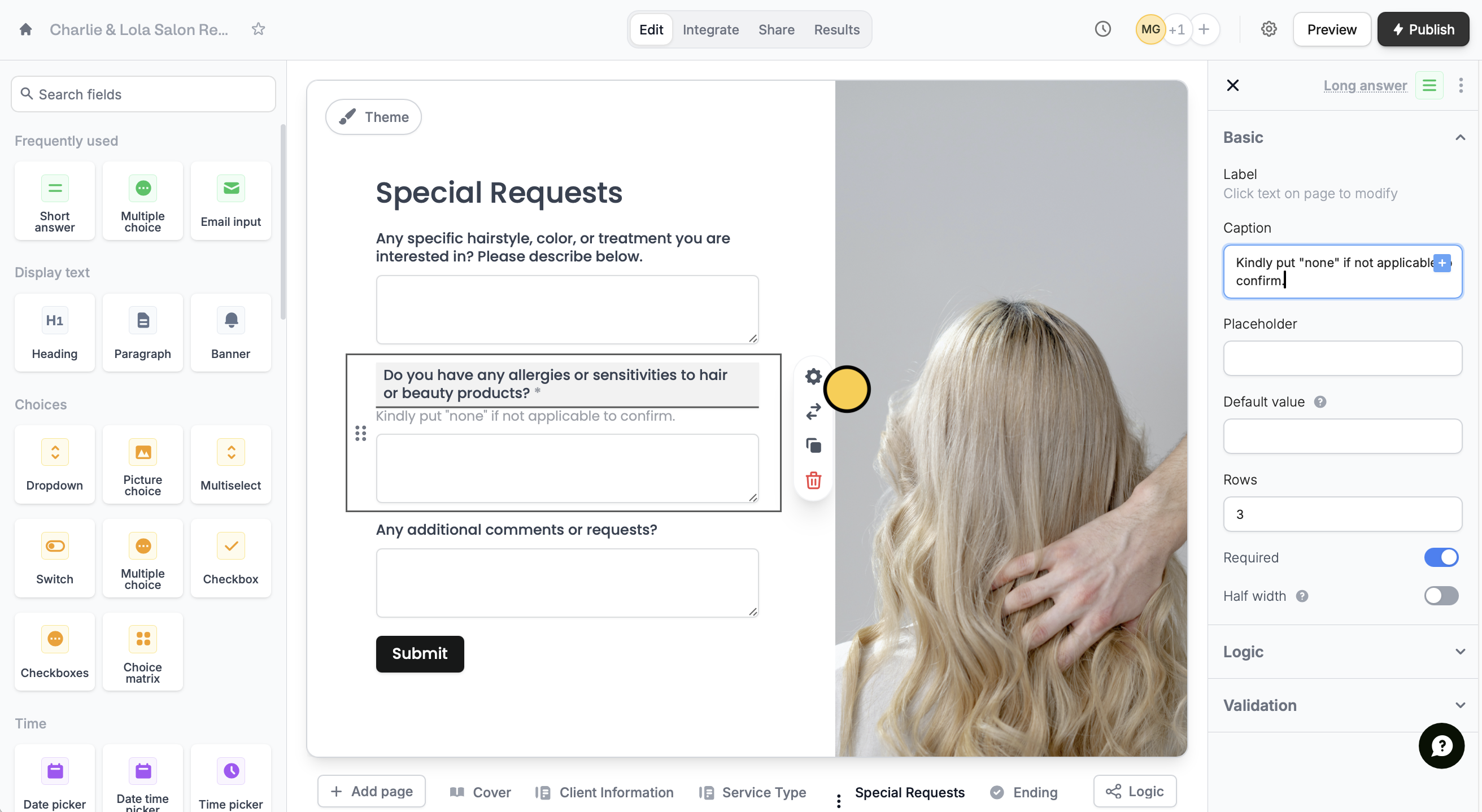
settings icon to customize it in the right-hand panel.5
Publish and share
Preview your form to test it. Once everything’s good to go, press Publish.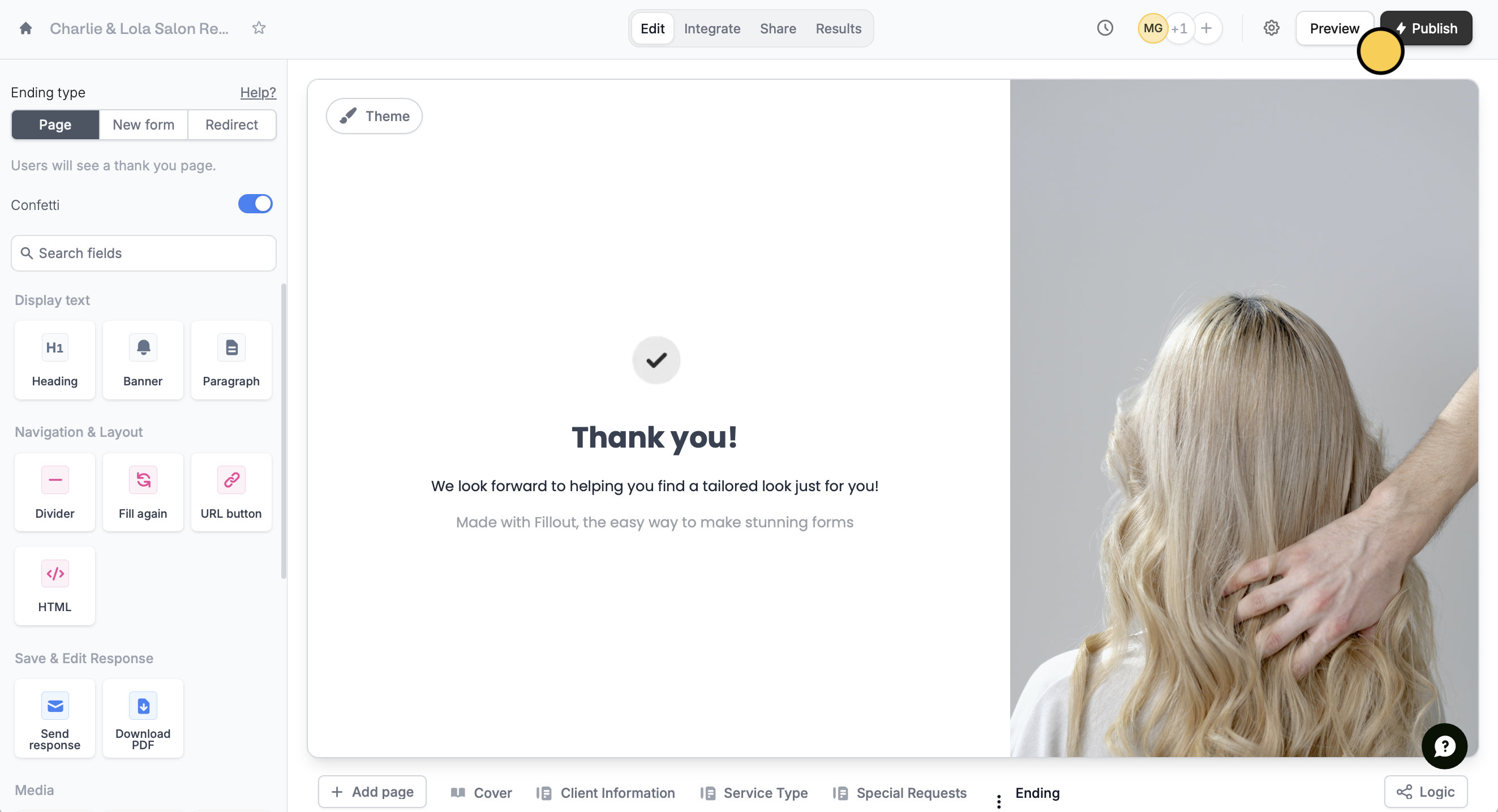
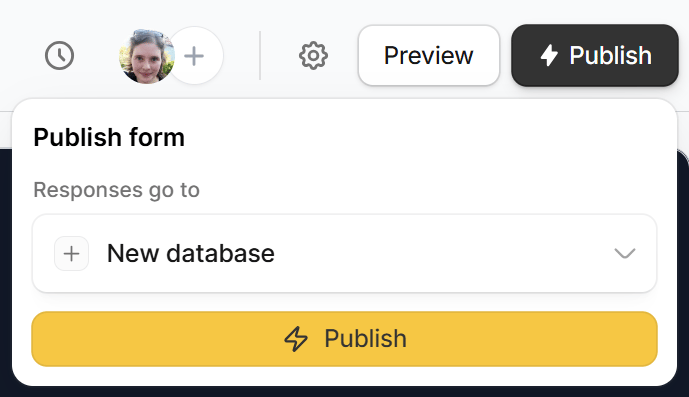
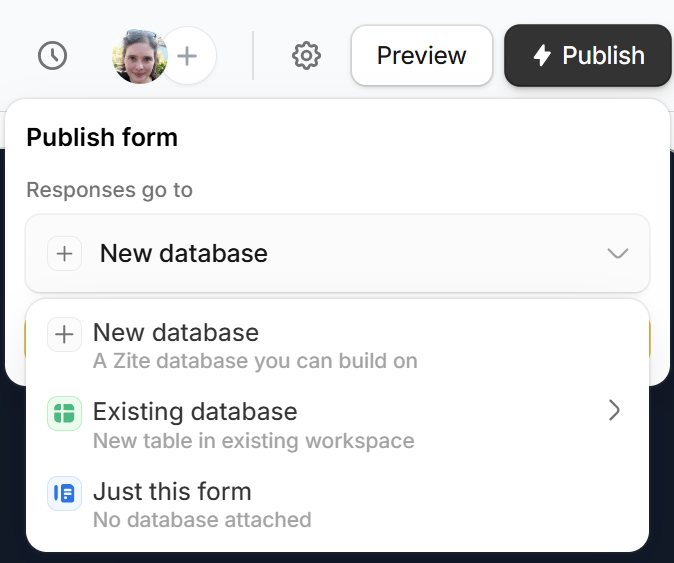
Publish:- New database - responses are sent to a new Zite Database that you can build on with tables, custom fields, and views.
- Existing database - responses are sent to a new table in an existing workspace.
- Just this form - no database is attached. Responses are saved to the form’s Results.
If you signed up with an email and password and haven’t verified your email yet, you’ll see Verify your email to publish. Open the link in the verification email, or click
Resend link to get a new one. Then, go back to the editor and your form will publish on its own.Related articles
Themes
Select from hundreds of themes or create your own.
Field types
Customize or change over 50 field types, add captions, and more.
Responses
View all submissions to your form. Filter, sort, or export to CSV.