

Video overview
Add a login page
Login pages can be used to secure your form behind a password, or verify that the provided email is valid (and that they own it). Click+ Add page, and choose Login.
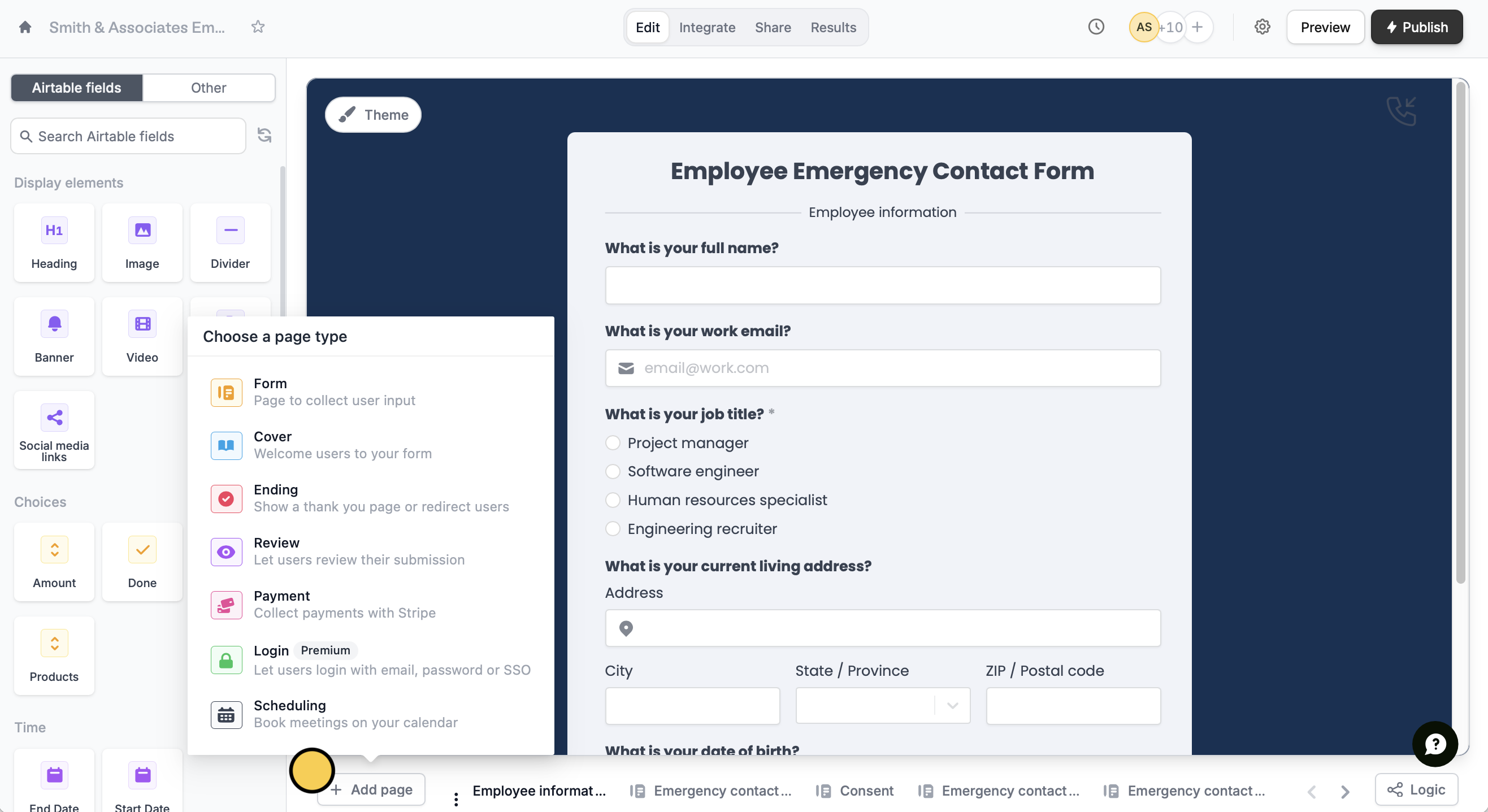
Login pages are available on the Fillout Starter, Pro and Business plans, and on Team and Enterprise. Zite Free, Pro and Business plans don’t include them for forms. See Fillout pricing.
Login page types
In the left-hand panel, you can choose between Email, Password, and Single Sign-On (SSO).Email login
This is the default Verification type, which requires respondents to enter an email and verify it with a code sent to their inbox. Each code lasts 30 minutes, and only the newest code works. After five wrong tries, the code is canceled and respondents see Too many incorrect attempts. Request a new pin. They can request a new code and use the latest email. Signing in to two forms from the same organization at the same time cancels the first code.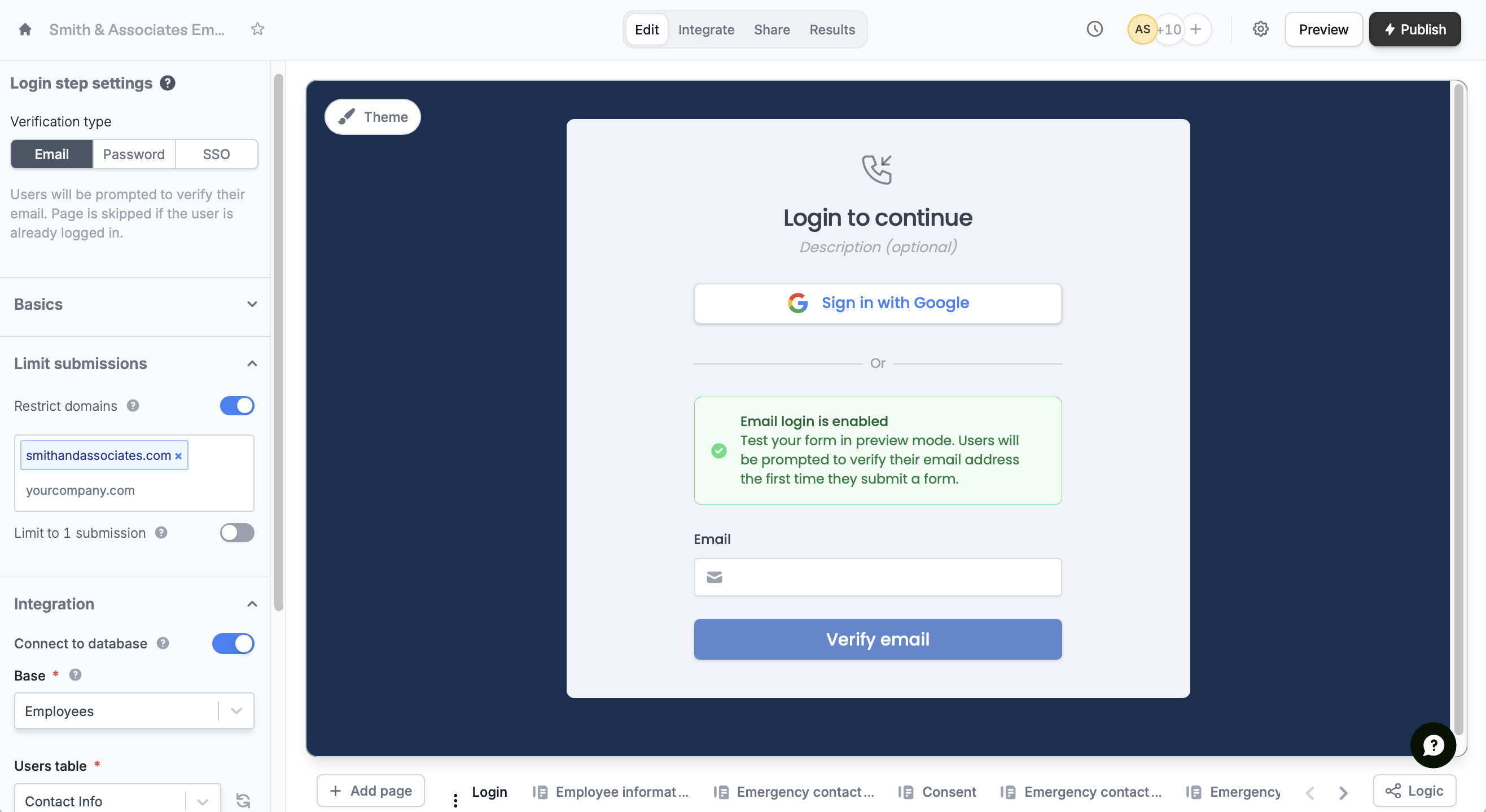
- Restrict domains – allow only specific email domains, such as your company’s domain
- Limit to 1 submission – restrict each respondent to a single form submission
Change the already submitted message
When Limit to 1 submission is on, a respondent who logs in again with an email that already submitted the form sees You have already submitted this form and Contact the form owner for more details. instead of the form. To change this message, fill in Title and Subtitle, which appear below Limit to 1 submission once it’s on. If you leave them empty, respondents see the default text. The message shows whether respondents log in with an email code or with Google. Click Publish so the change applies to your live form. Respondents can’t skip this page. If you also turn on Can edit existing responses, the page shows an Edit submission button that opens their earlier answers so they can update them.Customize the login email
Here’s what you can and can’t change in the email that delivers the login code:- Sender – always sent from
notifications@fillout.com. It can’t be sent from a custom domain or your own email provider, and the sender name can’t be changed. - Subject and message – can be edited under Email settings in the left-hand panel. Enter an
Email subjectand click theEmail bodyfield to write and format your message. Your custom text is used if your organization is verified or on a paid plan. Otherwise, the default wording is sent and the login code still works. - Design – uses your form’s theme colors.
- Fillout branding – the Fillout logo and footer link are hidden on plans that include branding removal. On those plans, your form’s own logo appears instead if the logo is shown in your form’s top bar.
Sign in with Google
Under Basics, Login methods lists Email and Google. With both, respondents can verify with a code or click Sign in with Google. Remove either one to offer only the other.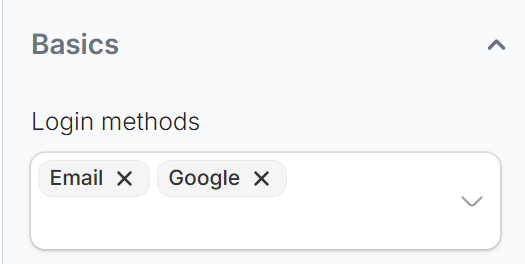
Password login
Switch toPassword and enter your preferred single passcode in the left-hand panel. You can edit this later on.
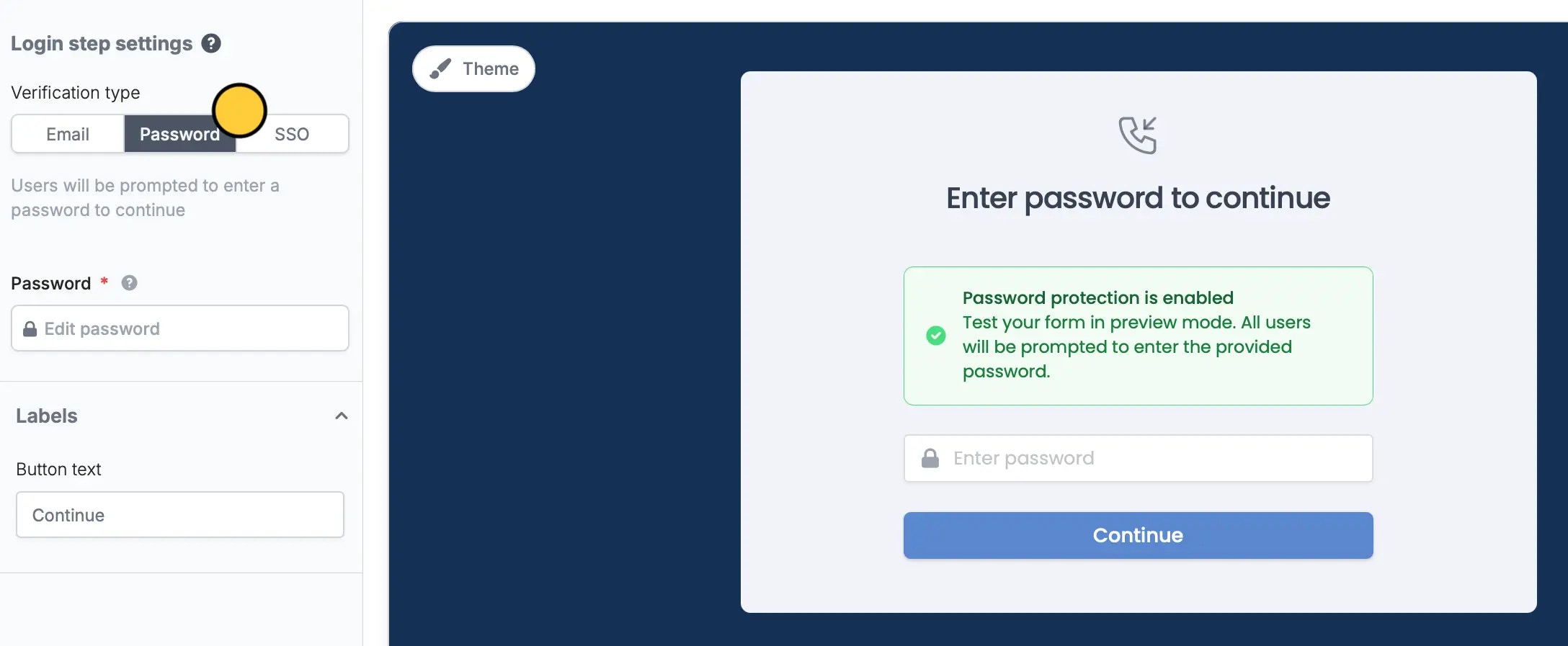
Publish your form after entering or changing the password, otherwise respondents will not be able to access your form.
Single Sign-On login (SSO)
You can also opt forSSO. Add Microsoft, OneLogin, Google Workspaces, Okta and other types of SSO login to your form. Learn more here.
Connect to a database
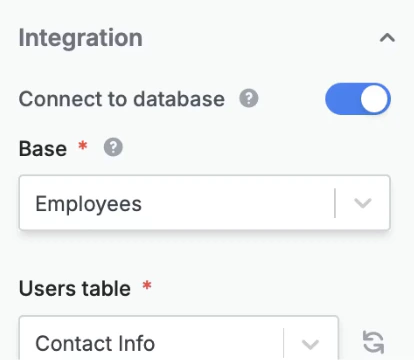
Limit logins to users listed in a specific database, and retrieve their records for use in the form. On the left-hand panel, toggleConnect to database and choose your Base and Users table.
Allow respondents to edit past submissions
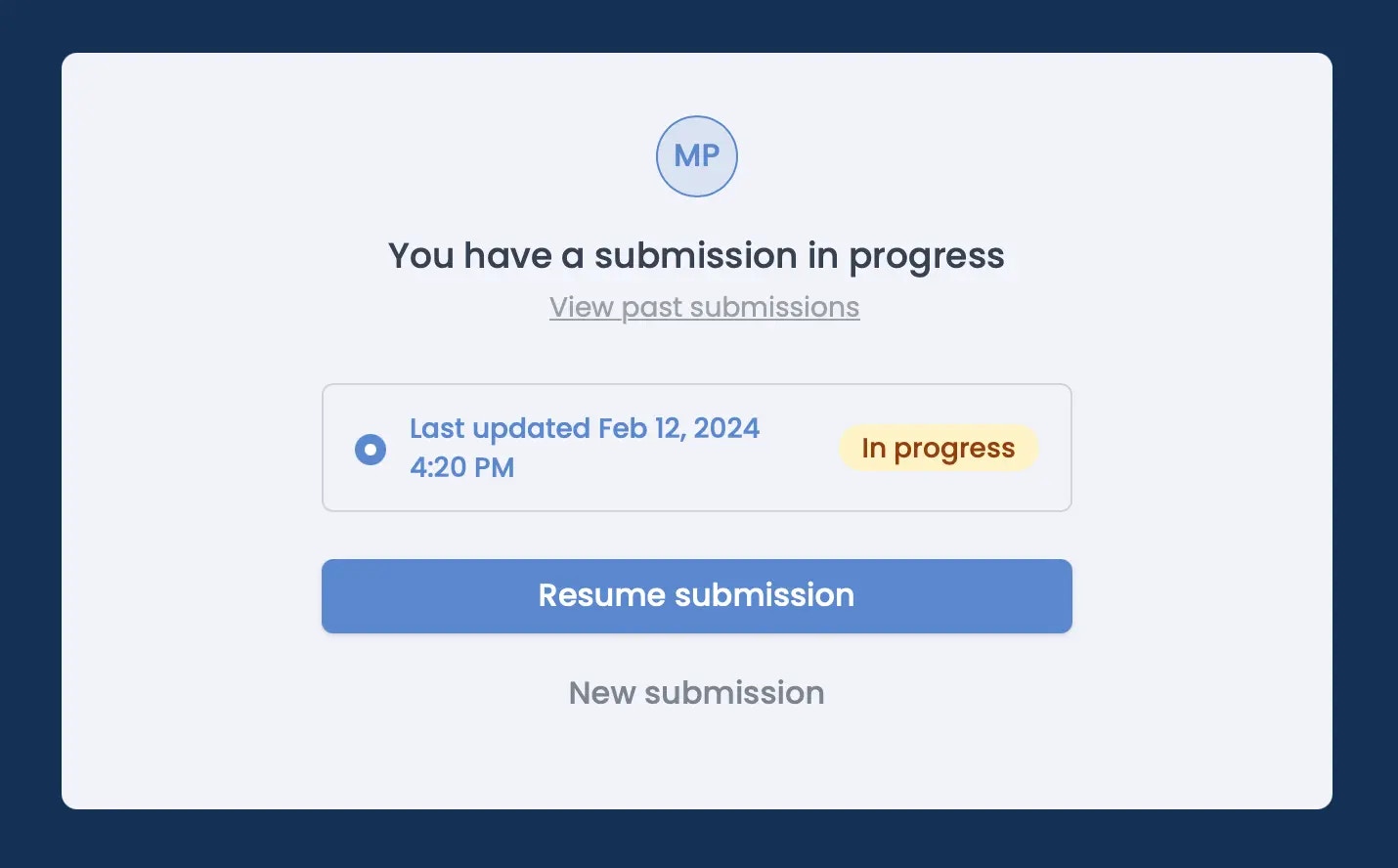
Some forms may need to be updated or edited after submitting them. Under Basics in the left-hand panel, toggle theCan edit existing responses switch.
Related articles
Partial submissions
Auto-save progress so respondents can resume later.
Let respondents edit their submissions
Keep form responses updated.
Create an Airtable form
Use a form to create or update Airtable bases.