

Set up 2FA
1
Open settings
On your Fillout dashboard, click your 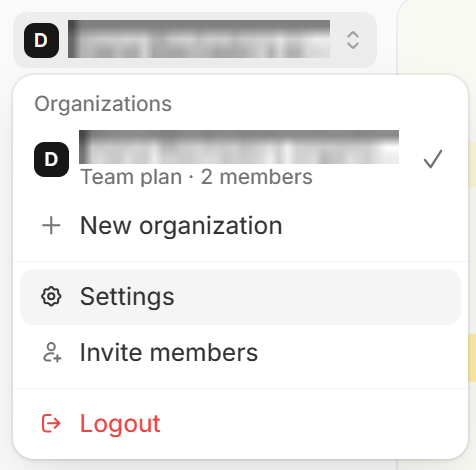
organization name in the upper left corner followed by Settings.This feature is available on all plans including the Free tier.
2
Go to account settings
In the My account page, 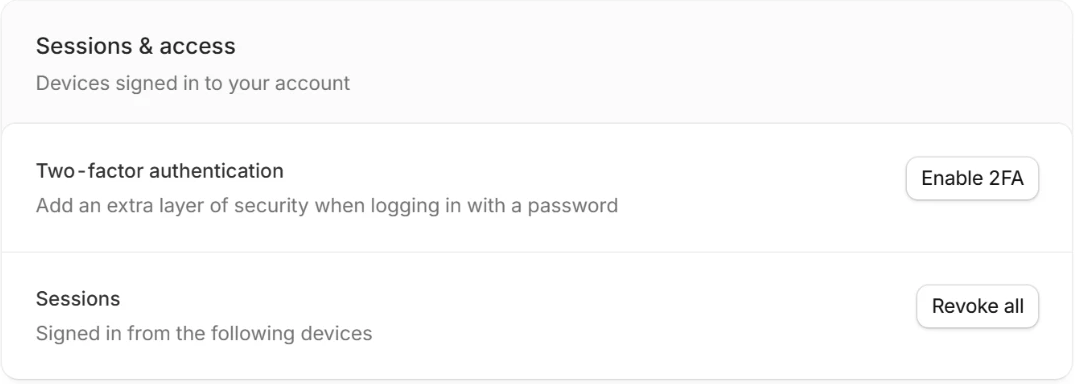
Enable 2FA.3
Verify with an authenticator app
Scan the QR code in the popup, and input the 6-digit code generated by your authentication app or password manager. Then, click
Enable.2FA is now enabled. You’ll be asked for a 6-digit code from your authentication app or password manager when logging in on a new device or browser, and after resetting your password.Turn off 2FA
In the My account page, go to Sessions & access and clickDisable 2FA next to Two-factor authentication.
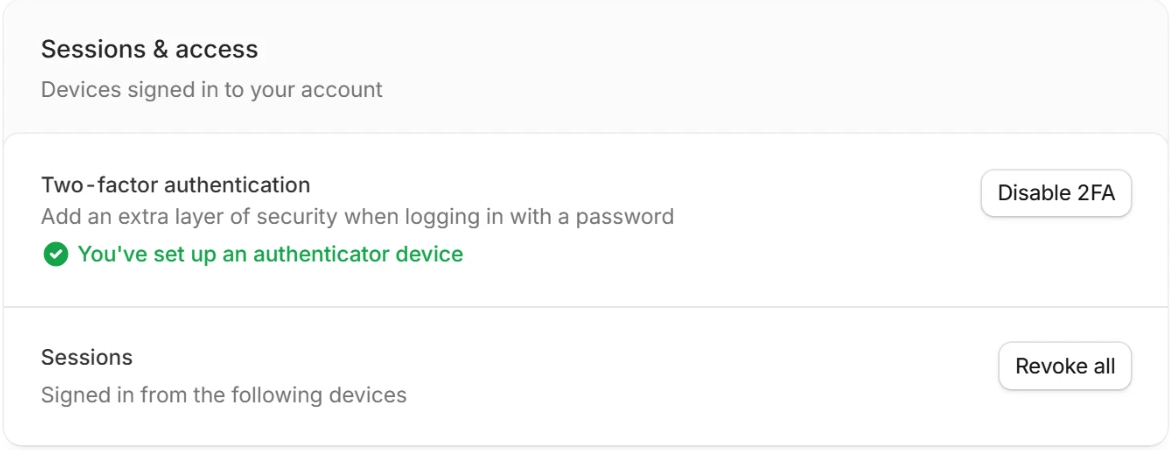
Disable. A wrong code is refused, and repeated attempts are slowed down, like password logins.
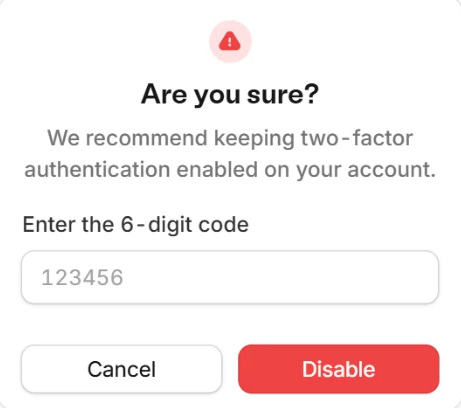
If you lost access to your authentication app, you can’t turn off 2FA yourself. Contact our support team. We’ll confirm it’s you, then turn off 2FA for every account with your email and sign you out everywhere.
Require 2FA for all org members
In Security settings, toggle theEnforce two-factor authentication in this organization switch.
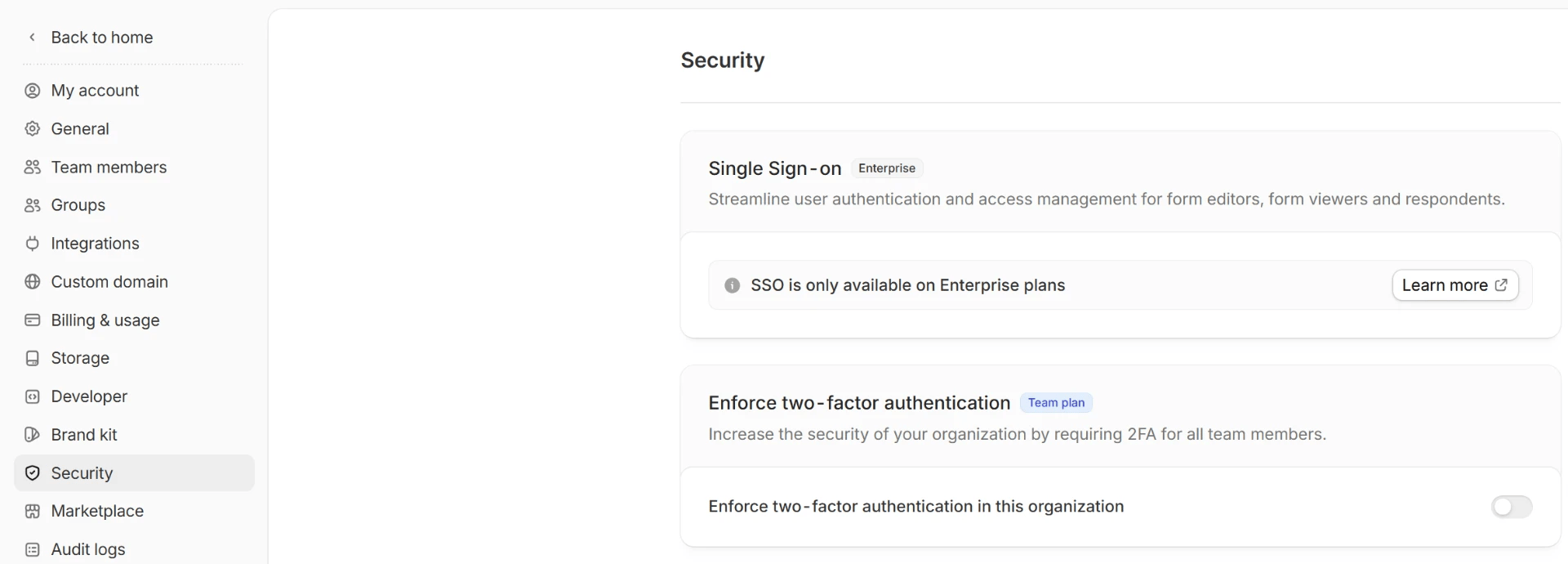
This feature is available on the Team plan. Learn more here.
Related article
SAML SSO
Enable SSO through Okta, Azure AD, and more.