

How it works
If your form includes a login page connected to a database, you can use data from the logged-in respondent or user throughout your form. Once a respondent logs in, all of their data from the connected table becomes available for use. This allows you to create more personalized, dynamic, and controlled form experiences. You can use logged-in user data in:- Answer piping - to personalize text in the form
- Logic conditions - show or hide fields or skip pages
- Record picker filters - to limit linked records that can be selected
- Prefetches - to auto-load existing user data
- Calculations - to use user data in formulas
- Prefilling fields - to auto-fill form fields
- Fillout workflows and integrations - map data directly and personalize notifications
How to use logged-in data
1
Connect to a database
Navigate to your login page. On the left-hand panel, toggle Connect to database.
2
Open reference menu
Depending on your setup, the reference menu may appear automatically. If not, type @ or click the 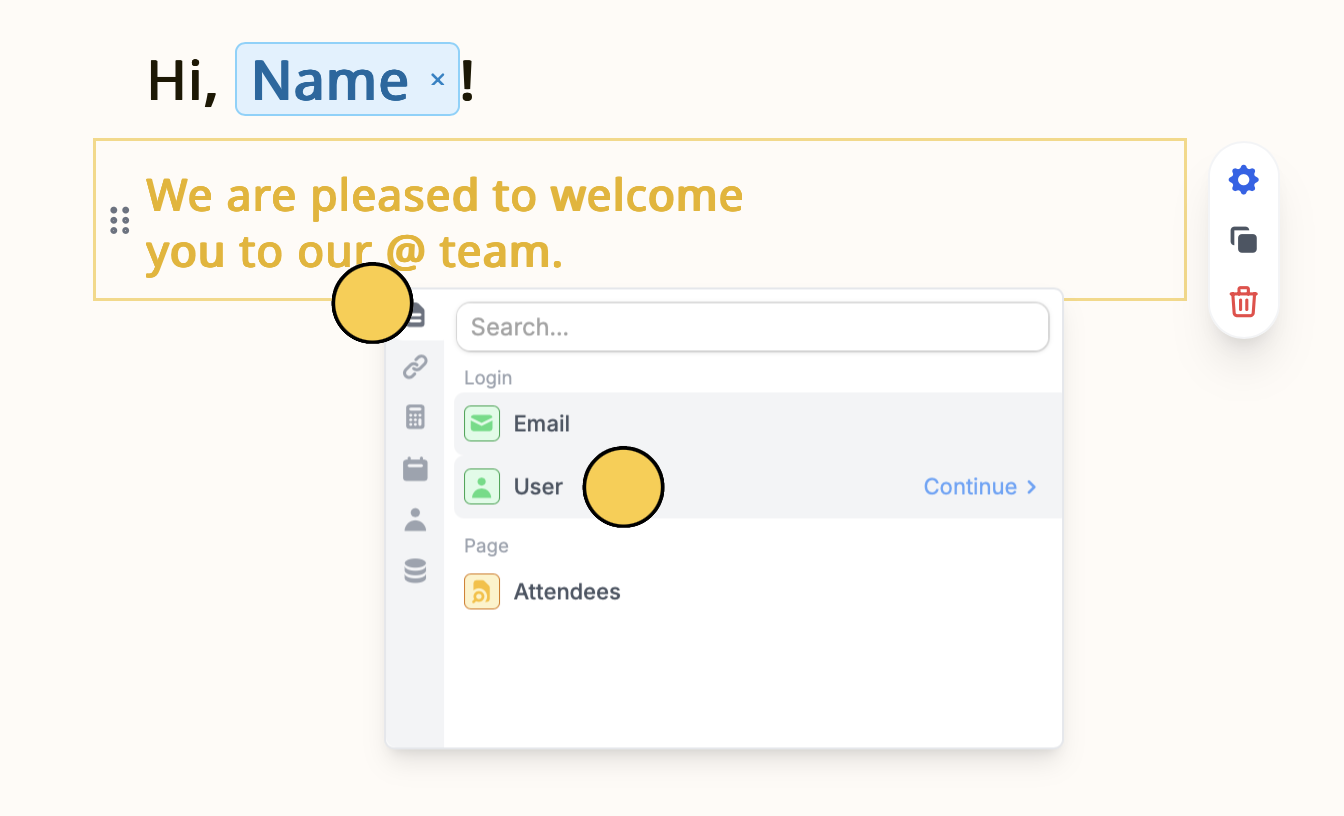
plus icon .3
Select field
Click the field you’d like to insert or use. In this example, we’ll choose “Department”.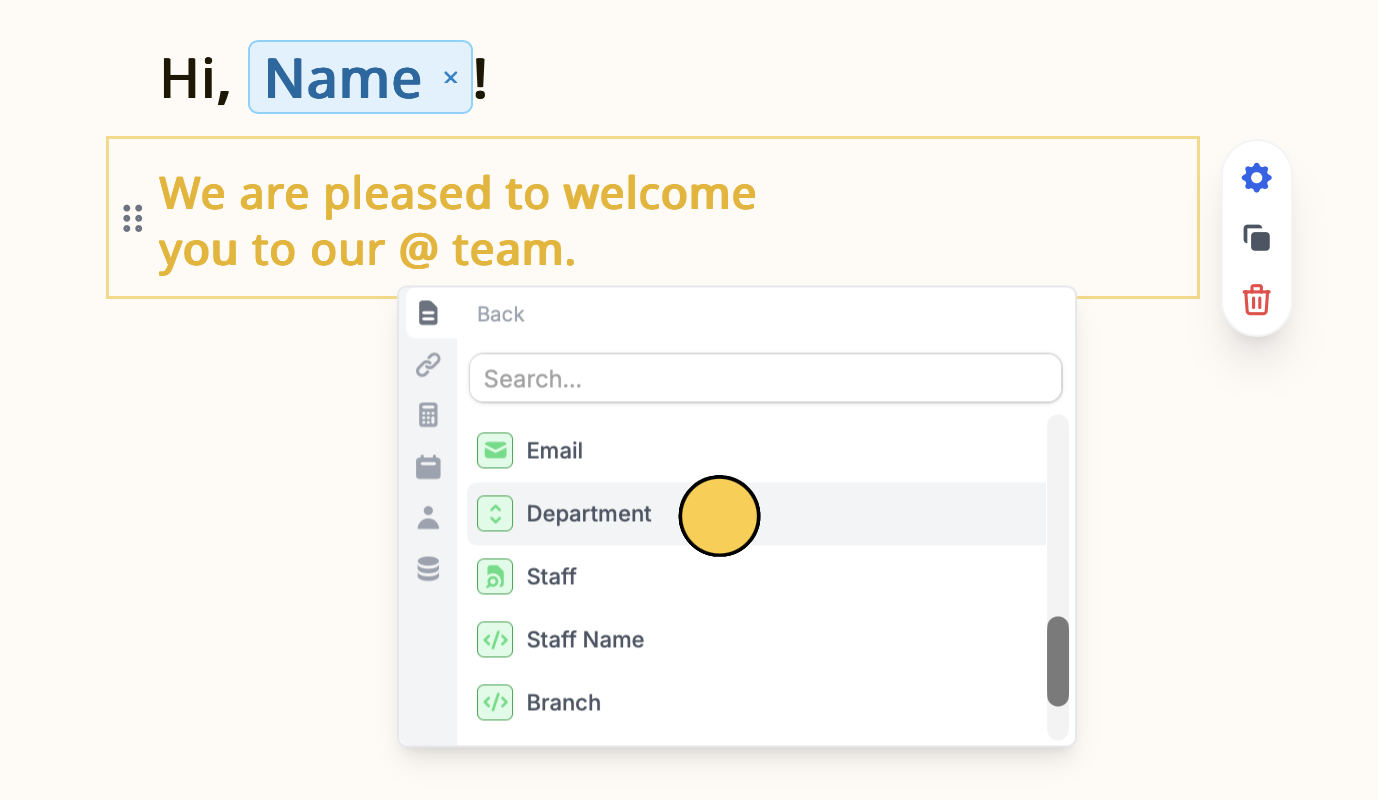
Prefill known information
Avoid asking respondents to re-enter data you already have. For example, auto-fill fields with their name, email, department and location. More info here.Show or skip pages based on user role
Control what users see based on their role or attributes using page logic. For example, if a logged-in user is a student, skip pages meant only for teachers.Make sure your form is set to update an existing record in your integration in order to use logged-in data.
Use logged-in data in workflows and integrations
Pass user data directly into Fillout workflows and other automations. For example, send notifications that include the user’s name or role. You can also map logged-in user data directly into Airtable, Notion, etc.Restrict record picker choices
Limit what respondents can see and select in the record picker dropdown based on their own data by adding filters. This helps avoid long lists and reduces the chance of selecting the wrong option.1
Open field settings
Click your record picker followed by its
gear icon .2
Add filters
In the right-hand panel, scroll down to Advanced and 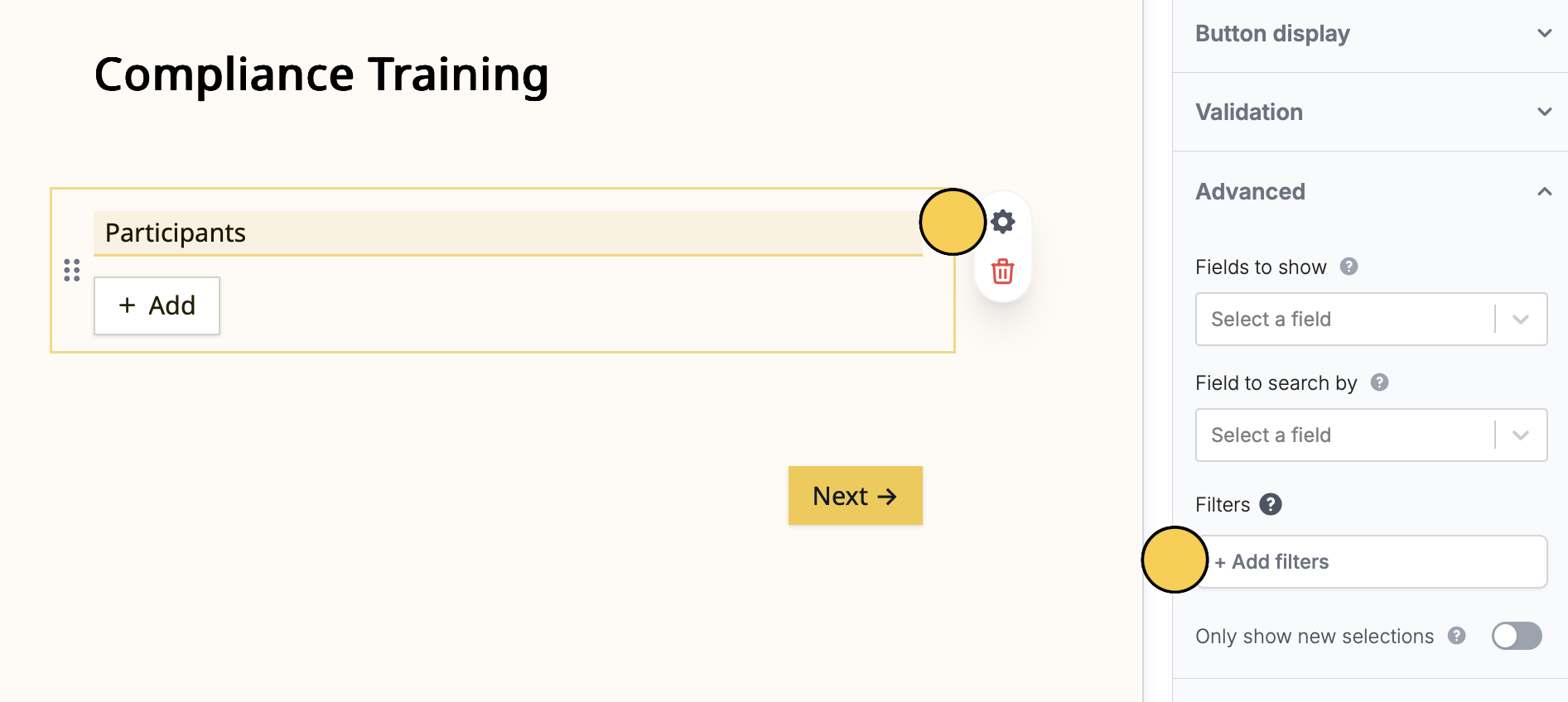
+ Add filters.3
Set condition
Click 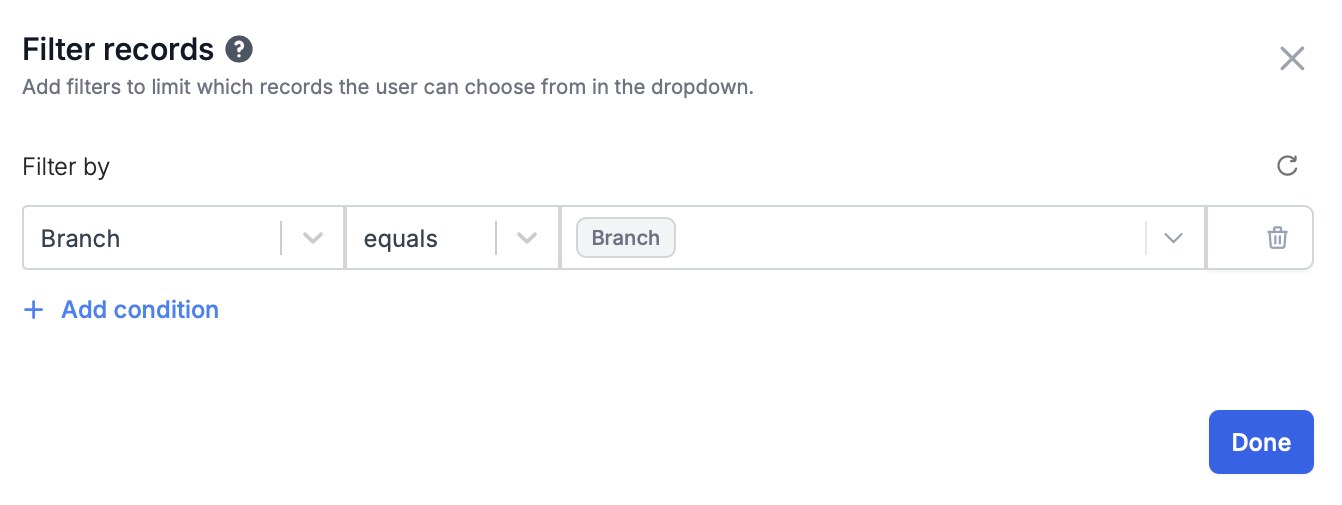
+ Add condition. For example, we’ll let store managers view and select employees only from their branch.- Left dropdown: Database field to filter by (e.g. location, department, or restock level)
- Center dropdown: Condition operators (like equals, does not equal, contains, less than, etc.)
- Right dropdown: Value to match against (Click User first followed by the field associated with them)
Require all filters at the bottom of the Filter records dialog to only show records once every filter can be applied.Filters currently only support AND logic. OR condition and does not contain can’t be applied.
Filters narrow the list of records respondents can choose from. Filters are now applied on the server, rather than relying on values supplied by the respondent’s browser. They’re still the right tool for keeping a dropdown short and relevant. If a record shouldn’t be reachable by the people filling out your form, keep it out of the table the picker is linked to.