

Overview
Connecting a Fillout form to Salesforce enables users to automatically sync form responses into a Salesforce object. Existing fields are mapped automatically; however, you can still make edits and updates with manual mapping. Fillout also lets you create records on multiple objects with a single form using master-detail relationships. A master-detail relationship creates a parent–child connection between two Salesforce records. Add this to your form to let respondents fill out a parent form and a subform to create related records, adding as many as needed.How to set up
1
Add a relationship field
On your Salesforce-connected form, add a 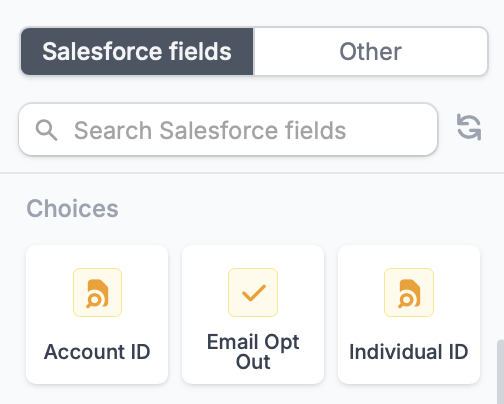
Relationship field from the left-hand panel. These are marked by .2
Enable record creation
Click the field’s to enable 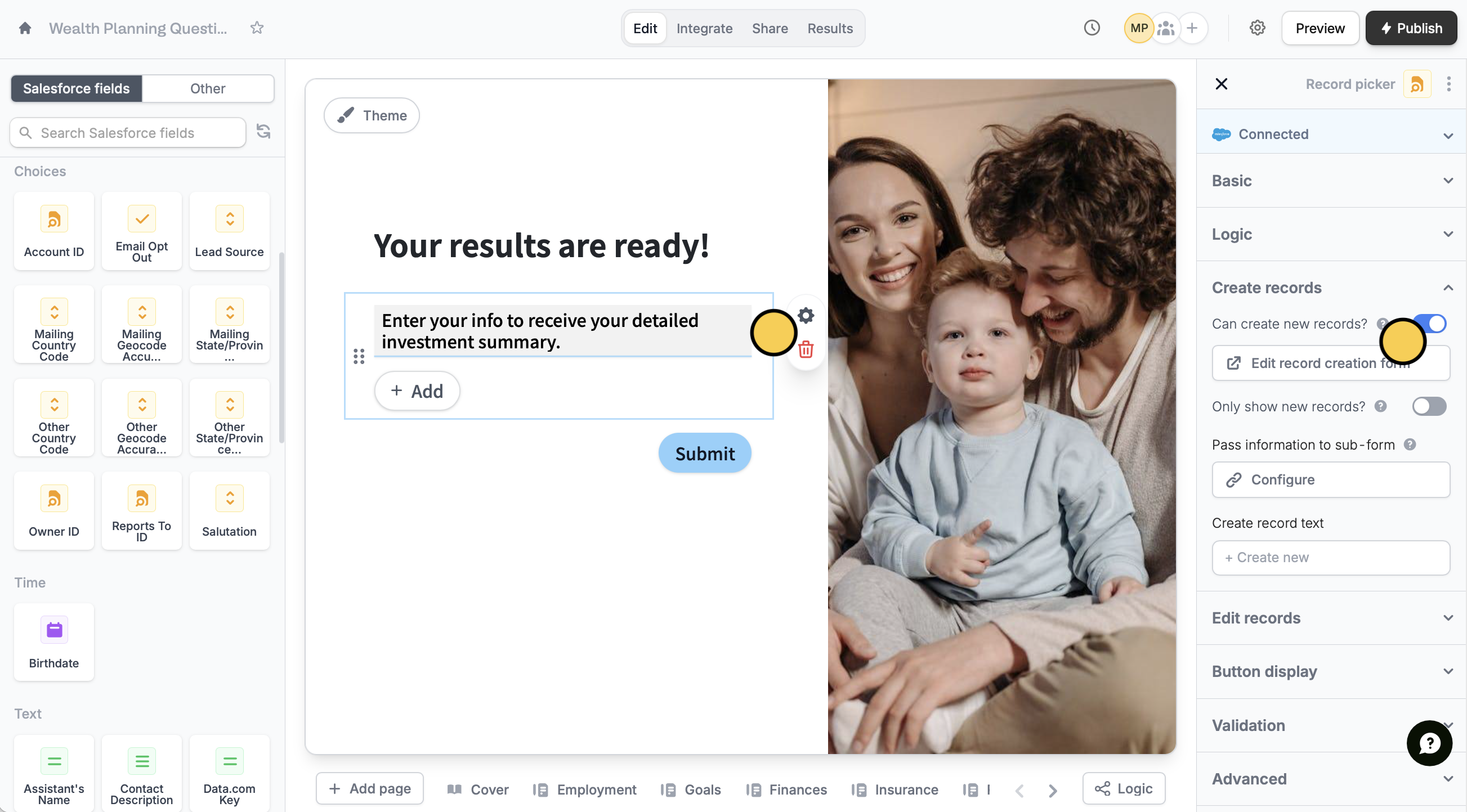
Can create new records?.- Edit record creation form - modify the subform used for creating new records
- Only show new records - let respondents create new records, but not select existing records
- Pass information to subform - specify fields or info from your main form to the subform
3
Publish and share
When everything’s set, click 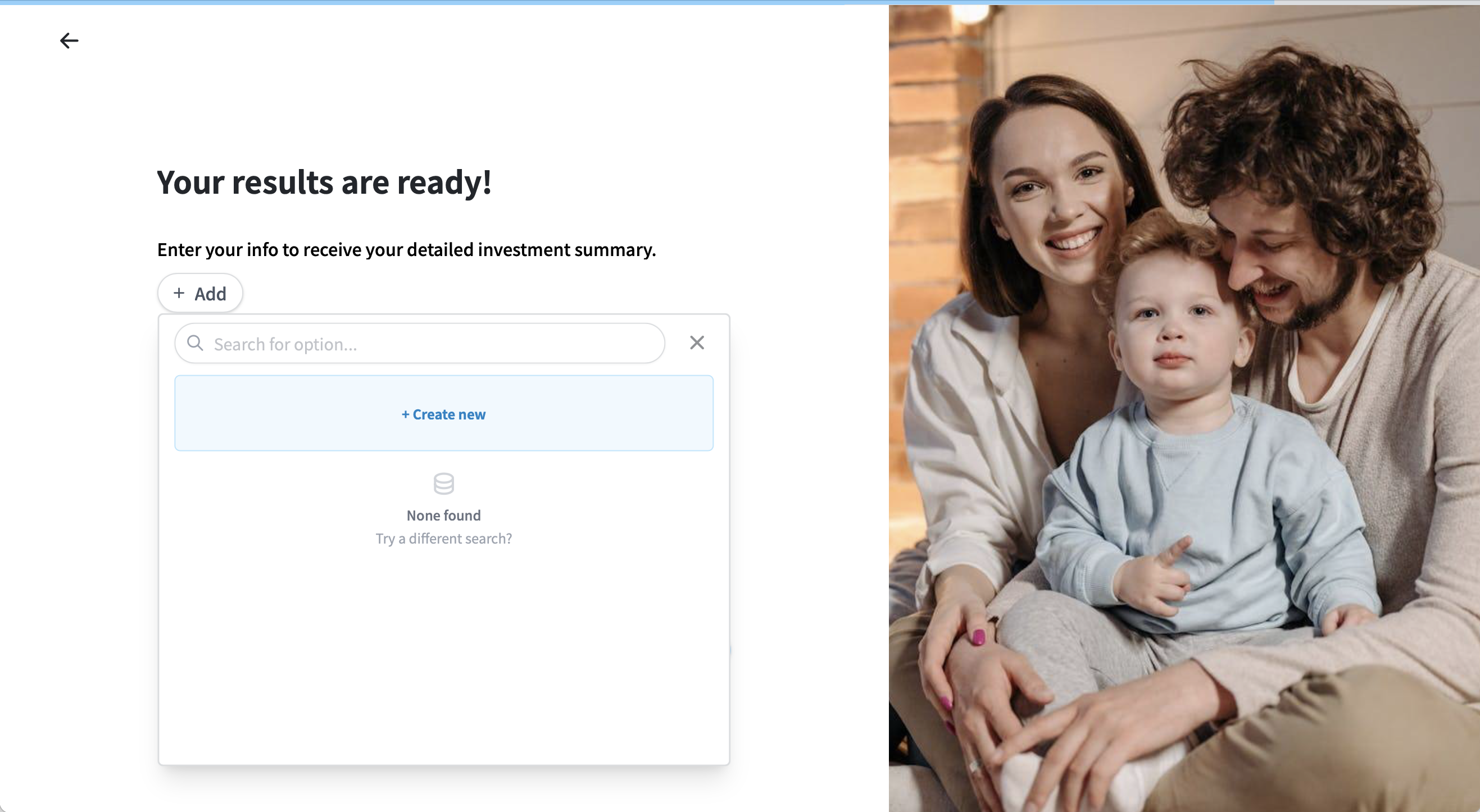
Publish to make the changes reflect. That’s it! Every form submission will now be created as records on both Salesforce objects.Salesforce guides
Create a Salesforce form
Add or update records with a form.
Update Salesforce records
Edit existing records and pre-fill fields.