

Documentation Index
Fetch the complete documentation index at: https://fillout.com/help/llms.txt
Use this file to discover all available pages before exploring further.
Get the data you need
To display dynamic data, first pull the data from Airtable, Notion, or another source into your form. There are several options for doing this, depending on your use case:- Login page - gives you access to the full user record of whoever logs in
- URL parameters - to pass any arbitrary information to your form (e.g., from Stacker, Softr, or other portals
- Record picker field type - to access any field in the record that is chosen. (You can also pre-fill record pickers.)
- Pre-fetch records - to fetch information from Airtable or Notion before your form loads
Reference the data in your form
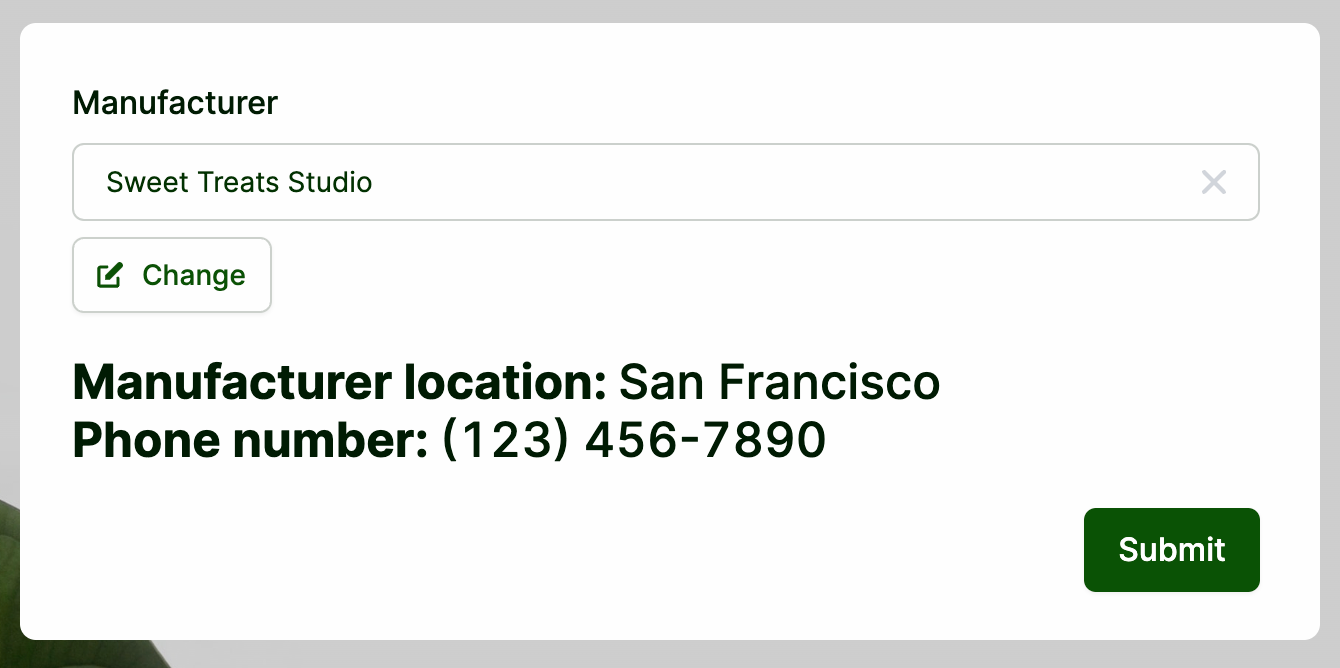
In Fillout, you can display data almost anywhere: in question labels, alerts, logic for hiding or validating questions, and more. In this example, we’ll use a Text field type, which lets us display uneditable, formatted text.Connect your Fillout form to Airtable
Follow the steps here. Once connected, Airtable fields will automatically show up in the left-hand panel. You can also manually map existing and new fields.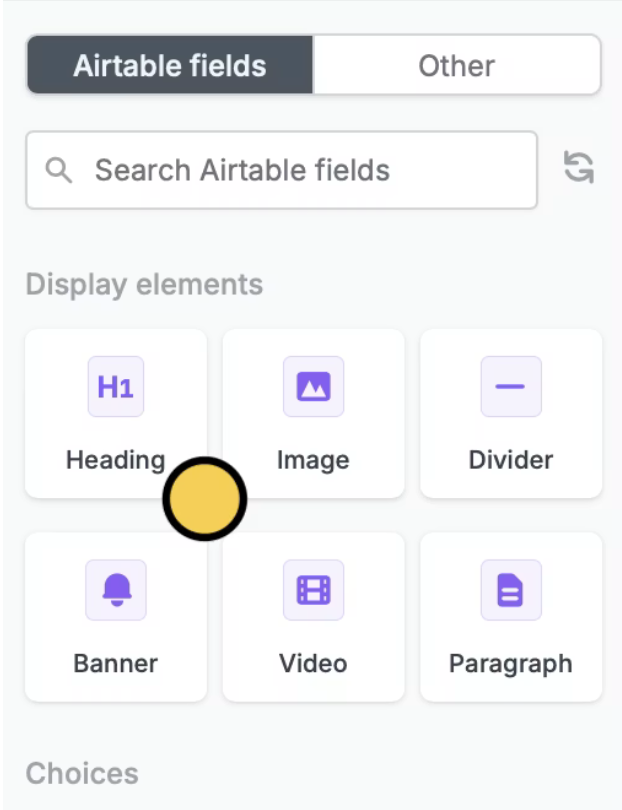
Add a Heading field
First, drag and drop the Heading field from the left-hand panel to your form. In this example, we have a record picker (Choose a manufacturer) that we want to display more information from.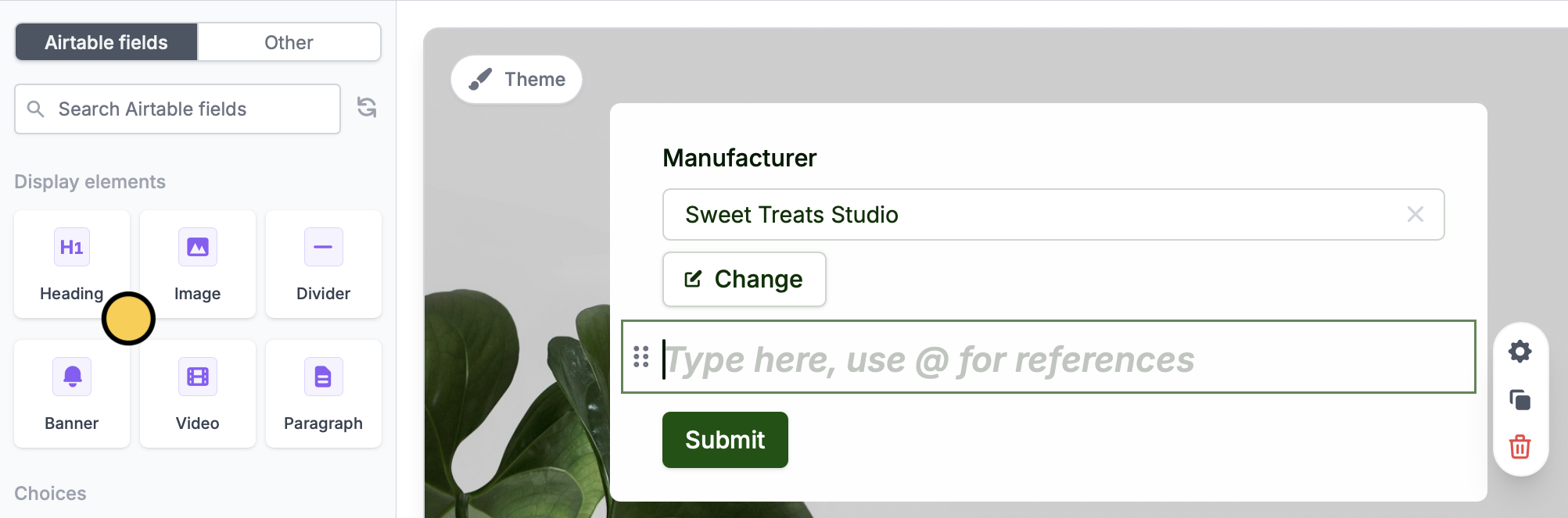
Reference a field
Type @ in the heading field to open a menu for picking references to previous form inputs. In the reference picker, click field you want to display.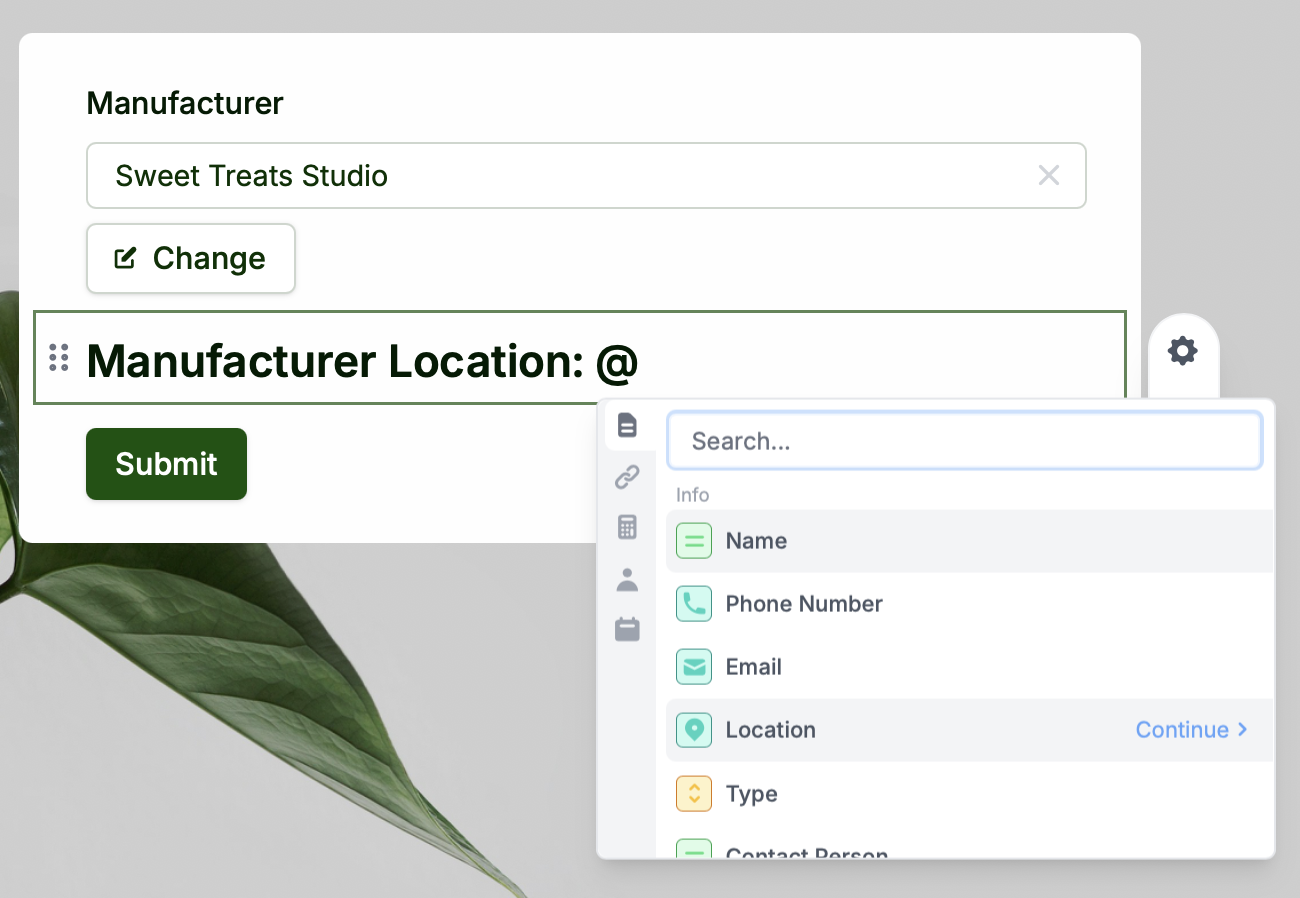

Other places to reference data
You can also reference the result of the integration step in show/hide and validation conditions to customize your form and prevent input errors. Click a field’s to open the right-hand panel. For example, let’s show a warning when a field is missing in a record.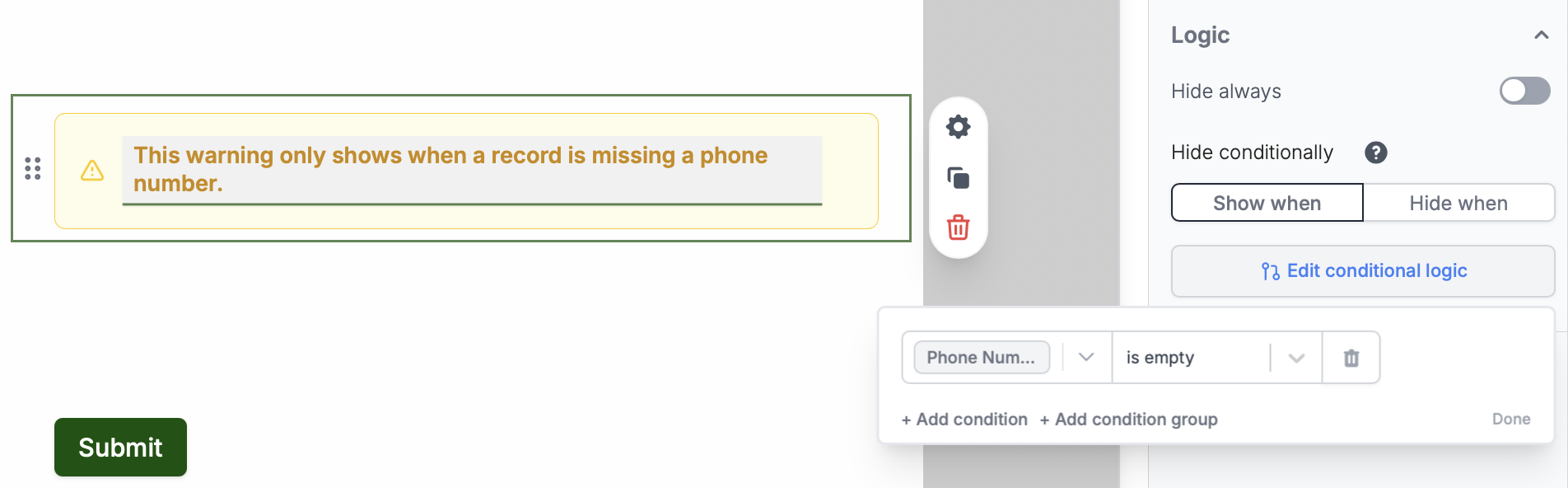
Related articles
Map fields
Configure form fields and values to send to integrations.
URL Parameters
Pass information to a form to support pre-filling.
Pre-fetch dynamic data
Fetch info from a tool before your form loads.