

How to add a ranking question type
Scroll down on the left-hand panel of your form and select Ranking.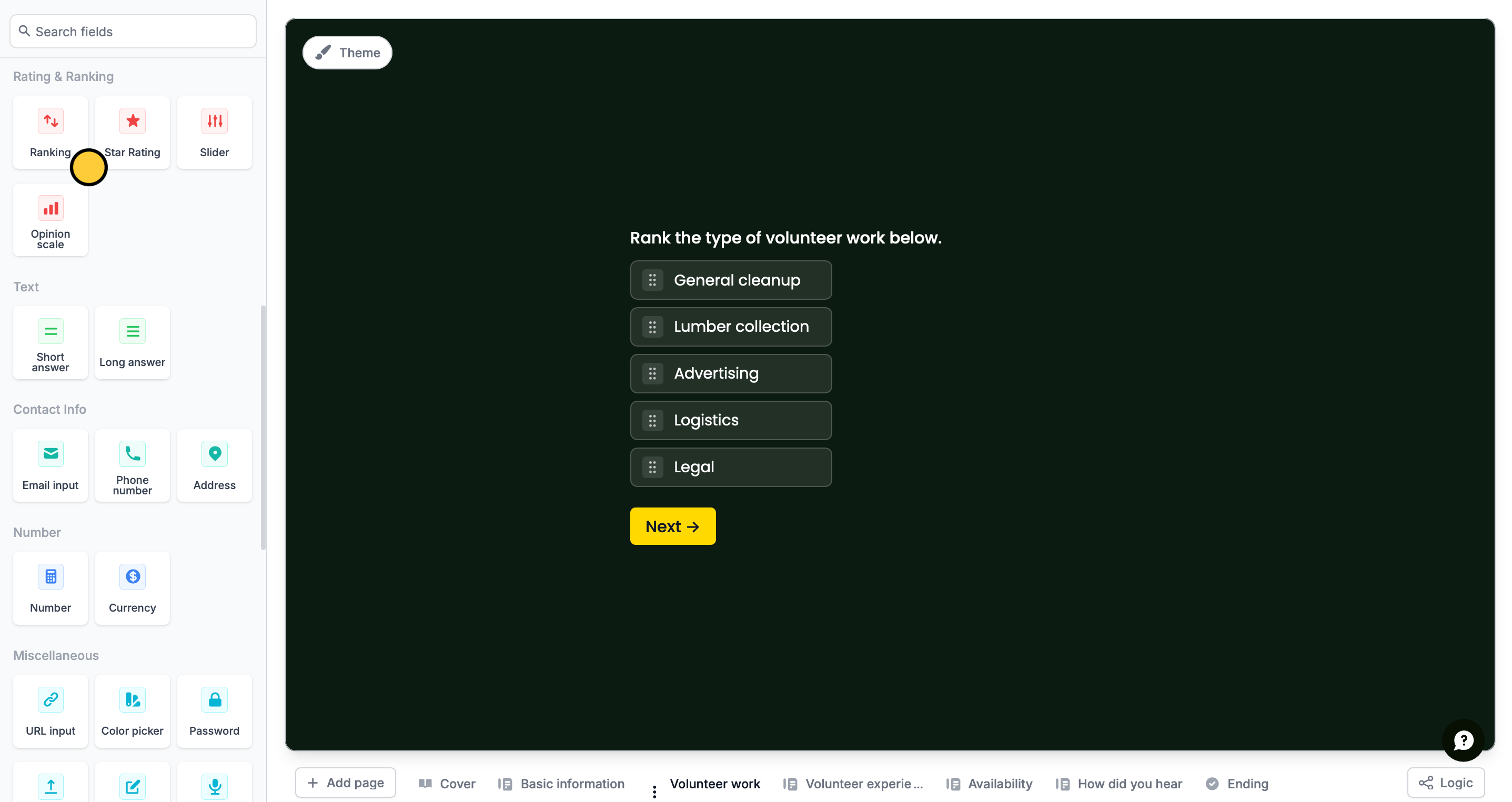
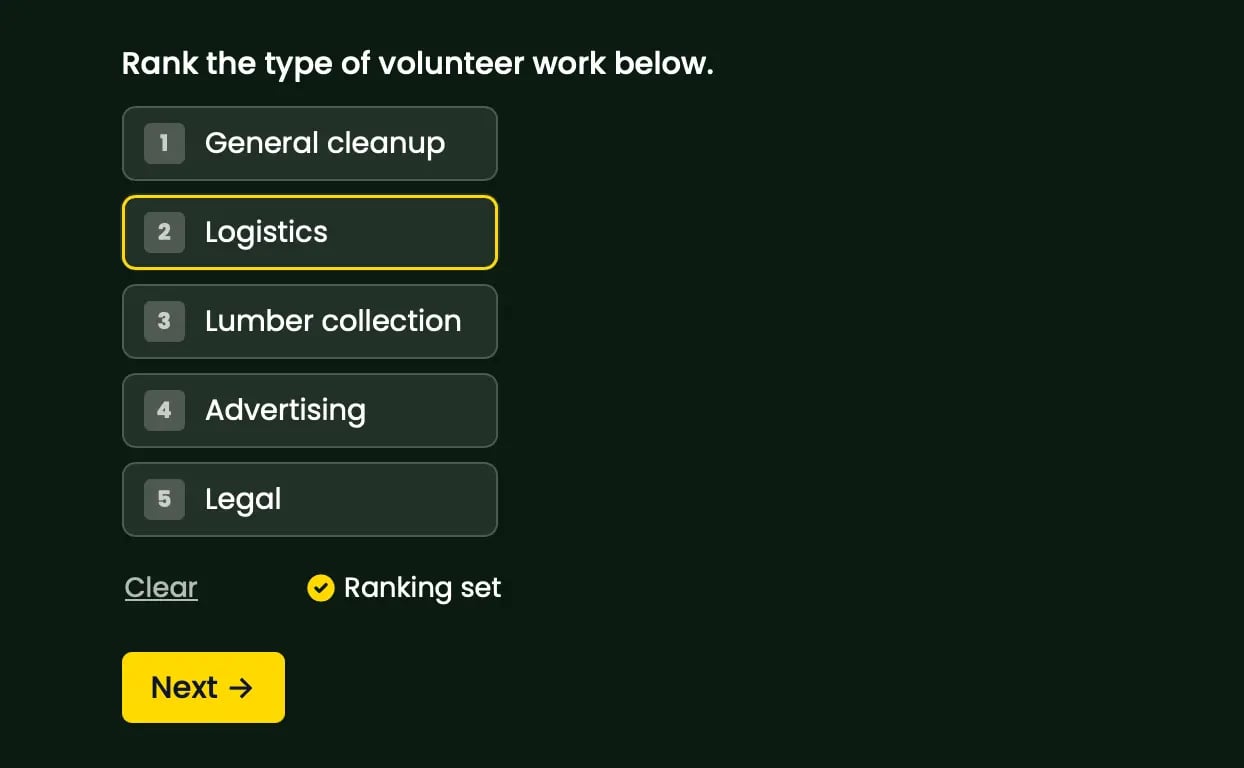
Ranking vs rating
Although they may sound synonymous, ranking and rating questions have different purposes. Ranking questions are used to determine how strongly or weakly a respondent feels with items on a list. For example, asking respondents to rank their most and least favorite dessert. On the other hand, rating questions are asked to compare options on a scale. For example, asking them how they feel about a hybrid working setup from a scale of 1 to 10.Related article
Add a rating scale
Allow respondents to score how good or bad an attribute is.