

How to add a field
Click or drag and drop your chosen field type from the left-hand panel, then type your question or text.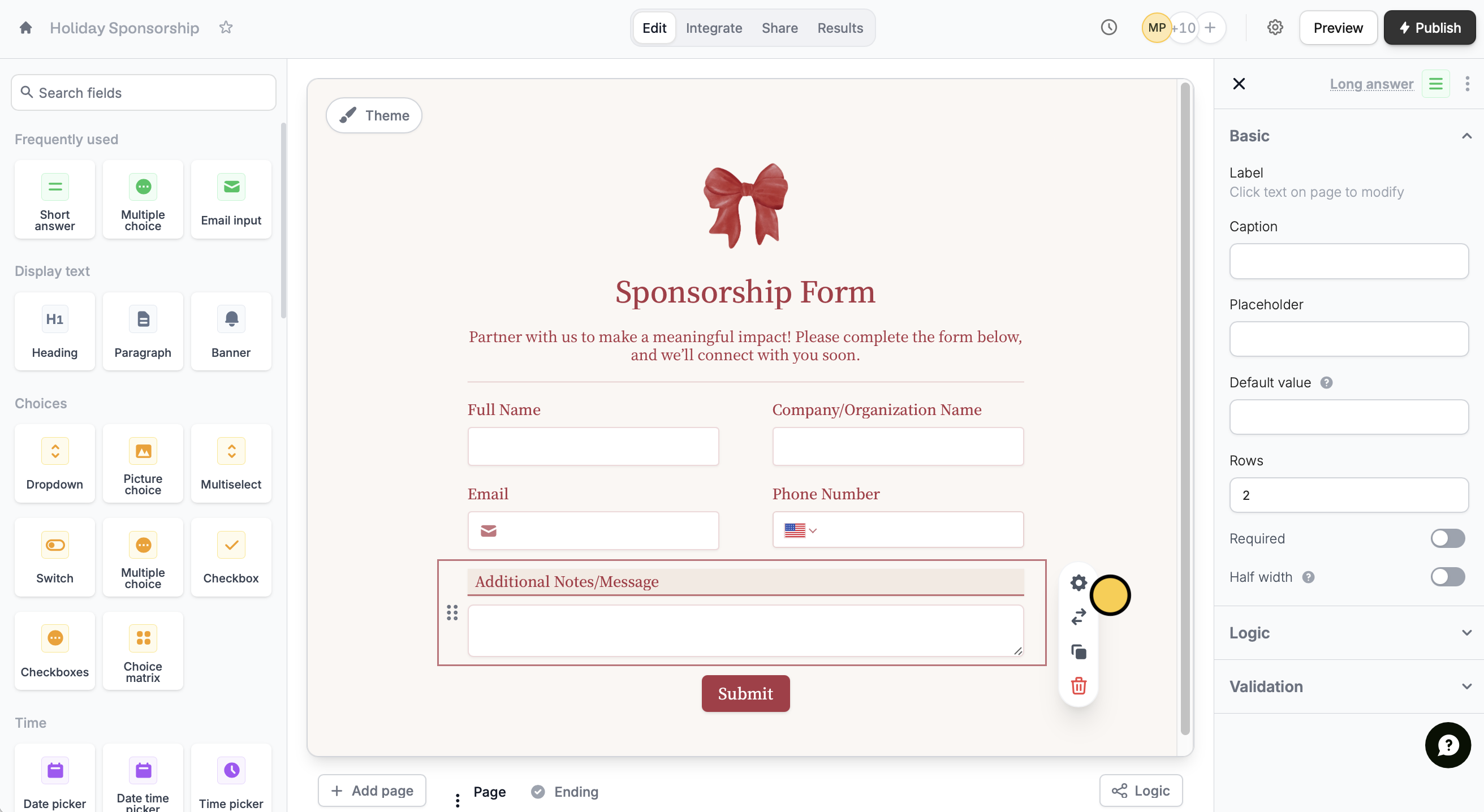
Change field type
Click a field followed by theswap icon to select a different field type.
Switching to a suggested field type keeps your current settings. It only works with compatible types that support the same answers (e.g., Multiselect → Checkboxes, Multiple Choice → Dropdown).
Delete or move a question
Answers belong to the question and the page it’s on, so deleting or moving a question that already has answers changes what you see in Results.Delete a question
When you delete a question that has answers on a published form, Fillout asks Delete question and lose responses?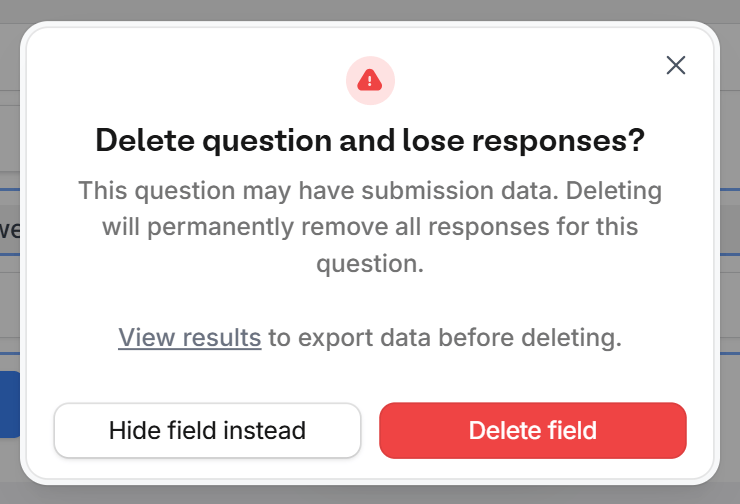
- Hide field instead turns on Hide always for the question, so respondents don’t see it and its answers stay in Results.
- Delete field deletes it. Its column and answers disappear from Results and exports right away. To keep a copy, click View results in the warning and export your results first.
Move a question to another page
Answers are saved per page. When you move a question that has answers to another page with Move, Fillout warns You will lose answers previously collected from this field. The question’s column stays in Results, but its earlier answers are empty. Moving it back to its original page brings them back. If the question is used in workflows or PDFs, check their mappings after the move.Change to a type that isn’t compatible
To switch a question to a type that collects different answers, like Multiple choice to Checkboxes, add a new question and hide the old one, so its answers stay in Results.List of field types
Premium question types
Question types with the symbol are available on the Fillout Starter, Pro and Business plans, and on Team and Enterprise. Zite Free, Pro and Business plans don’t include them for forms. On the Fillout Free plan, you can add these question types, but the editor shows Premium field and you’ll need to upgrade before you can publish the form.
Related articles
Duplicate questions
Build forms faster by duplicating existing questions or fields.
Hide fields
Hide or show fields based on answers, URL parameters or data.
Add custom values
Assign different values to the choices shown to respondents.